-
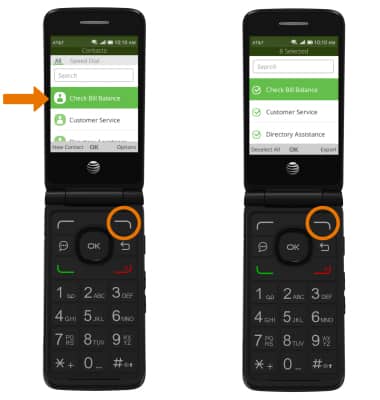
ACCESS YOUR CONTACTS: From the home screen, press the OK button. Press the directional buttons to navigate to and highlight Contacts, then press the OK button.
-
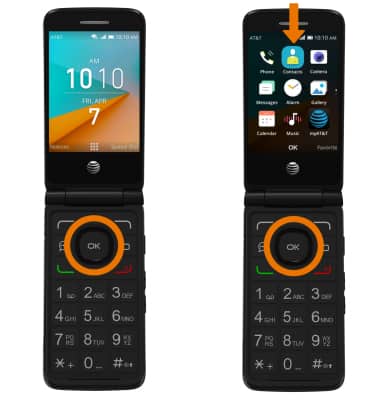
CREATE A CONTACT: Press the left option button to select New Contact. Enter the desired contact information.Note: If you do not want to add a picture or unique ringtone to your new contact, proceed to Step 5 to view how to save a Contact.
-
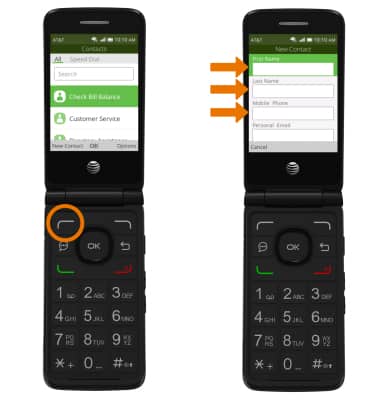
ADD PICTURE TO CONTACT: From the New Contact screen, navigate to and select Add Picture > desired option > desired picture > press the right option button to select Done.
-
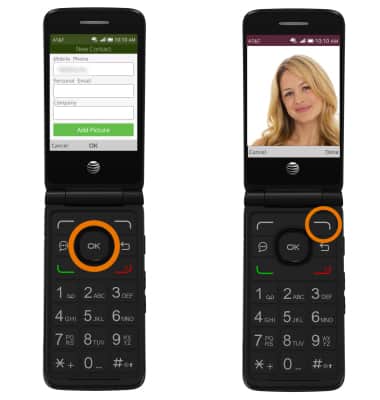
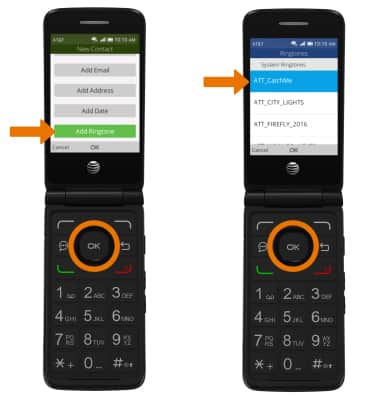
ADD RINGTONE TO CONTACT: From the New Contact screen, navigate to and select Add Ringtone > desired option > desired ringtone.
-
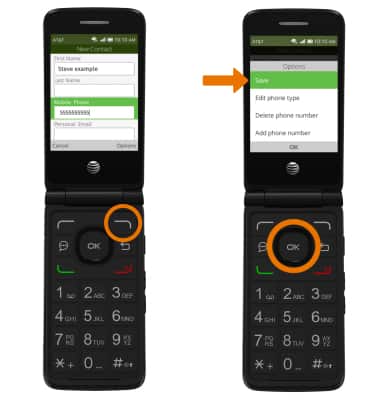
SAVE CONTACT: From the New Contact screen, press the right option button to select Options. Navigate to and select Save.
-
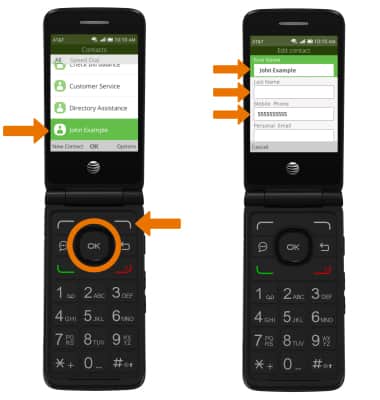
EDIT CONTACT: From the Contacts list, navigate to and select the desired contact > press the right option button to select Options > navigate to and select Edit > Edit the contact as desired.
-
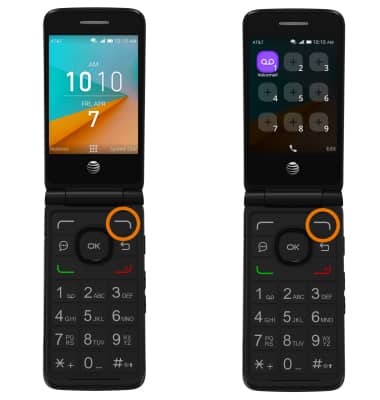
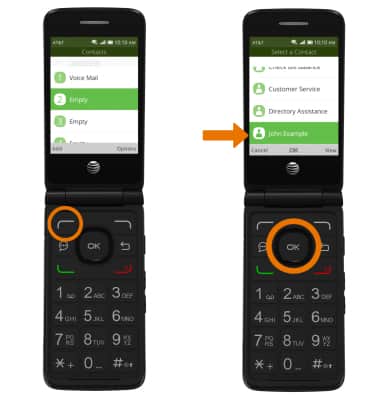
ADD CONTACT TO SPEED DIAL: From the home screen, press the right option button to select Speed Dial then press the right option button to select Edit.
-
Navigate to the desired speed dial number, then press the left option button to select Add. Navigate to and select the desired contact.Note: Speed dial number 1 is reserved for voicemail.
-
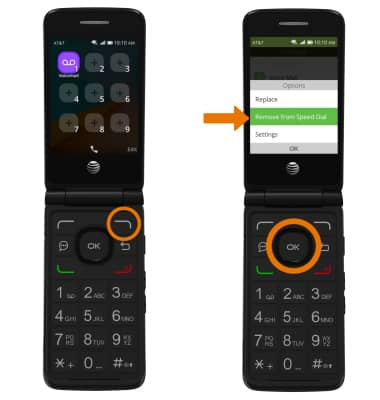
REMOVE CONTACT FROM SPEED DIAL: From the Speed Dial screen, press the right option button to select Edit > navigate to the desired contact to remove > press the right option button to select Options > navigate to and select Remove from Speed Dial.Note: You will be prompted to press the right option button to confirm.
-
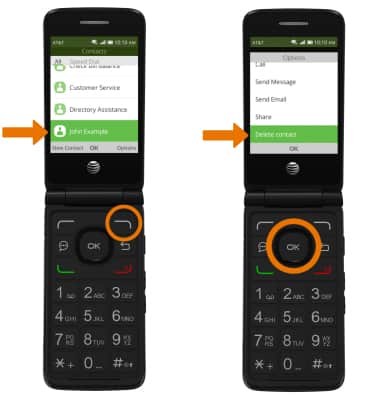
DELETE A CONTACT: From the Contacts list, navigate to the desired contact to delete > press the right option button to select Options > navigate to and select Delete contact.Note: You will be prompted to press the right option button to confirm.
-
BACKUP CONTACTS: From the Contacts list, press the right option button to select Options > navigate to and select Settings > Export contacts > desired export location > select desired contacts to export > press the right option button to select Export.