-
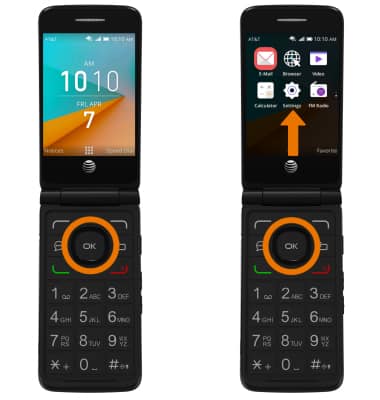
TURN ON WI-FI: From the home screen, press the OK button. Press the directional buttons to navigate to and highlight the Settings app, then press the OK button.Note: To optimize battery life, turn Wi-Fi off when not in use.
-
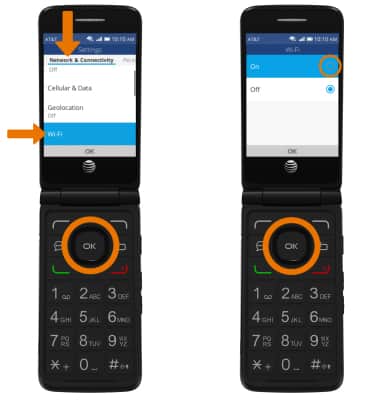
From the Network & Connectivity tab, navigate to and select Wi-Fi then select On.
-
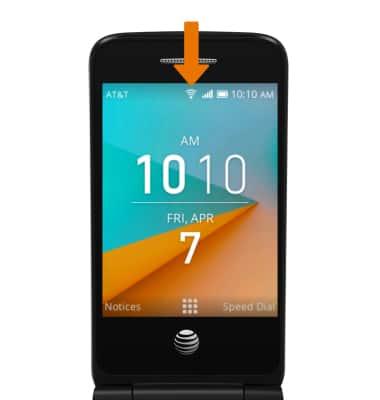
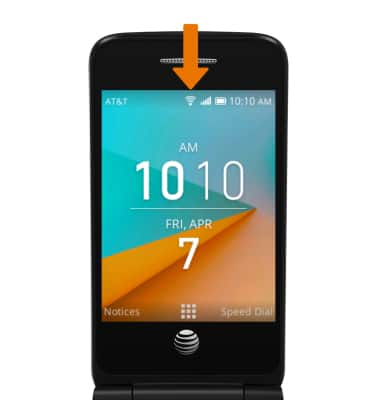
When Wi-Fi is on, the Wi-Fi icon will display in the Notification bar.
-
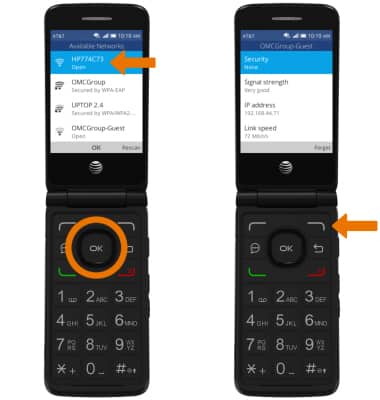
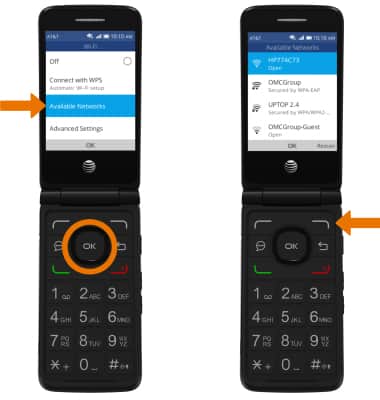
SCAN FOR WI-FI NETWORKS: From the Wi-Fi screen, navigate to Available Networks then press the OK button. To rescan, press the right option button to select Rescan. To connect to a Wi-Fi network, navigate to the desired Wi-Fi network then press the OK button.Note: Once Wi-Fi is enabled, navigate to Advanced Settings > Manage Networks > Join Hidden Network to connect to a hidden or unbroadcasted Wi-Fi network. You will need to enter the network SSID, security type, and a password (if necessary) to continue.
-
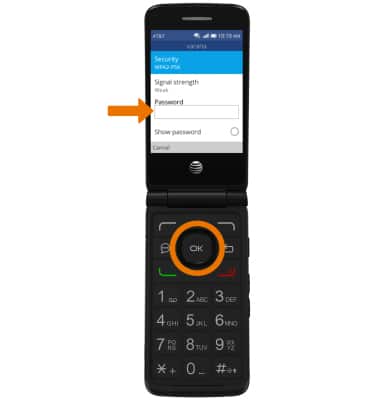
If connecting to a secure network, enter the Wi-Fi network password.Note: Secure networks will display with a Lock icon.
-
When Wi-Fi is connected, the Wi-Fi Connected icon will display in the Notification bar.
-
FORGET WI-FI NETWORK: From the Available Networks screen, navigate to the desired Wi-Fi network then press the OK button. Press the right option button to select Forget.