
To access Visual Voicemail, you must have already Set Up Voicemail. Alternatively, you can check your voicemail messages by selecting the Phone app from the home screen > select and hold the 1 key > if prompted, enter your voicemail password > follow the prompts to listen to your messages. If you have forgotten your existing voicemail password, you will not be able to access voicemail until you reset your voicemail password.
In this tutorial, you will learn how to:
• Access & listen to a voicemail
• Access voicemail options
When a new voicemail is received, the

Voicemail icon will appear in the Notification bar.
Access & listen to a voicemail
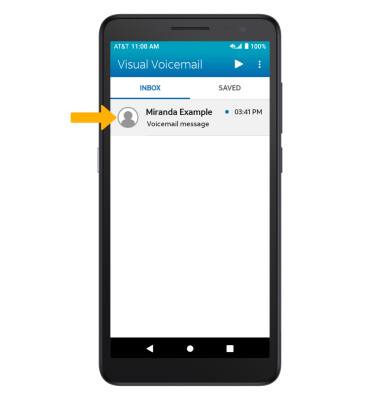
ACCESS: From the home screen, swipe up to access the Apps tray. Swipe left, then select the  Visual Voicemail app.
LISTEN: Select the desired voicemail message.
Access voicemail options
Select the corresponding icon.
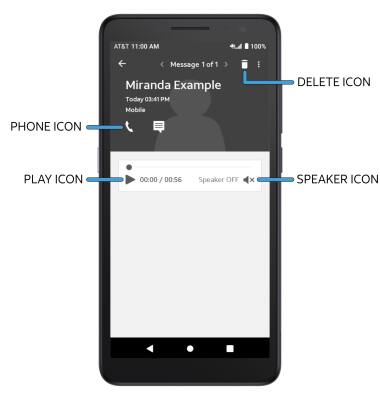
• CALL BACK: Select the Phone icon to call back the phone number.
• PLAY/PAUSE: Select the Play icon to play the message. Select the Pause icon to pause the message.
• DELETE: Select the Delete icon to delete a voicemail.
• SPEAKER: Select the Speaker icon to enable or disable speaker mode.
ADDITIONAL OPTIONS: Select the  Menu icon then select the desired option.
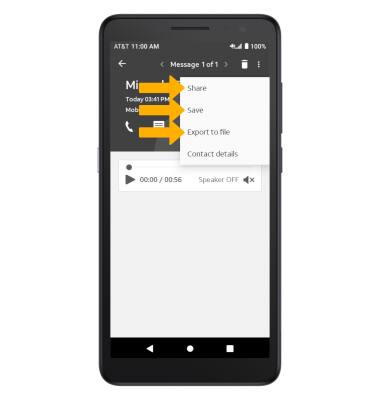
• SHARE: Select Share to share the voicemail.
• SAVE: Select Save to save the voicemail to your device.
• EXPORT: Select Export to file to save the voicemail as a file that you can easily transfer off the device.
Note: View Access voicemail messages for tips to manage your voicemail. Go to Troubleshoot Voicemail for solutions to common voicemail problems.