This device is available with 4GB of internal memory and the option to add a MicroSD card (sold separately) up to 32GB. Purchase an SD memory card to expand your device memory. In this tutorial, you will learn how to:
• View available storage
• Free up memory
• Clear app data
• Add storage
View available storage
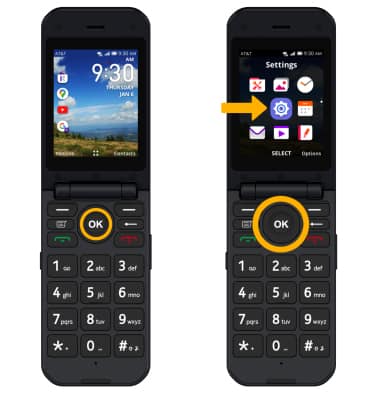
1. From the home screen, press the OK key to access the Apps tray. Press the navigational buttons to highlight the Settings app, then press the OK key to select.
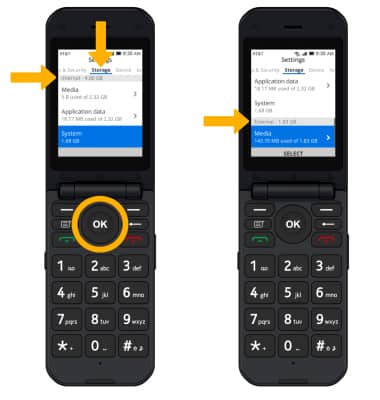
2. Press the right or left button to navigate to the Storage tab, then press the down button to view internal and external storage.
Note: External memory will only be displayed when there is a memory card in your device.
Free up memory
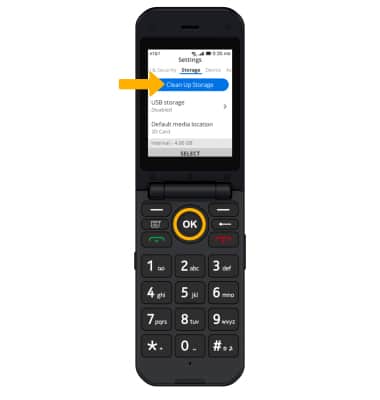
1. From the Storage tab of the Settings screen, ensure that Clean Up Storage is highlighted then press the OK key to select.
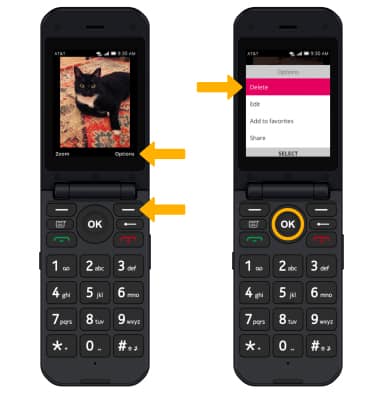
2. To delete unwanted Documents, Images, Contacts, Messages and more, press the up or down button to highlight the desired field, then press the OK key. Press the navigational buttons to highlight the desired content, then press the OK key to select.
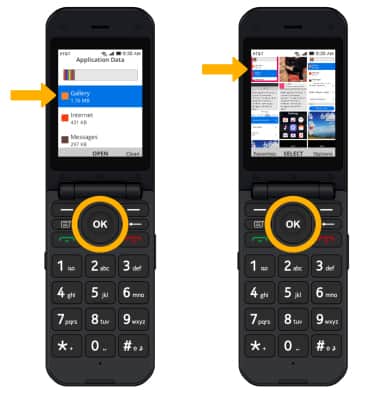
3. Press the right menu button to select Options then ensure that Delete is highlighted and press the OK key.
Note: Press the right menu button to confirm.
Clear app data
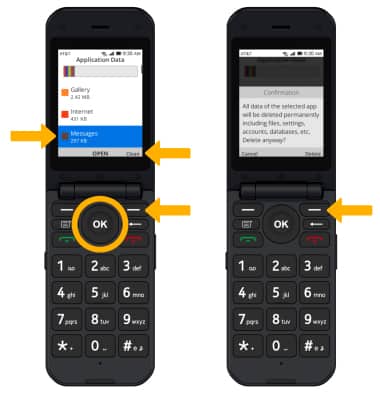
To delete all app data for an individual app, from the Clean Up Storage screen, press the up or down button to highlight the desired app, then select the right menu button to select Clean. Press the right menu button again to confirm.
Note: Alternately, from the Storage tab on the settings screen, press the down button to highlight Application Data > press the OK key > navigate to the desired app > press the right menu button > press the right menu button again to confirm.
Add storage
Purchase an SD card.
Note: For information on storing data to a memory/microSD card, visit the Backup & Restore with a Memory Card tutorial.