In this tutorial, you will learn how to:
• Clear the app cache
• Force stop an app
• Check for app updates
• Remove an app
• Reinstall an app
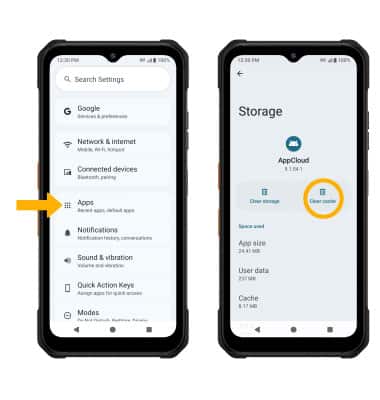
Clear the app cache
1. Swipe down from the Notification bar with two fingers, then select the

Settings icon.
2. Select Apps > See all apps > desired app > Storage & cache > select Clear cache.
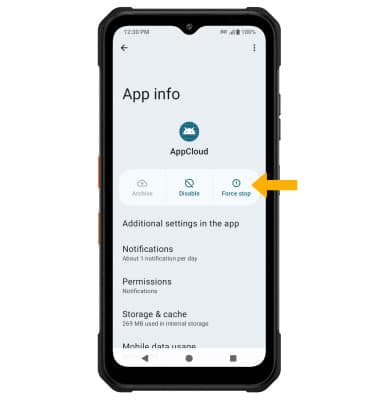
Force stop an app
From the desired app screen, select Force stop.
Note: You will be prompted to select OK to confirm.
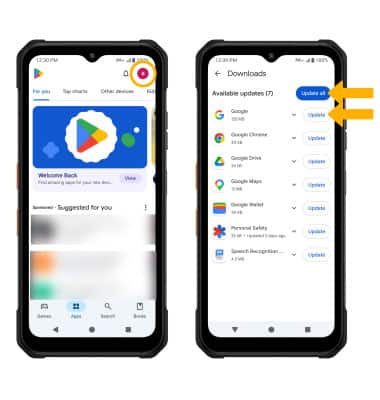
Check for app updates
From the home screen, select the  Play Store app > Account icon > Manage apps & device > Updates available > select Update next to the desired app or select Update all to download all available app updates.
Remove an app
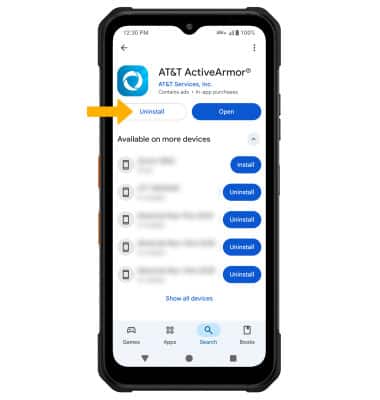
From the desired app page in the Play Store, select Uninstall.
Note: You will be prompted to select **Uninstall**to confirm.
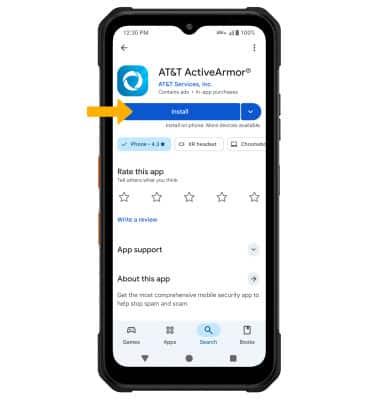
Reinstall an app
From the desired app page in the Play Store, select Install.