In this tutorial, you will learn how to:
• Check network status
• Check blocked devices
• Check Broadcast SSID status
• Change Wi-Fi band
Check network status
If your AT&T BGW830 Mobile network is not found, check the cellular signal status first. The more green LED lights that are displaying, the stronger the cellular signal. When the device is not receiving a cellular signal, the signal lights will not display.
Check blocked devices
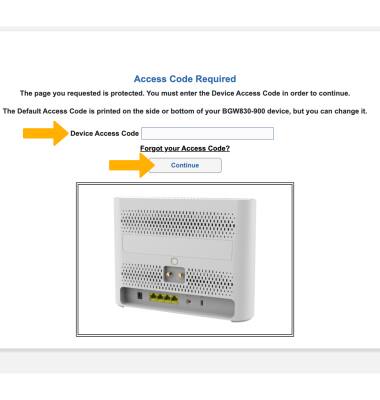
If you cannot find the AT&T BGW830’s network, your connected device may be on a Deny list if MAC filtering is enabled. To access MAC filtering, from your device’s web browser, go to https://192.168.1.254. Enter your Device Access Code, then click Continue.
Note: Ensure that your device is connected to your AT&T BGW830's Wi-Fi network. For more information, please see the Connect Devices to Wi-Fi or Connect PC or Mac to Wi-Fi tutorials. If this is your first time logging into the Web UI, use the default access code printed on the label on the back of the device.
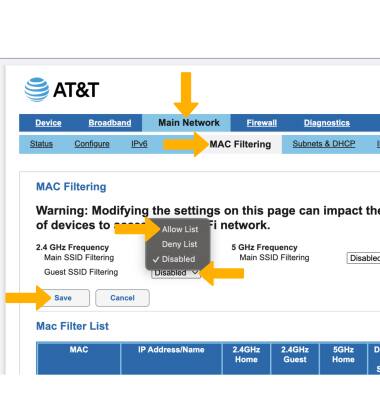
2. Click the Main Network tab, then click MAC Filtering. If your device is added to a MAC Filter List and added to a Deny list, click the drop-down next to the desired frequency then click Allow list. Click Save.
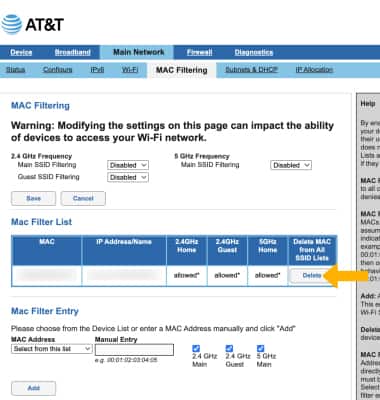
3. To delete your device off a MAC filtering list, click Delete next to the desired device.
Check Broadcast SSID status
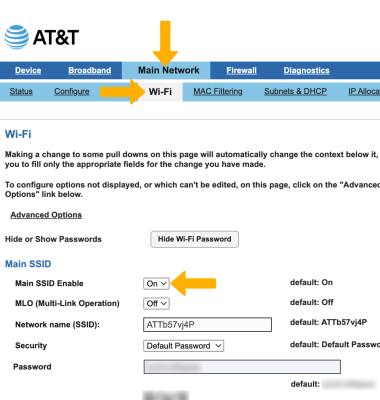
From the Web UI’s dashboard, click the Main Network tab then click Wi-Fi. Ensure that On is selected in the drop-down next to Main SSID Enable.
Change Wi-Fi band
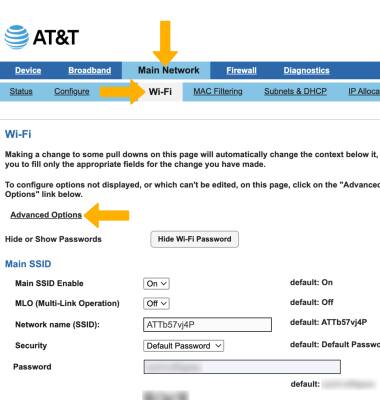
1. If you experience slow Wi-Fi speed due to numerous Wi-Fi routers in area, selecting an alternate channel may increase speed. From the Web Admin’s dashboard, click the Main Network tab then click Wi-Fi. Click Advanced Options.
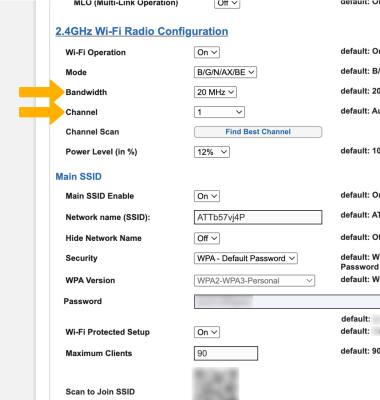
2. Scroll down to the desired Wi-Fi Radio frequency. Edit Bandwidth and Channel settings as desired.
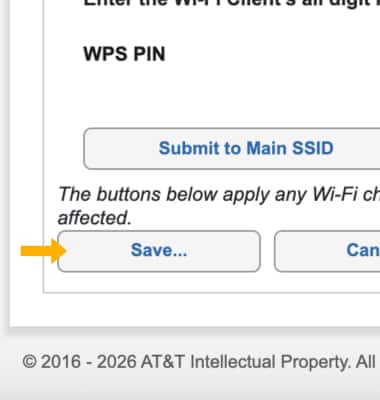
3. When finished, scroll down to and click Save.