In this tutorial, you will learn how to:
• Access Enhanced Push-to-Talk
• Make a call
• End a call
Access Enhanced Push-to-Talk
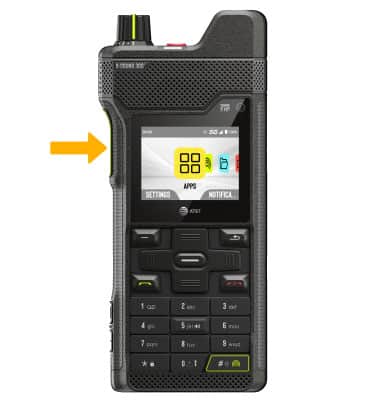
1. From the home screen, long press the PTT button.
Note: If it is your first time accessing Push-to-Talk using the PTT button, review the Current Key Assignment prompt, then press the Navigation keys to highlight the desired option. Press the Select button.
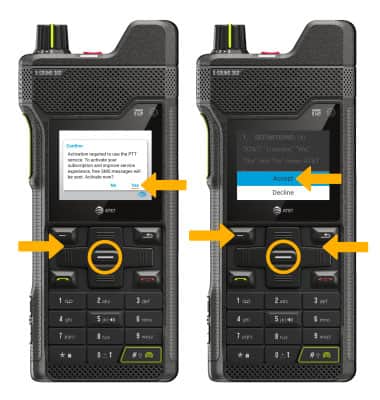
2. Review the "Confirm activation" prompt. Ensure that Yes is underlined, then press the Select button. Review the End User License Agreement, then press the Left option button. Ensure that Accept is highlighted, then press the Select button.
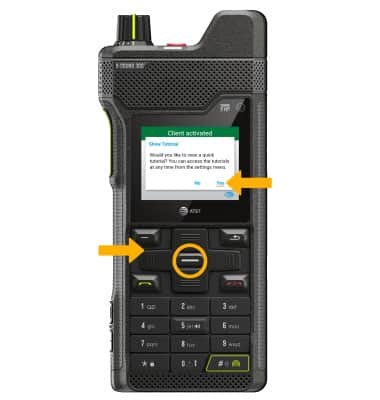
3. Review the tutorial prompt. Use the navigation keys to underline the desired option, then press the Select button.
Note: For this demonstration, No was selected. The tutorial can be viewed later in the AT&T Enhanced Push-to-Talk Settings. From the AT&T Enhanced Push-to-Talk screen, press the Right Dynamic key to select Options > press the down navigation key to highlight Settings > press the Select button > press the down navigation key to highlight Show Tutorial > press the Select button.
Make a call
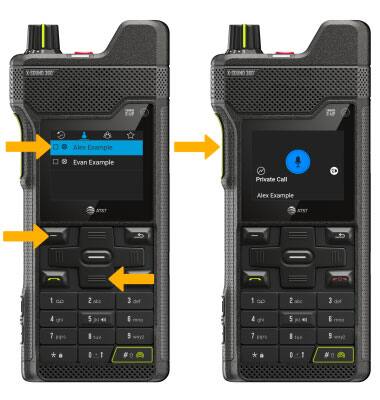
From the Contacts tab, press the down navigation button to highlight the desired contact to call. Press and hold the E****PTT button and begin speaking to make a call.
Note: While on a call, press and hold the EPTT button while speaking to talk to the call recipient. The Microphone icon will be highlighted with a blue background. When the call recipient is talking, the Microphone icon will turn gray.
End a call
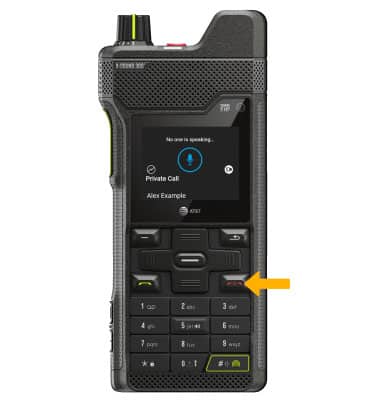
Press the Power/End Call button.