Accessibility features allow you to improve the usability of your device for users affected by impaired vision or hearing.
For more information about accessibility features and TTY compatibility, visit AT&T Accessibility.
In this tutorial, you will learn how to:
• Access accessibility features
• Edit accessibility settings
• Access Real-Time Text (RTT) settings
Access accessibility features
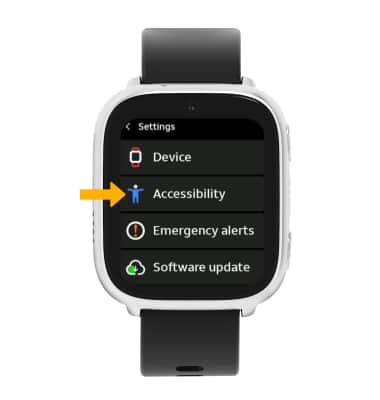
- From the Clock screen, swipe left four times then select the
 Settings app.
 - Scroll to and select Accessibility.
Edit accessibility settings
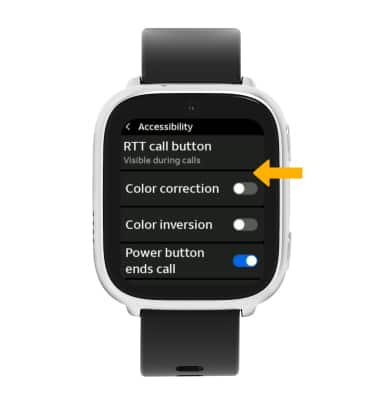
From the Accessibility screen, select the switch next to the desired accessibility feature to enable or disable.
Access Real-Time Text (RTT) settings
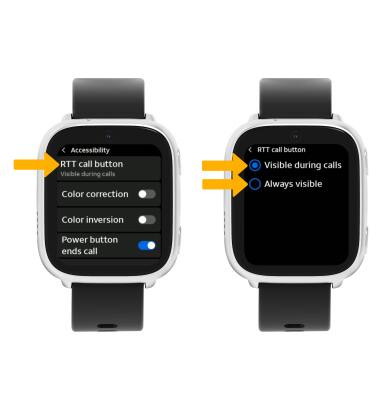
Real-Time Text (RTT) communication is a conversation of text and voice to make calls. As a sender types a message on their device, text displays on the receiving device.
To access RTT settings, from the Accessibility screen, select RTT call button then select the desired option.