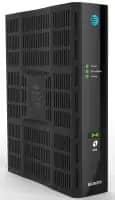
Restarting your All-Fi Hub® or Wi-Fi gateway may help fix common issues with your internet. You can do it on your own or with the Smart Home Manager app.
Important: When you restart your hub or gateway, it will disconnect all devices from the internet or Wi-Fi®. It may take up to five minutes for it to come back online and your devices to reconnect.
Manual restart
- Unplug the power cord from the back of your hub or gateway and the wall. (If you have an internal battery backup, remove it.)
- Wait 20 seconds. Put the internal battery back in, if you have one.
- Plug the power cord back in and wait for it to restart.
Smart Home Manager restart
Don’t have the AT&T Smart Home Manager app yet? Download it from the Apple App Store or Google Play store.
- Open the Smart Home Manager app.
- Select Network (Wi-Fi icon).
- Scroll to and select Restart Wi-Fi.
- Select Restart again.
FYI: These gateways and hubs are compatible with Smart Home Manager:
- BGW720, BGW620, BGW320, BGW210
- BGW830, BGW530, CGW450
- NVG599, NVG589
- Pace 5268AC, Pace 5168, Pace 5031NV
- 2Wire 3600HGV, 2Wire 3801HGV, 2Wire 3800HGV-B
Completing a reset on your All-Fi Hub® or Wi-Fi gateway will return it to original factory settings. It will delete any custom settings such as custom Wi-Fi network names and passwords. If you want to use the same Wi-Fi® info after the reset, make sure you write them down so you can set them up again. If you have any other custom settings, such as a static IP address, make sure you note them also.
- Locate the red Reset button on your hub or gateway. It’s usually found on the back of the device.
- Press and hold the Reset button for at least 15 seconds. If you let go before 15 seconds, it will restart, but it won’t reset.
- Wait for it to come back online. This may take up to 10 minutes.
- Select Restart again.
FYI: If you had a custom Wi-Fi name and password, make sure you change your Wi-Fi info. This way, your devices will be able to reconnect.