[Skip Navigation](https://www.att.com#mega-z2_jump_link)
[Personal](https://www.att.com/) [Business](https://www.business.att.com)
[Find a store](https://www.att.com/stores/) [Ver en español](javascript:void%280%29)
[](https://www.att.com)
- Shop
Shop
- [Plans & services](#)
- [Devices & accessories](#)
Quick actions [Upgrade](https://www.att.com/upgrade/) [Add a line](https://www.att.com/plans/add-a-line/) [Bring your own phone](https://www.att.com/wireless/byod/) [Switch & save](https://www.att.com/wireless/switch-and-save/)
Bundles
- [Explore bundles](https://www.att.com/bundles/)
- [Internet + wireless](https://www.att.com/bundles/internet-wireless/)
- [Internet + home phone](https://www.att.com/home-phone)
- [Customers 55+](https://www.att.com/bundles/55-plus-internet-wireless)
Wireless
- [Explore wireless](https://www.att.com/wireless/)
- [Phone plans](https://www.att.com/plans/wireless/)
- [Network coverage](https://www.att.com/maps/wireless-coverage.html)
- [Explore prepaid](https://www.att.com/prepaid/)
- [International add-ons](https://www.att.com/international/)
- [Connected car](https://www.att.com/plans/connected-car/)
Home internet
- [Explore home internet](https://www.att.com/internet/)
- [Check availability](https://www.att.com/buy/internet/plans)
- [AT&T Fiber](https://www.att.com/internet/fiber/)
- [AT&T Internet Air](https://www.att.com/internet/internet-air/)
- [Home phone](https://www.att.com/home-phone/services/)
[__Celebrating one year of the AT&T Guarantee__
\
Learn more](https://www.att.com/why-att/guarantee/)
New arrivals [Samsung Galaxy S26 Ultra](https://www.att.com/buy/phones/samsung-galaxy-s26-ultra.html) [iPhone 17 Pro](https://www.att.com/buy/phones/apple-iphone-17-pro.html) [AirPods Pro 3](https://www.att.com/buy/accessories/Headphones/apple-airpods-pro-3.html) [Google Pixel 10 Pro](https://www.att.com/buy/phones/google-pixel-10-pro.html)
Devices
- [Phones](https://www.att.com/buy/phones/)
- [Prepaid phones](https://www.att.com/buy/prepaid-phones/)
- [Tablets](https://www.att.com/buy/tablets/)
- [Smartwatches](https://www.att.com/buy/wearables/)
Accessories
- [Shop all accessories](https://www.att.com/accessories/)
- [Cases](https://www.att.com/buy/accessories/browse/cases/)
- [Chargers](https://www.att.com/buy/accessories/browse/chargers/)
- [Screen protectors](https://www.att.com/buy/accessories/browse/screen-protectors/)
- [Headphones](https://www.att.com/buy/accessories/browse/headphones/)
Brands
- [Apple](https://www.att.com/buy/phones/browse/apple/)
- [Samsung](https://www.att.com/buy/phones/browse/samsung/)
- [Motorola](https://www.att.com/buy/phones/browse/motorola/)
- [Google](https://www.att.com/buy/phones/browse/google/)
- [Meta](https://www.att.com/buy/accessories/browse/all/meta/)
[__Get the new Samsung Galaxy S26 Ultra for $0 with eligible trade-in__
\
Shop now](https://www.att.com/buy/phones/samsung-galaxy-s26-ultra.html)
- Deals
Deals
- [New & featured](#)
- [Customer discounts](#)
Featured [Shop all deals](https://www.att.com/deals/) [Wireless deals](https://www.att.com/deals/cell-phone-deals/) [Internet deals](https://www.att.com/deals/internet/) [Trade-in offers](https://www.att.com/buy/phones/browse/tradeinoffer/)
Trending deals
- [Samsung Galaxy](https://www.att.com/buy/phones/browse/samsung_hasdeals_value_nontradeinoffer_tradeinoffer/)
- [Apple iPhone](https://www.att.com/buy/phones/browse/apple_hasdeals_value_nontradeinoffer_tradeinoffer/)
- [Under $50](https://www.att.com/buy/accessories/browse/all/price-range-25-50_price-range-5-25_5-and-under/)
- [Gift ideas](https://www.att.com/gift-ideas/)
Device & accessory deals
- [Phones](https://www.att.com/buy/phones/browse/hasdeals_value_nontradeinoffer_tradeinoffer/)
- [Prepaid phones](https://www.att.com/buy/prepaid-phones/browse/hasdeals/)
- [Tablets](https://www.att.com/buy/tablets/browse/hasdeals_nontradeinoffer/)
- [Smartwatches](https://www.att.com/buy/wearables/browse/hasdeals_nontradeinoffer/)
- [Accessory deals](https://www.att.com/buy/accessories/browse/all/deals/)
Subscriptions
- [AT&T OneConnect](https://www.att.com/oneconnect/)
[__Switch to AT&T and learn how to get up to $800/line to break your contract__
\
Shop now](https://www.att.com/buy/phones/)
Discounts by occupation
- [Business employees](https://www.att.com/verification/signaturehub/#employment)
- [Military & veterans](https://www.att.com/offers/discount-program/military-discount/)
- [Teachers](https://www.att.com/offers/discount-program/teacher/)
- [Nurses & physicians](https://www.att.com/verification/signaturehub/#medical)
- [Active responders](https://www.att.com/firstnetandfamily/)
Discounts by affiliation
- [Customers 55+](https://www.att.com/verification/signaturehub/#age)
- [Retired responders](https://www.att.com/offers/discount-program/retired-responders/)
- [Union workers](https://www.att.com/offers/discount-program/union-discount/)
- [Students](https://www.att.com/verification/signaturehub/#student)
Partner savings
- [Credit card discount](https://www.att.com/deals/att-points-plus-citi/)
- [&More Benefits](https://andmorebenefits.att.com/root-discovery)
[__Celebrating one year of the AT&T Guarantee__
\
Learn more](https://www.att.com/why-att/guarantee/)
- AT&T Difference
AT&T Difference
- [Our competitive edge](#)
Why choose us
- [AT&T Guarantee](https://www.att.com/why-att/guarantee)
- [Why AT&T](https://www.att.com/why-att/)
- [AT&T vs. T-Mobile & Verizon](https://www.att.com/wireless/switch-and-save/#compare-us)
- [AT&T Fiber vs. Spectrum & Xfinity](https://www.att.com/internet/fiber/#compare-us)
- [Try AT&T for free](https://www.att.com/wireless/free-trial)
- [Switch & save](https://www.att.com/wireless/switch-and-save/)
Exceptional coverage
- [5G coverage map](https://www.att.com/maps/wireless-coverage.html)
- [Fiber coverage map](https://www.att.com/internet/fiber/coverage-map/)
[__A tree for every trade-in__
\
Get started](https://www.att.com/acctmgmt/deeplink?action=UpgradeDevice&appInstall=N)
- Support
Support
- [Bill & account](#)
- [Wireless](#)
- [Internet](#)
Quick actions [View all support](https://www.att.com/support/) [Go to my account](https://www.att.com/acctmgmt/overview) [Payment center](https://www.att.com/acctmgmt/mypaymentcenter) [Billing center](https://www.att.com/acctmgmt/billing/mybillingcenter)
Bill & payments
- [Understand your bill](https://www.att.com/support/my-account/understand-your-bill/)
- [Find out why your bill changed](https://www.att.com/support/article/my-account/KM1051879)
- [Set up and manage AutoPay](https://www.att.com/acctmgmt/mypaymentcenter?intent=MANAGEAUTOPAY)
- [View device installments](https://www.att.com/acctmgmt/payment/installmentplandetails)
- [Pay without signing in](https://www.att.com/acctmgmt/fastpmt/fastpay)
Account
- [Change or reset password](https://www.att.com/support/article/my-account/KM1008941)
- [Add or remove accounts](https://www.att.com/support/article/my-account/KM1008925)
- [Move internet service](https://www.att.com/help/moving/)
- [Check trade-in status](https://www.att.com/orders/history)
- [More account help](https://www.att.com/support/my-account/)
[__Celebrating one year of the AT&T Guarantee__
\
Learn more](https://www.att.com/why-att/guarantee/)
Quick actions [Manage my wireless service](https://www.att.com/acctmgmt/mywireless) [Track my order](https://www.att.com/orders/history) [Add AT&T International Day Pass](https://www.att.com/acctmgmt/signin?intent=DEEPLINK&soc=IRRLHDF&level=CAT&source=ILC242589969&wtExtndSource=Megamenu)
My device
- [Check my usage](https://www.att.com/acctmgmt/usage/mysummary)
- [Manage add-ons](https://www.att.com/acctmgmt/wireless/manage-addon)
- [Change my plan](https://www.att.com/acctmgmt/mywireless/manageplan/)
- [Add a line](https://www.att.com/buy/postpaid/?wlsfi=AL)
- [Check upgrade eligibility](https://www.att.com/buy/postpaid/?wlsfi=up)
- [Activate a wireless device](https://www.att.com/support/how-to/wireless/get-started)
Device options
- [Manage eSIM](https://www.att.com/acctmgmt/wireless/manage-esim)
- [Suspend wireless service](https://www.att.com/acctmgmt/wireless/suspend)
- [Transfer a number to AT&T](https://www.att.com/acctmgmt/wireless/transfer-number)
- [Change phone number](https://www.att.com/acctmgmt/wireless/change-number)
- [Unlock a device](https://www.att.com/acctmgmt/wireless/device-unlock)
Wireless help
- [Check for outages](https://www.att.com/outages/)
- [Use device hotspot](https://www.att.com/support/article/wireless/KM1009376)
- [Device protection & warranty](https://www.att.com/support/device-protection-warranty/)
- [More wireless help](https://www.att.com/support/wireless/)
[__Celebrating one year of the AT&T Guarantee__
\
Learn more](https://www.att.com/why-att/guarantee/)
Quick actions [Manage my internet service](https://www.att.com/acctmgmt/myinternet) [Track my order](https://www.att.com/orders/history) [Get help moving](https://www.att.com/help/moving/)
Equipment
- [Restart a gateway](https://www.att.com/support/article/u-verse-high-speed-internet/KM1010361/)
- [Find Wi-Fi info](https://www.att.com/support/article/internet/KM1203150/)
- [Run internet speed test](https://www.att.com/support/speedtest/)
- [Set up Internet Air](https://www.att.com/support/article/internet/KM1489093)
Troubleshooting
- [Check for outages](https://www.att.com/outages/)
- [Manage appointments](https://www.att.com/orders/history)
- [Optimize connection](https://www.att.com/support/how-to/optimize-your-connection)
- [More internet help](https://www.att.com/support/internet/)
[__Celebrating one year of the AT&T Guarantee__
\
Learn more](https://www.att.com/why-att/guarantee/)
Search site
Your cart is empty
Let's get shopping!
[Explore bundles](https://www.att.com/bundles) [Shop phones](https://www.att.com/buy/phones)
[Sign in](https://www.att.com/acctmgmt/overview) [Create an account](https://www.att.com/acctmgmt/registration/selectServices) [Forgot user ID?](https://identity.att.com/identity-ui/fid/lander?trid=9806a0fd32a18ad2ce22ba62b72f0d6f8631e5e1&Return_URL=https%3A%2F%2Foidc.idp.clogin.att.com%2Fmga%2Fsps%2Foauth%2Foauth20%2Fauthorize%3Fresponse_type%3Did_token%26client_id%3Dm14186%26redirect_uri%3Dhttps%253A%252F%252Fwww.att.com%252Fmsapi%252Flogin%252Funauth%252Fservice%252Fv1%252Fhaloc%252Foidc%252Fredirect%26state%3Dfrom%253Dnx%26scope%3Dopenid%26response_mode%3Dform_post%26nonce%3DH0ihL2qQ&Cancel_URL=https%3A%2F%2Foidc.idp.clogin.att.com%2Fmga%2Fsps%2Foauth%2Foauth20%2Fauthorize%3Fresponse_type%3Did_token%26client_id%3Dm14186%26redirect_uri%3Dhttps%253A%252F%252Fwww.att.com%252Fmsapi%252Flogin%252Funauth%252Fservice%252Fv1%252Fhaloc%252Foidc%252Fredirect%26state%3Dfrom%253Dnx%26scope%3Dopenid%26response_mode%3Dform_post%26nonce%3DH0ihL2qQ&lang=en-us)
* * *
[Make a payment](https://www.att.com/acctmgmt/payment/makepayment) [Pay without signing in](https://www.att.com/acctmgmt/fastpmt/fastpay) [Go to my prepaid account](https://www.paygonline.com/websc/loginPage.html)
Welcome back!
[Switch user](https://www.att.com/acctmgmt/logout?kmsi=y&target_url=https%3A%2F%2Fwww.att.com%2Facctmgmt%2Flogin)
[Sign out](https://www.att.com/acctmgmt/logout?kmsi=n)
Quick actions [&More Benefits](https://andmorebenefits.att.com/) [My favorites](https://www.att.com/myfavorites/) [Privacy choices](https://www.att.com/acctmgmt/myprofile/overview?flow=privacy-choices)
Account overview
- [Check my notifications](#)
- [Go to my account](https://www.att.com/acctmgmt/overview)
- [Update my profile](https://www.att.com/acctmgmt/myprofile/overview)
- [View my orders & claims](https://www.att.com/orders/history)
- [Go to my prepaid account](https://www.paygonline.com/websc/loginPage.html)
Bill & payments
- [Make a payment](https://www.att.com/acctmgmt/payment/makepayment)
- [See my bill](https://www.att.com/acctmgmt/billing/mybillingcenter)
Welcome back!
[Sign out](https://www.att.com/acctmgmt/logout?kmsi=n)
[Switch user](https://www.att.com/acctmgmt/logout?kmsi=y&target_url=https%3A%2F%2Fwww.att.com%2Facctmgmt%2Flogin)
## Account overview
- [Check my notifications](#)
- [Go to my account](https://www.att.com/acctmgmt/overview)
- [Update my profile](https://www.att.com/acctmgmt/myprofile/overview)
- [View my orders & claims](https://www.att.com/orders/history)
- [Go to my prepaid account](https://www.paygonline.com/websc/loginPage.html)
## Bill & payments
- [Make a payment](https://www.att.com/acctmgmt/payment/makepayment)
- [See my bill](https://www.att.com/acctmgmt/billing/mybillingcenter)
Quick actions
- [&More Benefits](https://andmorebenefits.att.com/)
- [My favorites](https://www.att.com/myfavorites/)
- [Privacy choices](https://www.att.com/acctmgmt/myprofile/overview?flow=privacy-choices)
[](https://www.att.com)
## Shop
- [Plans & services](#)
- [Devices & accessories](#)
## Deals
- [New & featured](#)
- [Customer discounts](#)
- [View all deals](https://www.att.com/deals/)
## AT&T Difference
- [Our competitive edge](#)
## Support
- [Bill & account](#)
- [Wireless](#)
- [Internet](#)
- [View all support](https://www.att.com/support/)
- [AT&T Business](https://www.business.att.com/)
- [Find a store](https://www.att.com/stores/)
- [Ver en español](javascript:void%280%29)
Back
Shop
## Plans & services
### Bundles
- [Explore bundles](https://www.att.com/bundles/)
- [Internet + wireless](https://www.att.com/bundles/internet-wireless/)
- [Internet + home phone](https://www.att.com/home-phone)
- [Customers 55+](https://www.att.com/bundles/55-plus-internet-wireless)
### Wireless
- [Explore wireless](https://www.att.com/wireless/)
- [Phone plans](https://www.att.com/plans/wireless/)
- [Network coverage](https://www.att.com/maps/wireless-coverage.html)
- [Explore prepaid](https://www.att.com/prepaid/)
- [International add-ons](https://www.att.com/international/)
- [Connected car](https://www.att.com/plans/connected-car/)
### Home internet
- [Explore home internet](https://www.att.com/internet/)
- [Check availability](https://www.att.com/buy/internet/plans)
- [AT&T Fiber](https://www.att.com/internet/fiber/)
- [AT&T Internet Air](https://www.att.com/internet/internet-air/)
- [Home phone](https://www.att.com/home-phone/services/)
### Quick actions
- [Upgrade](https://www.att.com/upgrade/)
- [Add a line](https://www.att.com/plans/add-a-line/)
- [Bring your own phone](https://www.att.com/wireless/byod/)
- [Switch & save](https://www.att.com/wireless/switch-and-save/)
Start of main content
1. [Home](https://www.att.com/)
2. [Support](https://www.att.com/support/)
3. [AT&T Internet](https://www.att.com/support/internet/)
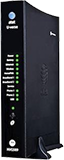
# Learn about your NVG589
Get details on using your NVG589 to connect to the internet and find help for common issues.
* * *
You’re viewing instructions for
Internet equipment
Motorola
NVG589
KM1050517-slctrgrp\_motonvg589
* * *
Status lightsStatus lightsWi-Fi infoWi-Fi infoAdvanced settingsAdvanced settings
### Power light
- __Green (solid):__ Power is on
- __Green (flashing):__ Power-On Self-Test (POST) is in progress.
- __Red (flashing):__ A POST failure (not bootable) or device malfunction occurred.
- __Orange/Amber:__ Firmware upgrade is in progress.
- __Off:__ The unit has no AC power.
### Battery light
- __Green (solid):__ Battery is in place but isn’t being used.
- __Green (flashing):__ The battery is charging.
- __Red (solid):__ The battery backup is faulty.
- __Red (flashing):__ The battery should be replaced.
- __Amber (solid):__ The battery power is low.
- __Amber (flashing):__ The gateway is using battery power.
- __Off:__ There isn’t a battery, or the battery isn’t charged.
### Ethernet light
- __Green (solid):__ A computer or device is connected to an Ethernet port.
- __Green (flickering):__ There’s activity from a device connected to an Ethernet port. The flicker is synchronized to data traffic.
### Wireless light
- __Green (solid):__ A computer or device is connected by Wi-Fi® to the gateway.
- __Green (flickering):__ There’s activity from a device connected through Wi-Fi. The flicker is synchronized to data traffic.
### HomePNA light
- __Green (solid):__ A set-top box or other device is connected to the coaxial port.
- __Green (flickering):__ There’s activity from devices connected to the coaxial port. The flicker is synchronized to data traffic.
### Broadband 1, 2 light
- __Green (solid):__ The gateway is connected to our network.
- __Green (flashing):__ The gateway is trying to connect to our network.
- __Green & red (flashing):__ The gateway has been trying to connect to our network for more than three minutes.
- __Red (flashing):__ The gateway can't connect to our network or isn’t detecting a DSL signal.
### Service
- __Green (solid):__ The gateway has obtained an IP address from our network. The connection is active.
- __Green (flashing):__ The gateway is trying to obtain an IP address.
- __Red (solid):__ Internet service authentication has failed.
### Phone 1, 2 light
- __Green (solid):__ A phone is connected and registered.
- __Green (flashing):__ A phone is off the hook on the associated line.
### USB light
- __Green (solid):__ A device is connected to the USB port.
- __Green (flickering):__ There’s activity from a device connected to the USB port. The flicker is synchronized to data traffic.
### Status lights during firmware upgrades
Firmware updates keep your Wi-Fi gateway running smoothly. During the software installation, you’ll lose internet and phone service. The lights will function as follows:
- As firmware is being loaded into flash, the lights will operate normally as described.
- The installation will take a few minutes. During this phase, the Power light will flash Orange/Amber during firmware upgrade (flash writing to memory) and all other lights will be off.
### Find Wi-Fi info
Get your Wi-Fi® name and password to connect devices to your network:
- __Wi-Fi gateway:__ Look for a sticker with your Wi-Fi name and password.
- __QR code:__ Use your mobile device to automatically connect devices to your hub.
- __Smart Home Manager:__ Open [Smart Home Manager](http://www.att.com/shm "Link opens in a new window") and look for __My Wi-Fi__.
### Change Wi-Fi name
1. Sign in to [Smart Home Manager](http://www.att.com/shm "Link opens in a new window").
2. Scroll to the __My Wi-Fi card__ and choose __Change__ next to the name or password.
3. Select __X__ to clear existing info, then enter a new name or password.
4. Select __Save__.
Once you finish making changes, reconnect your devices with the updated network info.
__FYI:__ You can also update your Wi-Fi from your [Wi-Fi gateway settings](http://192.168.1.254/ "Link opens in a new window").
### Manage Wi-Fi security
Your AT&T Wi-Fi gateway comes with the security __On__ and set to WPA (Wired Equivalent Privacy) by default. If you have changed the security to __OFF__, follow these steps to turn it back on.
1. Go to your [gateway settings](http://192.168.1.254/ "Link opens in a new window").
2. Select __Home Network__, then __Wireless__.
3. Enter the __Modem Access Code__ in the __Password__ field. You can find the code on your gateway.
4. Scroll to the __Security__ section and select __WPA-PSK__ from the __Security__ dropdown.
5. Enter a new __Wi-Fi password (Wireless Key)__ in the __Key__ field.
- For 64-bit encryption, enter a 10-digit password made up of numbers and letters a-f or A-F.
- For 128-bit encryption, enter a 26-digit hexadecimal number made up of numbers and letters a-f or A-F.
6. Select __Save__.
### Hide Wi-Fi info
__Important:__ Before following these steps, be sure to store your Wi-Fi network name and password in a safe location. You’ll have to manually enter them after your network name is hidden. Then, choose your equipment type to get detailed instructions.
1. Go to your [gateway settings](http://192.168.1.254/ "Link opens in a new window").
2. Enter the __Modem Access Code__ found on your Wi-Fi gateway.
3. Select __Home Network__.
4. In the __Wireless__ area, select On from the __Hide SSID__ drop-down.
5. Select __Save__.
### MAC address filtering
Set up your All-Fi Hub so that it only connects to devices by MAC address. This makes your connections more secure. When you turn on MAC address filtering, only devices that you select can connect to your network.
__FYI:__ Make sure you have the MAC address for each device you want to access your Wi-Fi home network. Every device will have its own process to find its MAC address. Check your service documentation or manufacturer’s website for detailed instructions.
1. Go to your [gateway settings](http://192.168.1.254/ "Link opens in a new window").
2. Enter the __Modem Access Code__ found on the side of your gateway.
3. Select __Home Network__, then __Mac Filtering__.
4. Open the __MAC Filtering Type__ dropdown, then select __Enabled__.
5. In __Mac Filter Entry__, either:
- Select your devices’ __MAC addresses__
- Enter the __MAC address__ in the __Manual Entry__ field
6. Select __Add__ and then __Save__.
### Port forwarding
__Important:__ Use port forwarding with caution. It may allow others to access devices in your home without your knowledge.
To open a port for user-defined applications:
1. Go to your [gateway settings](http://192.168.1.254/ "Link opens in new window").
2. Select the __Firewall__ tab.
3. Enter the __Device Access Code__ found on the side of your gateway.
4. Select __NAT/Gaming__. If you get a warning message, restart your Wi-Fi gateway. Then, continue with these steps.
5. Select __Continue__.
6. From __Service__, select the application for port forwarding. If your application isn't in the list, or you're setting up port forwarding for a device:
- Select __Custom Services__.
- Enter the name for the application or device In __Service Name__.
- Enter the port(s) you wish to open for __Global Port Range__.
It's recommended to create a separate service entry for each port as opposed to using a port range. In this case, the port number should be the same in the Global Port Range fields.
- Enter the port number used for the first __Global Port Range__ section in __Base Host Port__.
- Select the appropriate __Protocol__ from the drop-down for the application or device you're adding.
- Select __Add__. Repeat as needed for additional applications and devices.
- When all applications or devices have been added, select __Return to NAT/Gaming__. Your new applications or devices will display in the Applications list.
7. From __Needed by Device__, select the __device name__ or __IP address__ of the device to open the port.
8. Select __Add__.
9. When your selections display in __Hosted Applications__, select __Save__.
* * *
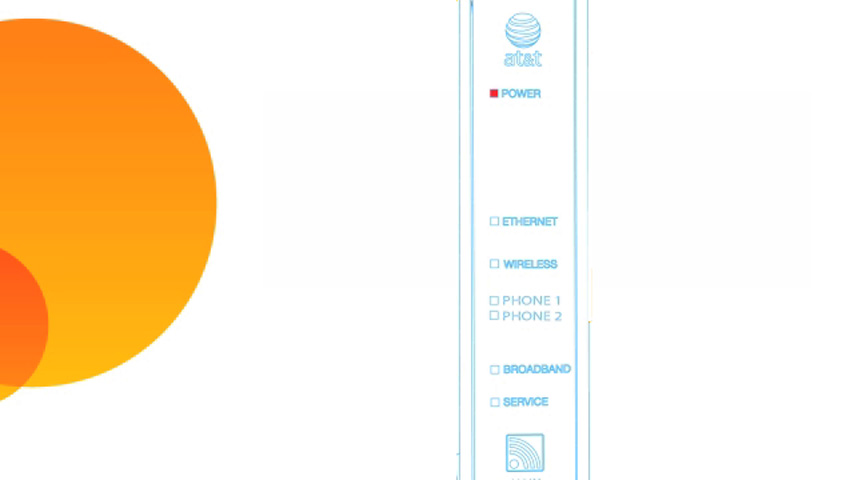
## Wi-Fi Gateway Walkthrough
Learn how to diagnose installation and connection issues with your Wi-Fi gateway.
Wi-Fi Gateway Walkthrough
4:07
Last updated: April 9, 2025
* * *
## Browse topics
Connections, browsing & security
Installation & order status
Troubleshooting & repair
Wi-Fi gateways & equipment
Learn about internet and Wi-Fi connections, tools, and security.
Advanced information
Apps & tools
Home network & Wi-Fi gateway connections
Security & safety
Web browsing & internet speeds
### Did you get the help you needed?
[](https://x.com/att "Follow us on X (Opens in new window)")[](https://www.facebook.com/ATT "Follow us on Facebook (Opens in new window)")[](https://www.instagram.com/att/ "Follow us on Instagram (Opens in new window)")[](https://www.linkedin.com/company/att/ "Follow us on Linkedin (Opens in new window)")
Shop
- [Cell phones](https://www.att.com/buy/phones/)
- [Fiber internet](https://www.att.com/internet/fiber/)
- [Home internet](https://www.att.com/internet/)
- [Tablets](https://www.att.com/buy/tablets/)
- [Smartwatches](https://www.att.com/buy/wearables/)
- [Wireless accessories](https://www.att.com/accessories/)
- [Prepaid phones](https://www.att.com/prepaid/)
Trending
- [iPhone 17 Pro Max](https://www.att.com/buy/phones/apple-iphone-17-pro-max.html)
- [iPhone 17 Pro](https://www.att.com/buy/phones/apple-iphone-17-pro.html)
- [iPhone Air](https://www.att.com/buy/phones/apple-iphone-air.html)
- [iPhone 17](https://www.att.com/buy/phones/apple-iphone-17.html)
- [Samsung Galaxy S26 Ultra](https://www.att.com/buy/phones/samsung-galaxy-s26-ultra.html)
- [Samsung Galaxy Z Fold7](https://www.att.com/buy/phones/samsung-galaxy-z-fold7.html)
- [Samsung Galaxy Z Flip7](https://www.att.com/buy/phones/samsung-galaxy-z-flip7.html)
Top phone & data plans
- [Unlimited phone plans](https://www.att.com/plans/wireless/)
- [International plans](https://www.att.com/international/)
- [Add a line](https://www.att.com/plans/add-a-line/)
- [Upgrade](https://www.att.com/plans/phone-upgrade/)
- [Tablet data plans](https://www.att.com/plans/tablet-ipad-data-plans/)
- [Mobile hotspot plans](https://www.att.com/plans/tethering/)
- [Next Up Anytime](https://www.att.com/plans/next-up-anytime/)
Switch to AT&T
- [Switch to AT&T](https://www.att.com/wireless/switch-and-save/)
- [How to switch phone carriers](https://www.att.com/wireless/how-to-switch-phone-carrier/)
- [Internet speed test](https://www.att.com/support/speedtest/)
- [Bring your own device](https://www.att.com/wireless/byod/)
- [Cell phone trade-in](https://tradein.att.com/)
- [Transfer your internet service](https://www.att.com/moving/)
Featured deals
- [AT&T Deals & Promotions](https://www.att.com/deals/)
- [Cell phone deals](https://www.att.com/deals/cell-phone-deals/)
- [iPhone deals](https://www.att.com/deals/iphone-deals/)
- [Samsung deals](https://www.att.com/buy/phones/browse/samsung_hasdeals/)
- [Phone and internet bundle deals](https://www.att.com/bundles/internet-wireless/)
- [Credit card discount](https://www.att.com/deals/att-points-plus-citi/)
- [Free phone deals for new customers](https://www.att.com/buy/phones/browse/free/)
Shop cell phones by brand
- [New Apple iPhones](https://www.att.com/buy/phones/browse/apple/)
- [New Samsung Galaxy phones](https://www.att.com/buy/phones/browse/samsung/)
- [New Google Pixel phones](https://www.att.com/buy/phones/browse/google/)
- [New Motorola Moto phones](https://www.att.com/buy/phones/browse/motorola/)
- [New Sonim phones](https://www.att.com/buy/phones/browse/sonim/)
Tablets & Watches
- [New Apple iPad](https://www.att.com/buy/tablets/browse/apple/)
- [New Samsung Galaxy Tab](https://www.att.com/buy/tablets/browse/samsung/)
- [New Apple Watch](https://www.att.com/buy/wearables/browse/apple/)
- [New Samsung Galaxy Watch](https://www.att.com/buy/wearables/browse/samsung/)
- [New Google Pixel Watch](https://www.att.com/buy/wearables/browse/google/)
- [New Kids Smart Watch](https://www.att.com/buy/wearables/att-amigo-jr-watch.html)
Accessories by Brand
- [Apple accessories](https://www.att.com/buy/accessories/browse/all/apple/)
- [AT&T accessories](https://www.att.com/buy/accessories/browse/all/att/)
- [Samsung accessories](https://www.att.com/buy/accessories/browse/all/samsung/)
- [Otterbox phone cases](https://www.att.com/buy/accessories/browse/cases/otterbox/)
- [Beats headphones](https://www.att.com/buy/accessories/browse/headphones/beats/)
Resources
- [Bundle internet and wireless](https://www.att.com/bundles/)
- [What is Internet Air?](https://www.att.com/internet/what-is-internet-air/)
- [How to use your phone internationally](https://www.att.com/wireless/how-to-use-your-cell-phone-internationally/)
- [What is fiber internet?](https://www.att.com/internet/what-is-fiber-internet/)
- [What is eSIM?](https://www.att.com/wireless/what-is-esim/)
- [Return or exchange your wireless device](https://www.att.com/wireless/return-policy/)
AT&T
- [Find a store](https://www.att.com/stores/)
- [Newsroom](https://about.att.com/?source=EB00CO0000000000L&wtExtndSource=footer)
- [Investor Relations](https://investors.att.com)
- [Corporate Responsibility](https://sustainability.att.com/)
- [Careers](https://www.att.jobs/)
- [Help & info](https://www.att.com/support/)
- [AT&T Guarantee](https://www.att.com/why-att/guarantee/)
- [Broadband Facts Machine Readable Files](https://www.att.com/broadbandlabels/broadband-facts-machine-readable-plans/)
- [Screen share code](https://www.att.com)
* * *
- [Techbuzz blog](https://techbuzz.att.com/)
- [Feedback](https://secure.opinionlab.com/ccc01/o.asp?id=fXJtjaWr)
- [FREE AT&T Email with 1TB storage](https://www.att.com/partners/currently/email-sign-up/?source=EnEmail2020000BDL&wtExtndSource=myattglobalfooter)
* * *
- [Site map](https://www.att.com/sitemap/)
- [Coverage maps](https://www.att.com/maps/wireless-coverage.html)
- [Terms of use](https://www.att.com/legal/terms.attWebsiteTermsOfUse.html)
- [Accessibility](https://about.att.com/sites/accessibility)
- [Broadband details](https://about.att.com/sites/broadband)
- [Legal policy center](https://www.att.com/legal/legal-policy-center.html)
- [Advertising choices](https://about.att.com/privacy/privacy-notice.html#choice)
- [Privacy center](https://about.att.com/privacy.html)
- [Your Privacy Choices](https://about.att.com/privacy/choices-and-controls.html)
- [Health Privacy Notice](https://about.att.com/privacy/StateLawApproach/washington-health-privacy-notice.html)
- [Cyber Security](https://about.att.com/pages/cyberaware)
- [FCC public files](https://publicfiles.fcc.gov/cable-profile/999999-at&t-u-verse)
©
2026 AT&T Intellectual Property. All rights reserved.
We use [cookies](https://about.att.com/privacy/full_privacy_policy/cookies.html) to help enhance your experience on our site and for analytics. We also may use cookies for marketing purposes. You can manage your preferences and opt out of the sharing for targeted advertising and sales of cookie data.
Learn more about our approach to privacy at [att.com/privacy](https://att.com/privacy).
Manage your preferences Opt out Continue without changes