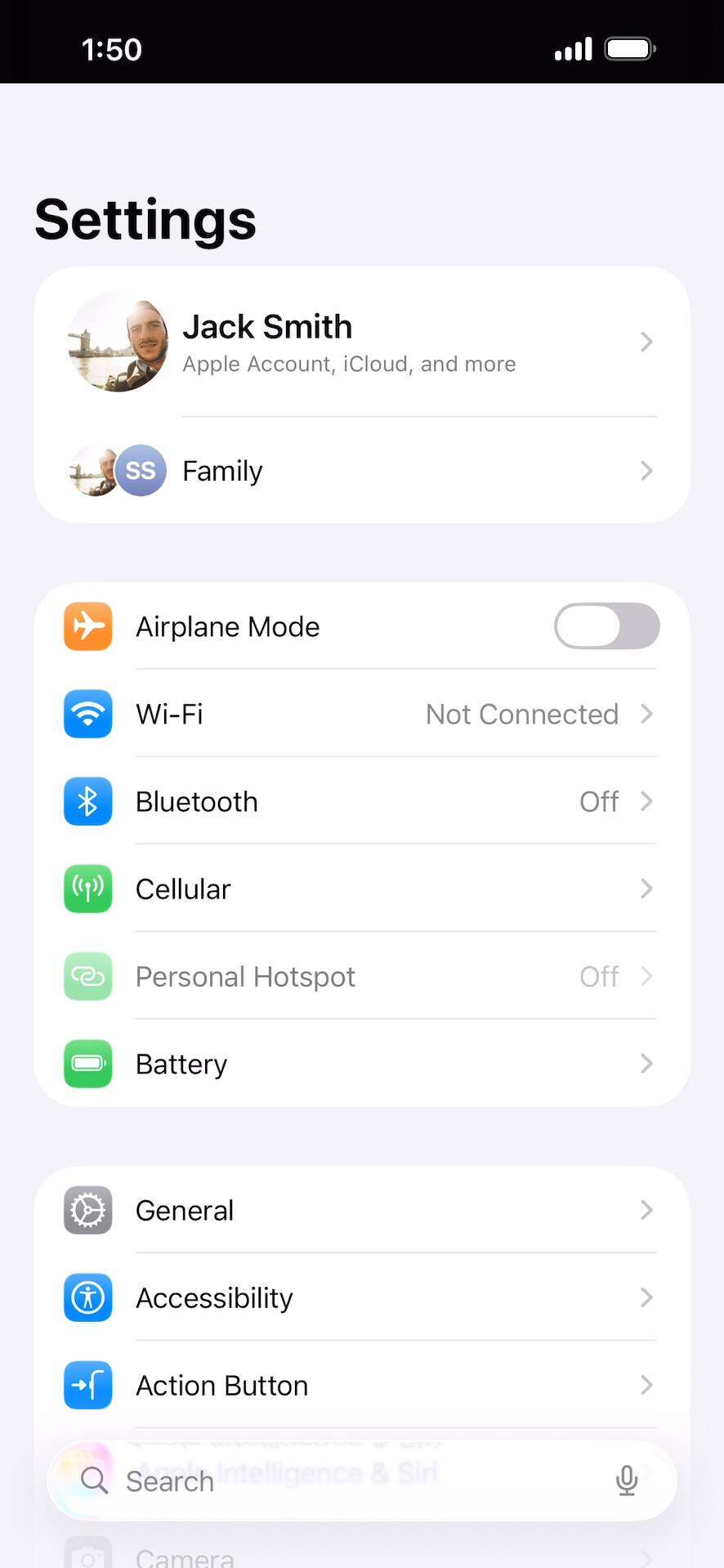
Resetting network settings, resetting all settings, and deleting all eSIMS on your iPhone
If you are having trouble connecting to the Internet you may need to reset your network connections. Resetting your network connections will disconnect any Bluetooth devices connected to your device and disconnect your device from any Wi-Fi networks it is connected to.
1.
From within Settings, tap General.
2.
Scroll to and tap Transfer or Reset iPhone.
3.
Tap Reset.
4.
From this screen, you can perform a variety of actions:
- Reset All Settings - Choosing this will reset all settings and preferences on your device to their factory defaults, including removing Apple Pay cards, passes, and keys.
- Reset Network Settings - Select this option if you are having trouble connecting with your device; it will reset just your network settings to their factory defaults.
- Delete All eSIMs - Choose this option to remove all eSIMs currently added to your device. This does not cancel your cellular plans. To get a new eSIM or cancel your plan, contact your carrier.
- Other reset options:
- Reset Keyboard Dictionary - Clears your saved words and other preferences from your keyboard's dictionary.
- Reset Handwriting Style - Resets your personal handwriting style.
- Reset Home Screen Layout - Returns your Home Screen to the default iPhone layout, with your downloaded apps in alphabetical order after the first page. This option also removes your app folders from your Home Screen, but does not affect hidden apps.
- Reset Location & Privacy - Resets your location and privacy preferences to their factory defaults.
5.
You've completed the steps!