Management Website
In this tutorial, you will learn how to:
• View device messages
• View device information
• View network information
View device messages
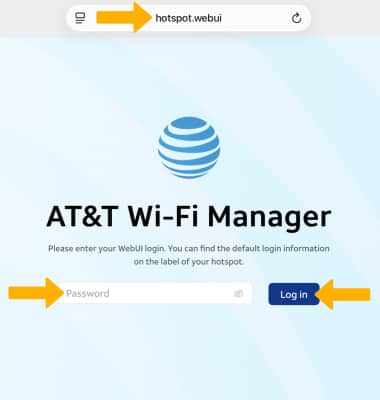
1. From your connected device's web browser, go to http://hotspot.webui. Enter your password, then select Log in.
Note: If you haven’t logged into the Web admin page before, the default password will be displayed on the Wi-Fi info screen. You will be prompted to change the admin password. Ensure that your device is connected to your GoLink™ 5G Hotspot's Wi-Fi network. For more information, please see the Connect Devices to Wi-Fi or Connect PC or Mac to Wi-Fi tutorials.
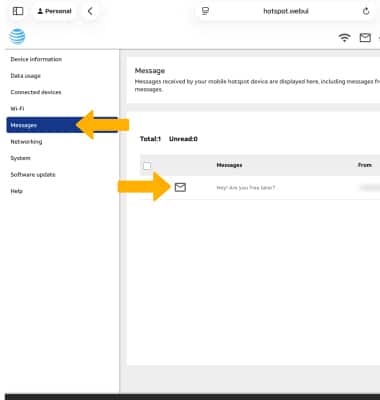
2. Select Messages on the left side of the screen. Messages will be displayed.
View device information
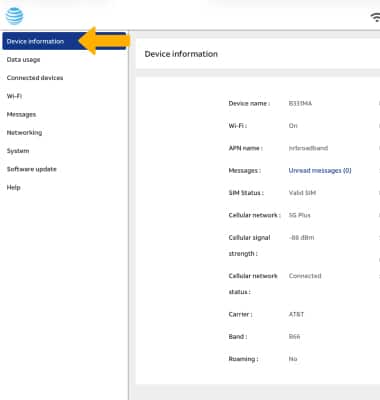
Select Device information on the left side of the screen.
View network information
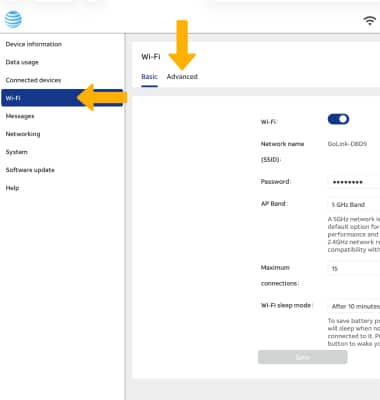
Select Wi-Fi on the left side of the screen. Basic Wi-Fi settings will be displayed. Select the Advanced tab to view and edit more Wi-Fi Settings.