Email Settings
-
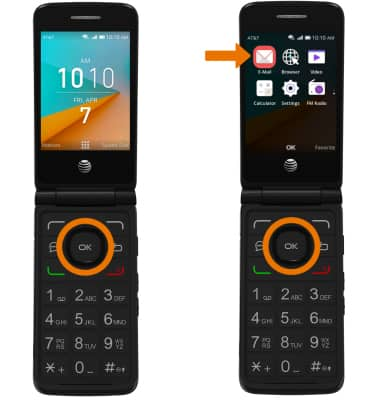
ACCESS EMAIL SETTINGS: From the home screen, press the OK button. Press the directional buttons to navigate to and highlight the Email app, then press the OK button.Note: In order to access email settings, you must have already set up an email account.
-
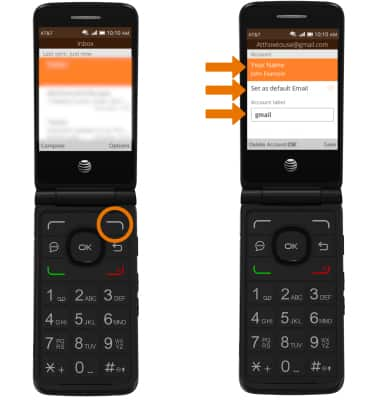
From the Inbox, press the right option button to select Options > navigate to and select Settings > desired email account > edit settings as desired.
-
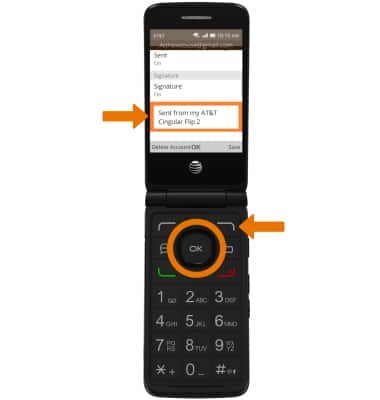
EDIT EMAIL SIGNATURE: From the desired account settings, navigate to the Signature text field. Edit the signature as desired then press the right option button to select Save.
-
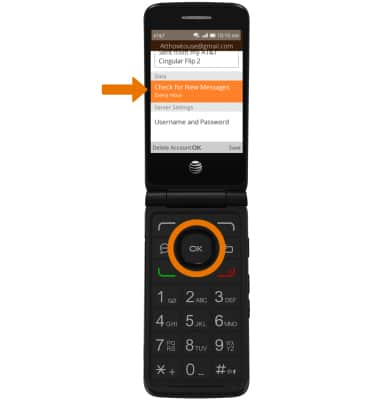
CHANGE AUTO-SYNC FREQUENCY: From the desired account settings, navigate to and select Check for New Messages. Navigate to and select the desired option.
-
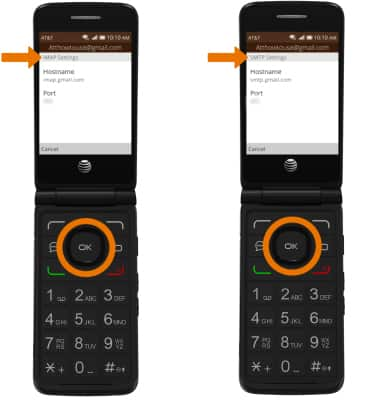
VIEW SERVER SETTINGS: From the desired account settings, navigate to and select IMAP Settings or SMTP Settings. Server settings will be displayed.
-
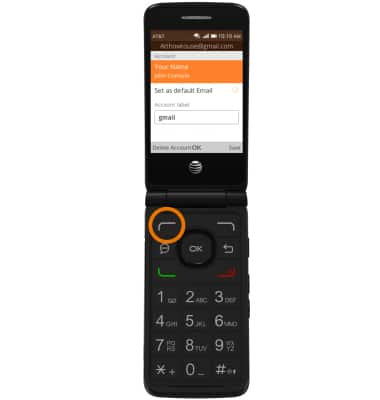
DELETE EMAIL ACCOUNT:From the desired account settings, press the left option button to select Delete Account.Note: You will be prompted to press the right option button to confirm.
-
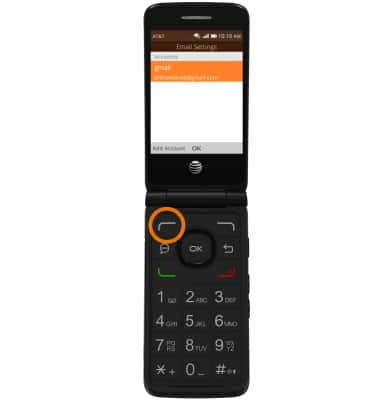
ADD ADDITIONAL EMAIL ACCOUNTS: From the Email Settings screen, press the left option button to select Add Account then follow the prompts to add your account.