Software Version
Stay current by regularly checking for software updates, which often include important security patches and performance enhancements. Before downloading updates, ensure you’re connected to a reliable Wi-Fi or cellular network for a smooth experience.
-
From a device that is connected to the AT&T Wireless Internet network, open the web browser and go to http://att.wirelessinternet. Enter your Admin login, then click Login.
Note: Your login can be found on the bottom of your AT&T Wireless Internet.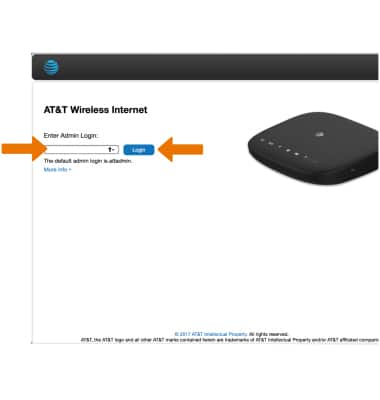
-
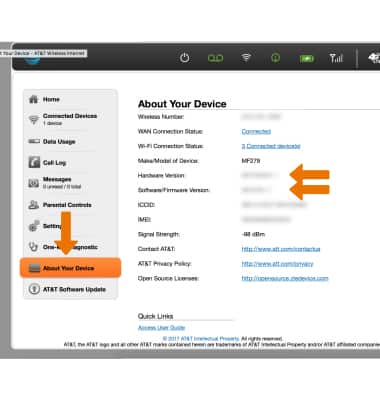
Click About Your Device to view the device's Hardware and Software/Firmware Versions.
-
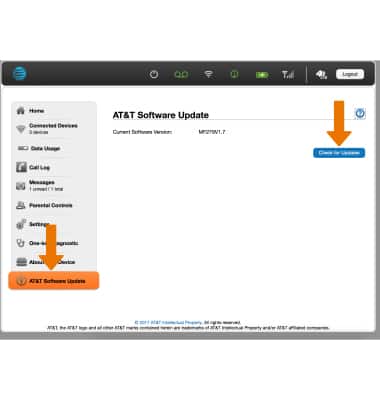
To view software updates, click AT&T Software Update, then click Check for Updates.
-
The device will check for available updates. Follow the on-screen instructions to update your device, if one is available.
Note: If a software update is available, the web page will automatically redirect to the software update page after you log in to the AT&T Wireless Internet.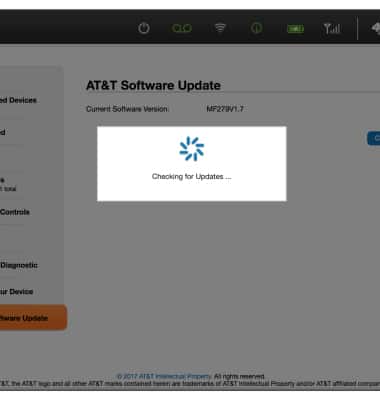
-
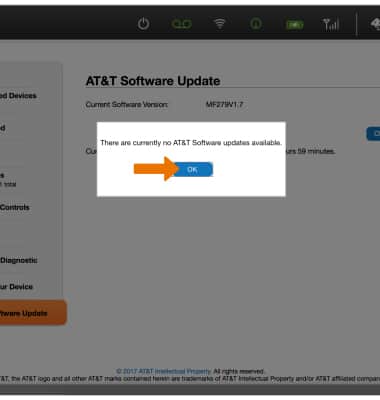
If there are no available updates, click OK.