AT&T Wireless Internet Manager
-
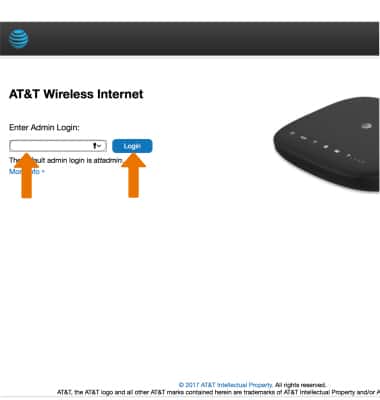
From a device that is connected to the AT&T Wireless Internet network, open the web browser and go to http://att.wirelessinternet. Enter your Admin login, then click Login.
-
VIEW DATA USAGE: From the AT&T Wireless Internet Manager website, click Data Usage then click Check Your Data Usage.
Note: Enter your myAT&T login then follow the prompts to view your data usage.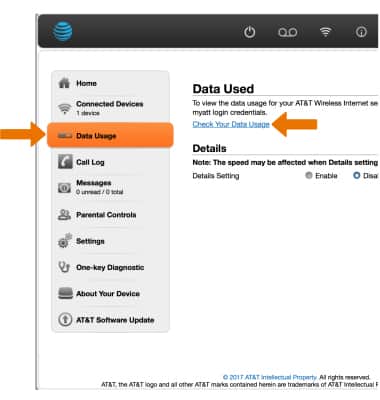
-
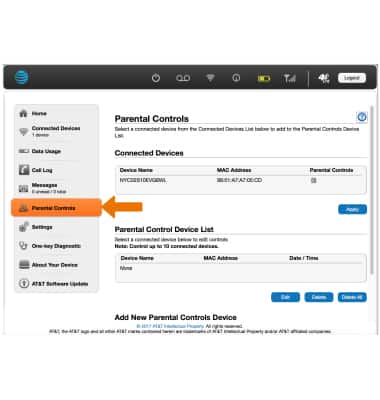
ACCESS PARENTAL CONTROLS: From the AT&T Wireless Internet Manager website, click Parental Controls then edit the Parental Controls as desired.
-
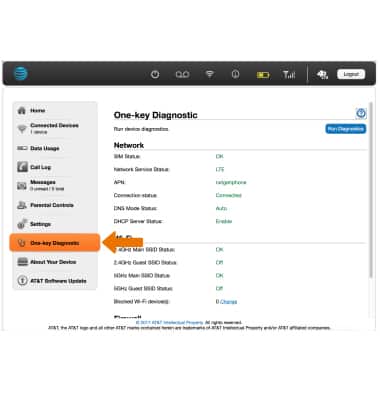
ACCESS ONE-KEY DIAGNOSTIC: From the AT&T Wireless Internet Manager website, click One-key Diagnostic then edit the settings as desired.
-
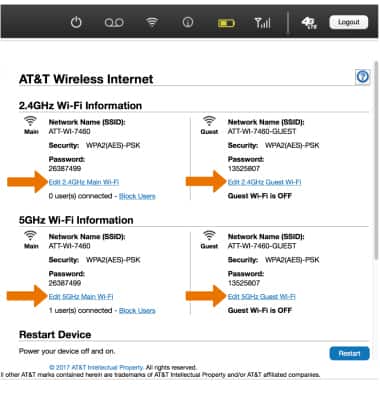
CHANGE WI-FI NETWORKING SETTINGS: From the Home screen of the AT&T Wireless Internet Manager website, click the Edit link under the desired Wi-Fi network.
-
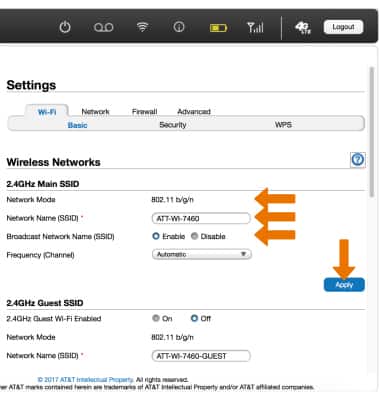
Edit the network settings as desired, then click Apply.
-
CHECK FOR SOFTWARE UPDATES: From the AT&T Wireless Internet Manager website, click AT&T Software Update then click Check for Updates.
Note: If an update is available, follow the on-screen instructions to perform the update. If an update is not available, click OK.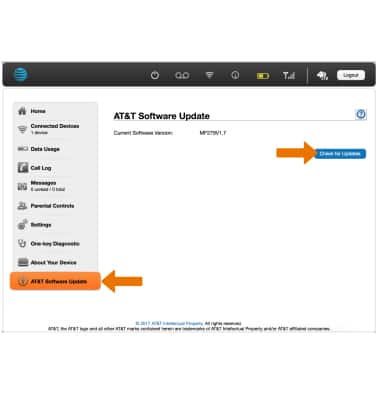
-
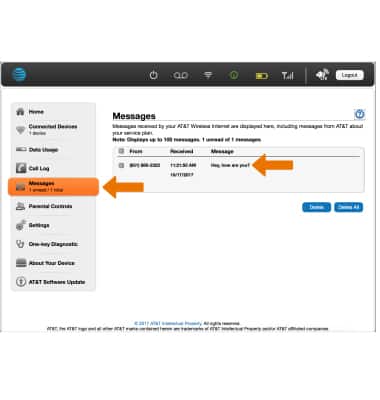
VIEW MESSAGES: From the AT&T Wireless Internet Manager website, click Messages then click the desired message to view.
-
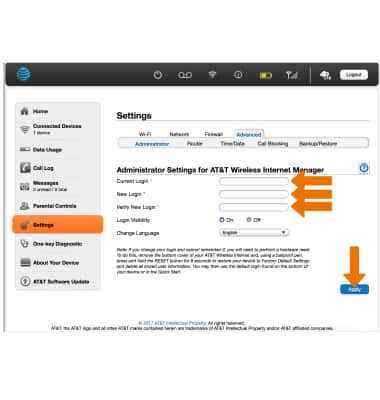
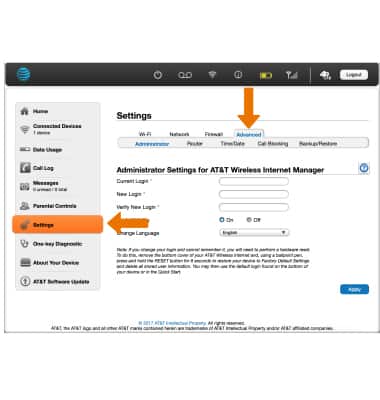
CHANGE WIRELESS INTERNET MANAGER PASSWORD: From the From the AT&T Wireless Internet Manager website, click Settings then click the Advanced tab.
-
Enter the New Login information, then click Apply.