USB Tethering
-
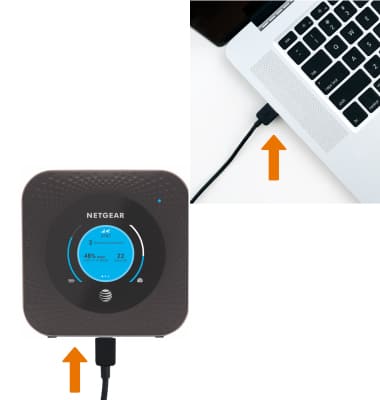
Insert the USB-C end of the USB-C cable into the USB-C port at the base of the device. Insert the USB end of the USB-C cable in the USB port on the computer.
-
ADJUST TETHERING SETTINGS: From your device's web browser, go to http://attwifimanager. Enter your Username and Password, then click SIGN IN.
Note: Ensure that your device is connected to the Netgear Nighthawk's Wi-Fi network. For more information, please see the Connect Devices to Wi-Fi or Connect PC or Mac to Wi-Fi tutorials.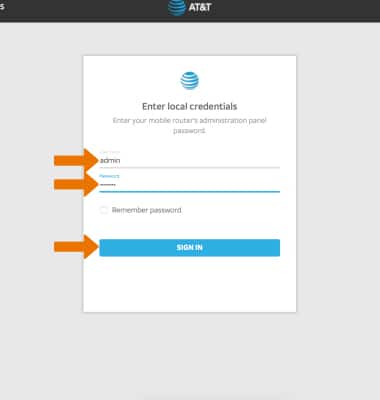
-
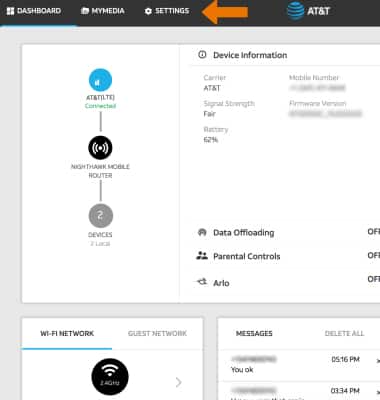
Click SETTINGS at the top of the page.
-
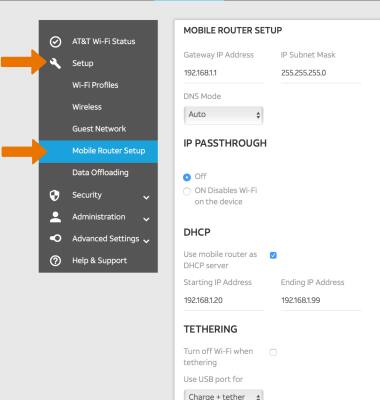
Click Setup, then click Mobile Router Setup.
-
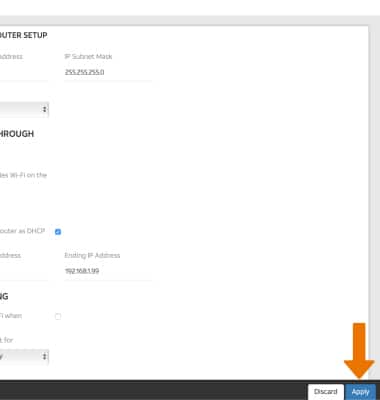
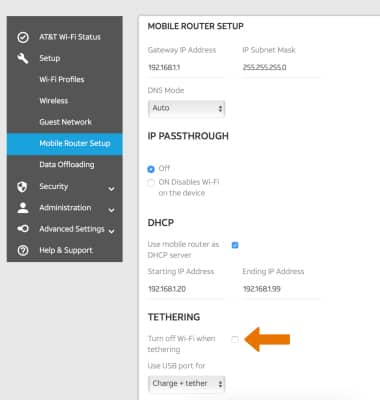
TURN OFF WI-FI WHEN TETHERING: Click the Turn off Wi-Fi when tethering checkbox.
-
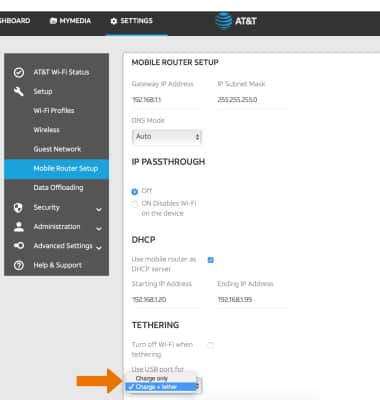
ADJUST USB PORT SETTINGS: From the Mobile Router Setup screen, click the Use USB port for drop-down menu then click the desired option.
-
Click Apply.
Note: Click Continue. The device will restart.