Data Offloading
-
From your device's web browser go to http://attwifimanager. Enter your Username and Password, then click SIGN IN.
Note: Ensure that your device is connected to the Netgear Nighthawk's Wi-Fi network. For more information, please see the Connect Devices to Wi-Fi or Connect PC or Mac to Wi-Fi tutorials.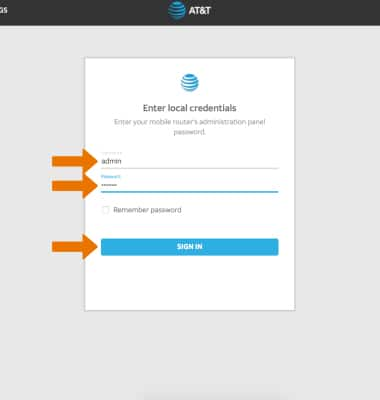
-
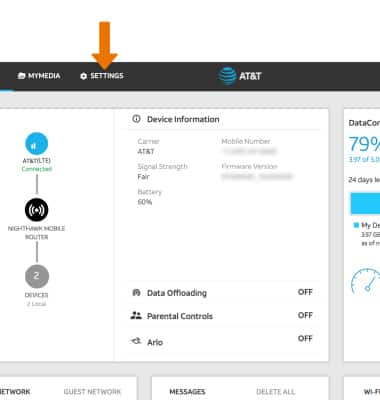
Click SETTINGS at the top of the page.
-
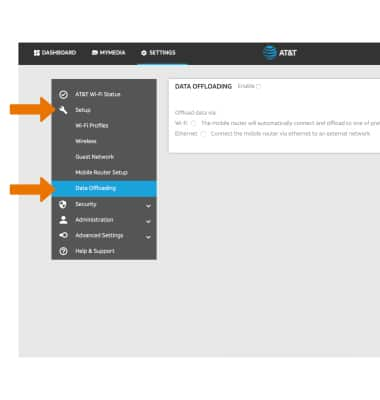
Click Setup, then click Data Offloading.
-
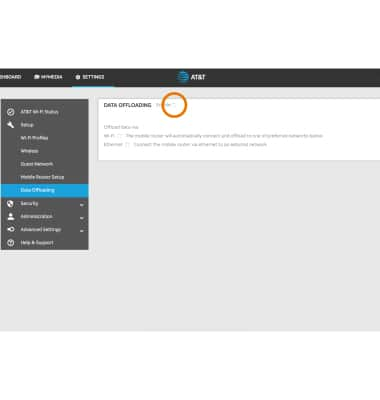
Click the Enable checkbox.
-
To offload data through a Wi-Fi network or through Ethernet, click the desired option then click Apply.
Note: Click Continue to confirm. The Wi-Fi network will restart.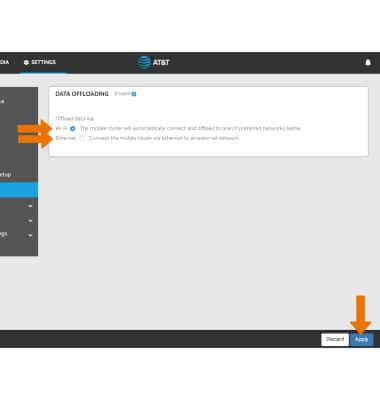
-
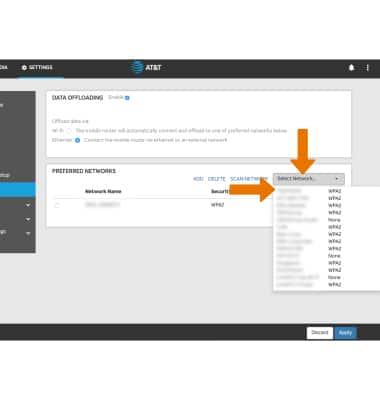
From the Data Offloading page, click the Select Network drop-down menu then click the desired network.
-
If necessary, enter the network Password then click Continue.
Note: When connected and in range, the mobile router will connect and automatically offload to the preferred network.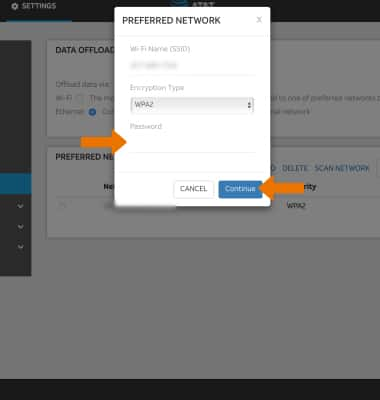
-
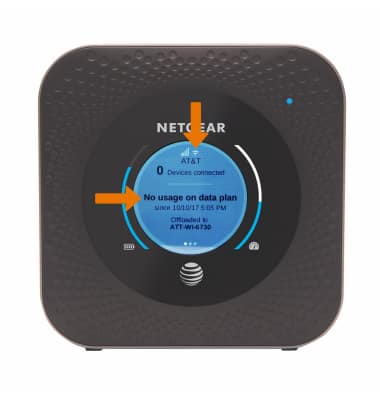
When offloading to a Wi-Fi network, the Wi-Fi icon and No usage on data plan will be displayed on the device.