Contacts
-
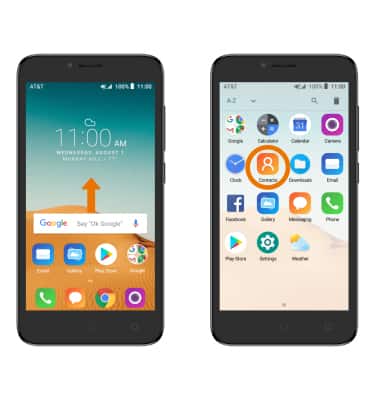
ACCESS YOUR CONTACTS: From the home screen, swipe up to access the Apps tray then select the Contacts app.
-
CREATE CONTACT: Select the Add icon.
Note: Upon first access, you will be presented with a sync prompt. Select the desired account.
-
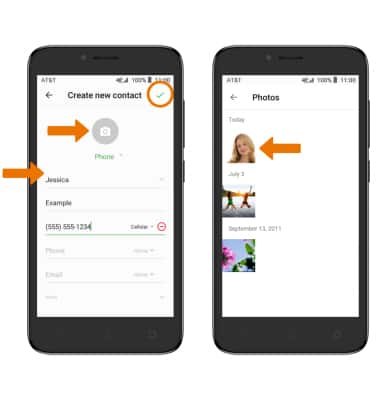
Enter the desired contact information in the corresponding fields. To add a picture, select the camera icon, then navigate to and select the desired image.
-
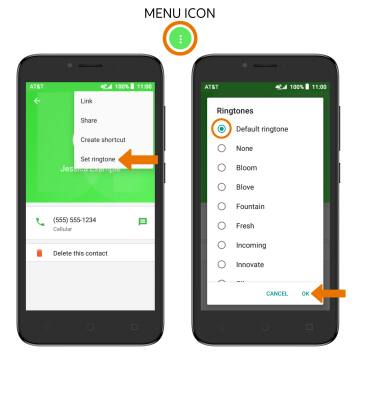
ADD RINGTONE: Select the Menu icon > Set ringtone > desired ringtone > OK.
-
EDIT A CONTACT: From the Contacts list, select the desired contact then select the Edit icon.
Note: When you are finished editing your contact, select the Checkmark icon.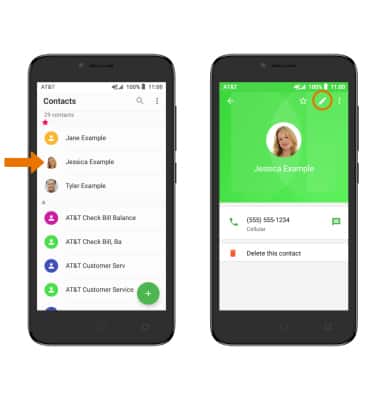
-
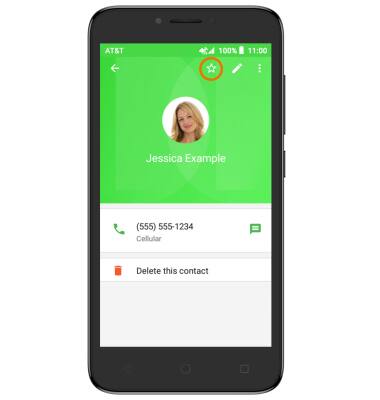
ADD OR REMOVE A CONTACT FROM FAVORITES: Select the Favorites icon.
-
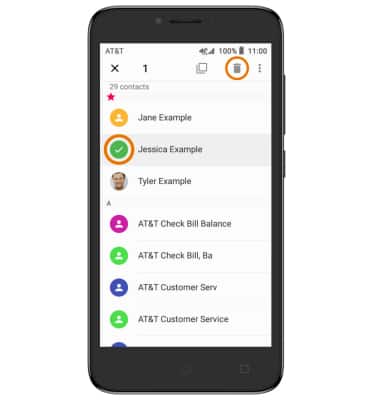
DELETE ONE OR MORE CONTACTS: Select and hold the desired contact/s, then select the Delete icon.
-
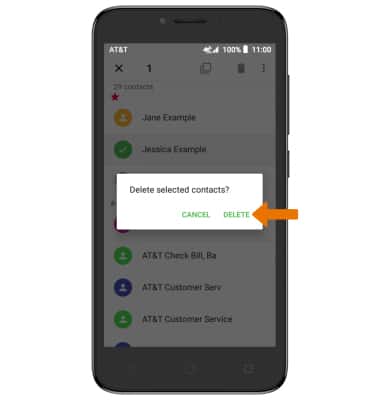
Select DELETE again to confirm.
-
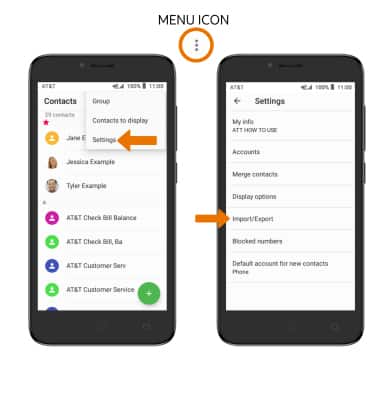
BACKUP CONTACTS: From the Contacts list, select the Menu icon > Settings > Import/Export.
-
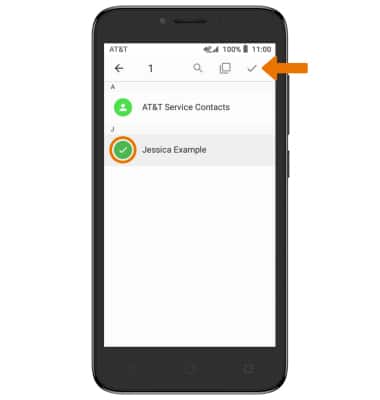
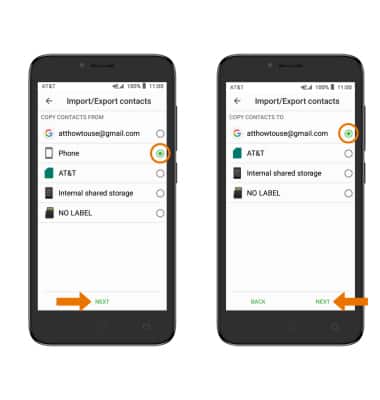
Select Phone, then select NEXT. Select the desired backup location, then select NEXT.
-
Select the desired contacts, then select the Checkmark icon.