Messaging Settings
-
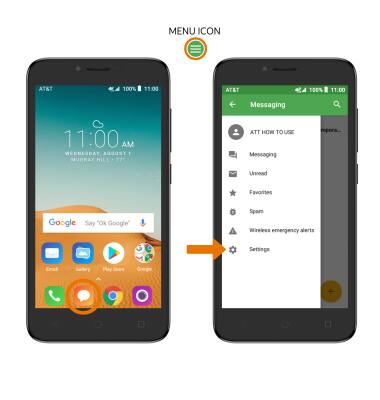
ACCESS MESSAGE SETTINGS: From the home screen, select the Messaging app > Menu icon > Settings.
-
ADJUST NOTIFICATION ALERTS & SOUND: From the GENERAL tab > scroll to and select Notifications to turn notifications on or off. ENABLE/DISABLE NOTIFICATION DURING CALL: Select Beep when on an active call. ADJUST RINGTONE: Select Select ringtone, select the desired ringtone then select OK.
Note: To enable or disable vibration, select Vibrate then select the desired frequency.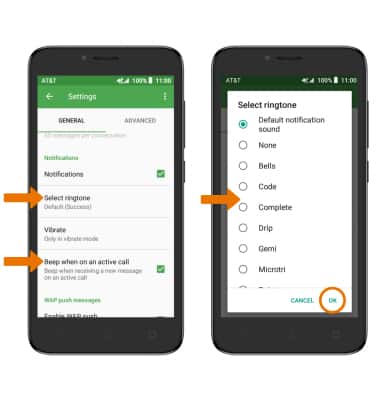
-
ADJUST TEXT MESSAGE LIMIT: From Messaging Settings, select the ADVANCED tab then scroll to Multimedia message (MMS) settings and select Maximum message size. Set the desired Maximum message size.
Note: To control whether messages longer than 3 texts get sent as MMS instead of SMS, select Creation mode > desired setting.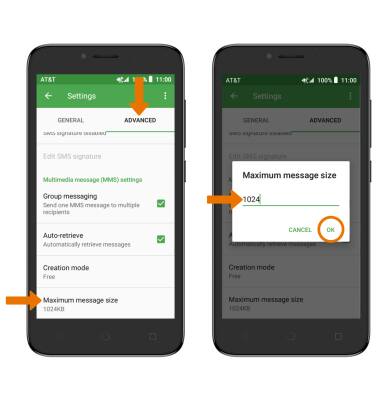
-
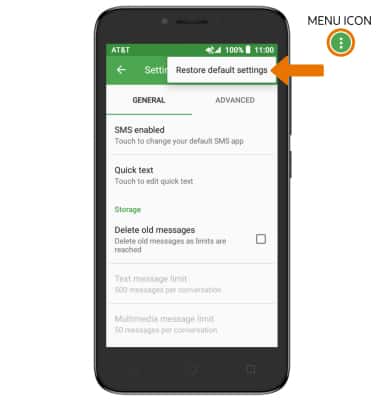
RESTORE DEFAULT SETTINGS: From Messaging Settings, select the Menu icon > Restore default settings.
-
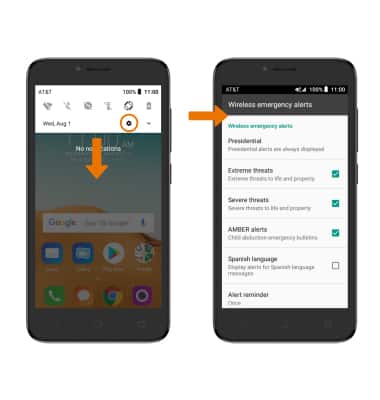
EMERGENCY ALERTS: Swipe down from the Notification bar, then select the Settings icon > Apps & notifications >scroll to and select Advanced > Wireless emergency alerts > edit Emergency alerts as desired.
Note: Learn more about Wireless Emergency Alerts (WEA).
-
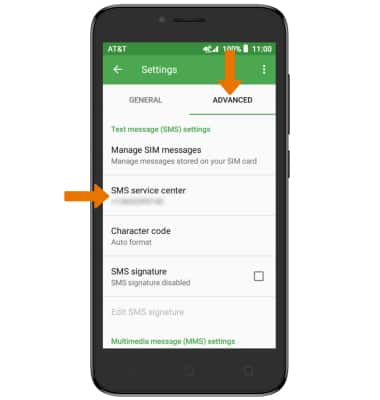
VIEW SMS SERVICE CENTER NUMBER: From Messaging Settings, select the ADVANCED tab. The number will be displayed under SMS Service Center.