Advanced Photo & Video Features
Access Camera modes, effects, filters, customize settings, and crop a photo.
-
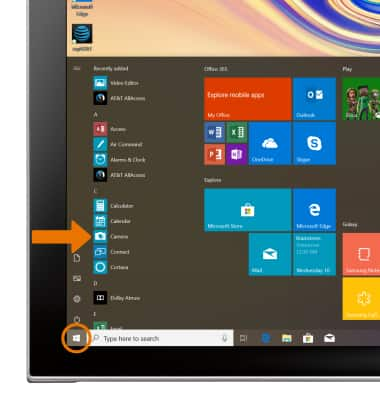
ACCESS CAMERA MODES: From the home screen, select the Start icon, then select Camera.
-
Select the Panorama icon to use Panorama mode.
Note: Panorama allows you to create wider photos by stitching together multiple photos.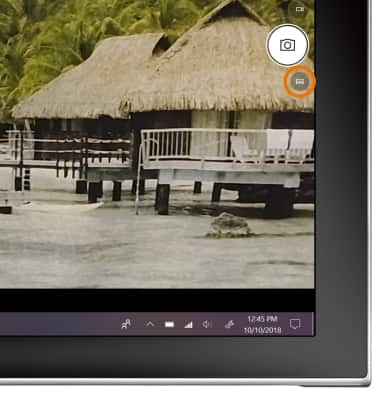
-
Select the HDR icon to use HDR mode.
-
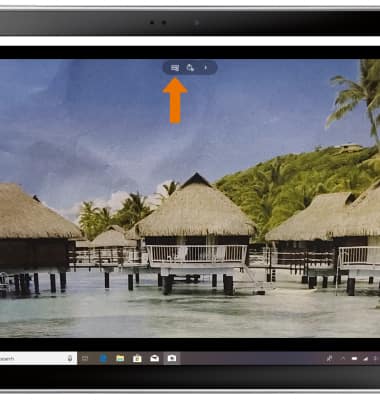
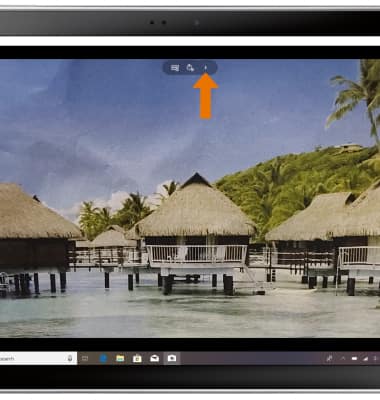
ACCESS MANUAL SETTINGS: Select the Arrow icon.
-
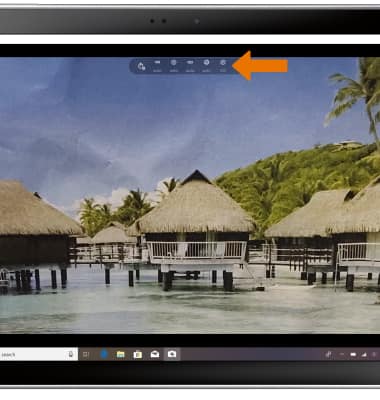
Adjust settings as desired.
-
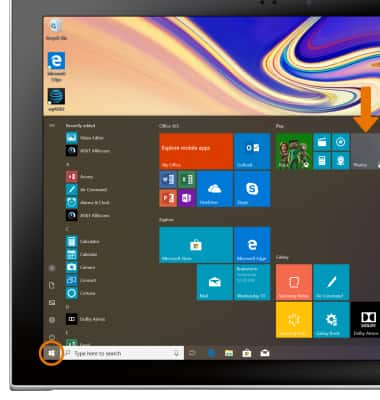
CROP A PHOTO: From the home screen, select the Start icon, then select the Photos app.
-
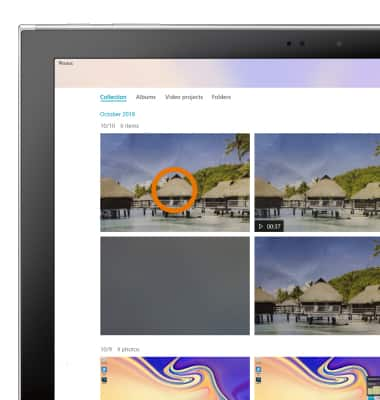
Navigate to and select the desired photo.
-
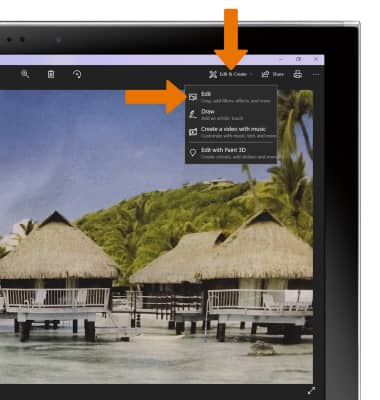
Select Edit & Create, then select Edit.
-
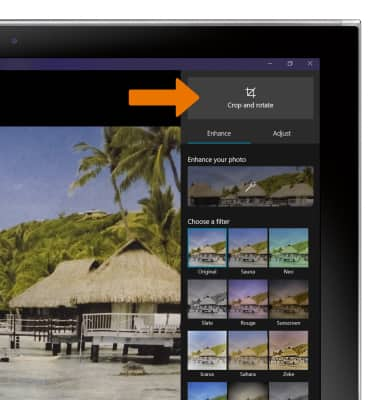
Select Crop and rotate.
-
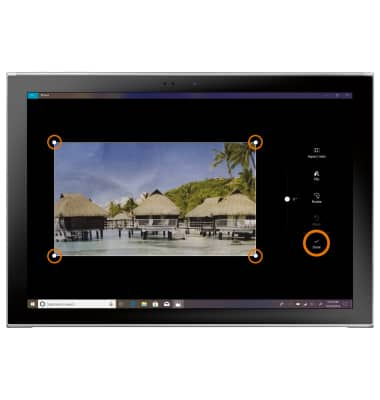
Select and drag the crop corners to crop as desired, then select Done.
-
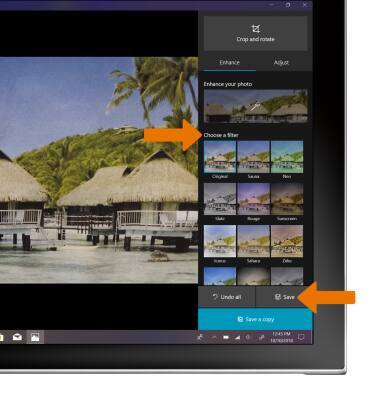
CAMERA FILTERS: From the Edit & Create screen, select the desired filter, then select Save.