Wi-Fi or Ethernet Offloading
In this tutorial, you will learn how to:
• Set up Wi-Fi or Ethernet Offloading• Configure Wi-Fi Offloading
Set up Wi-Fi or Ethernet Offloading
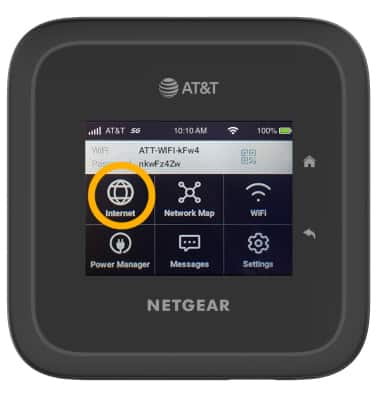
1. From the device home screen, select Internet.
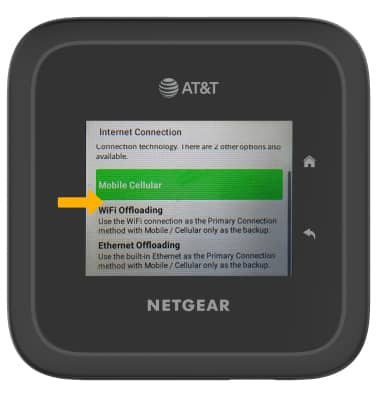
2. Scroll to and select the desired offloading option.
Note: If you are setting up Ethernet offloading, ensure that your ethernet cable is connected in the device and your mobile router.
Configure Wi-Fi Offloading
1. To configure Wifi offloading settings, the device must be set up and you must be logged in to the AT&T Wi-Fi Manager website.
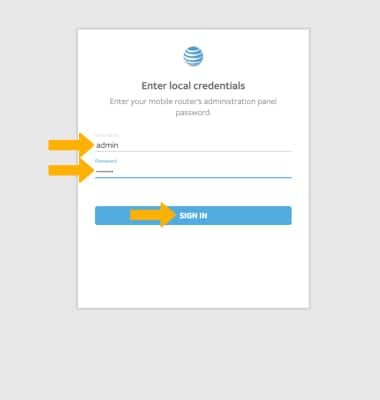
From your device's web browser, go to http://attwifimanager. Enter your Username and Password, then click SIGN IN.
Note: Ensure that your device is connected to the Netgear Nighthawk M6's Wi-Fi network. For more information, please see the Connect Devices to Wi-Fi or Connect PC or Mac to Wi-Fi tutorials.
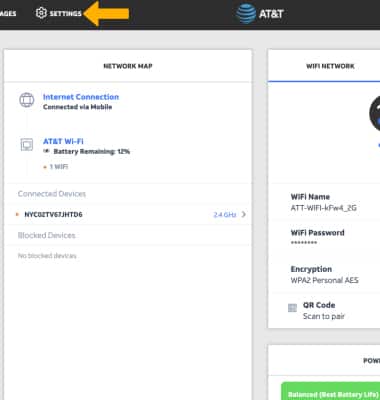
2. Click Settings.
3. Click General then click Internet Connection.
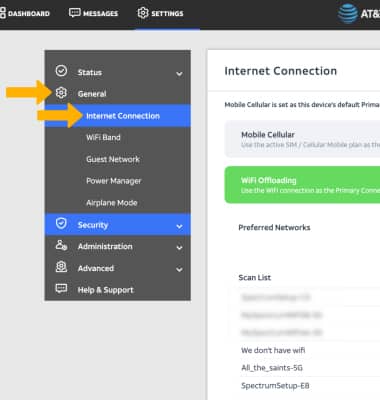
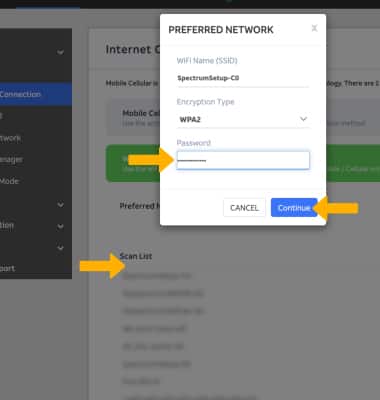
4. Click the desired Wi-Fi network, if necessary, enter the password then click Continue.