Connect Devices to Wi-Fi
In this tutorial, you will learn how to:
• Connect a smartphone to Wi-Fi
• Connect a Tablet to Wi-Fi
When a device is connected to the Mobile Hotspot, the  Wi-Fi connected icon will display in the Notification bar.
Connect a smartphone to Wi-Fi
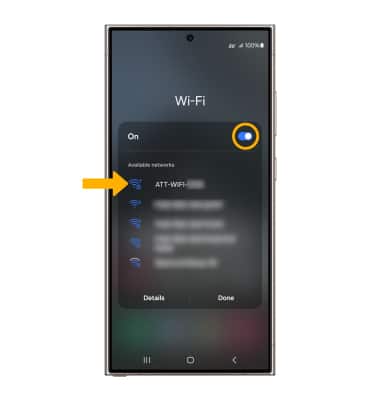
1. From the desired phone’s home screen, swipe down from the Notification bar then select and hold the  Wi-Fi icon. 2. Select the Wi-Fi switch to turn Wi-Fi on or off. Select the router’s Wi-Fi network.
Note: The router's Wi-Fi name is displayed on the device home screen.
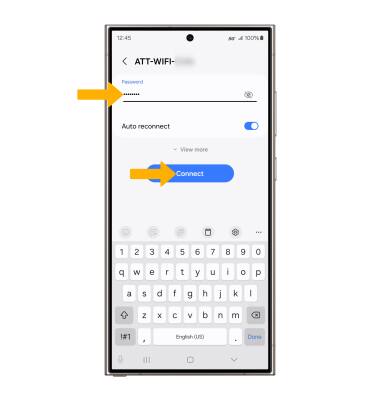
4. Enter the network Password, then select Connect.
Note: The router's Wi-Fi password is displayed on the device home screen.
Connect a tablet to Wi-Fi
- From the home screen, select the Settings app.
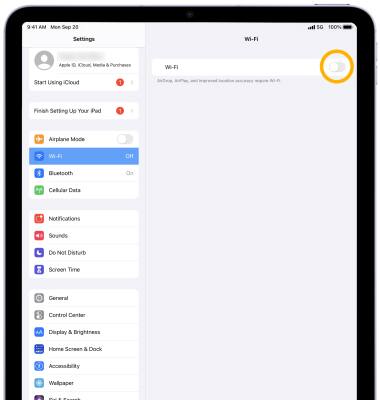
- Select the Wi-Fi switch to turn Wi-Fi on or off.
3. Select the router’s Wi-Fi network.
Note: The router's Wi-Fi name is displayed on the device home screen.
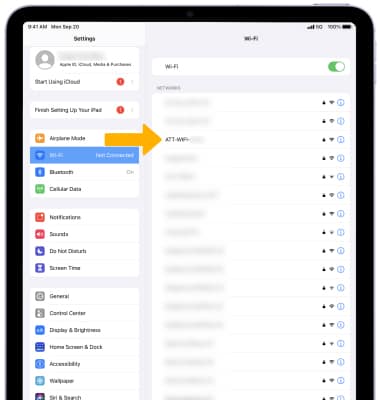
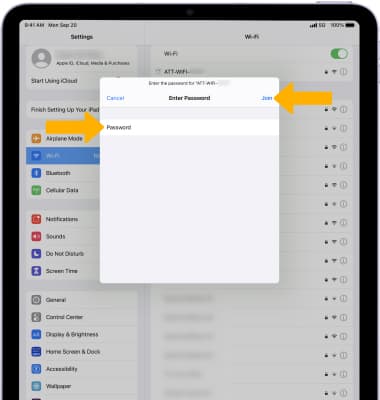
4. Enter the network Password, then select Join.
Note: The router's Wi-Fi password is displayed on the device home screen.