GPS
In this tutorial, you will learn how to:
• Enable/disable GPS coordinates from mobile router • Enable/disable GPS coordinates from management website
Enable/disable GPS coordinates from mobile router
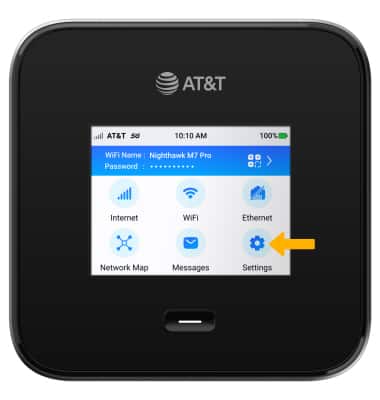
1. From the device home screen, select Settings.
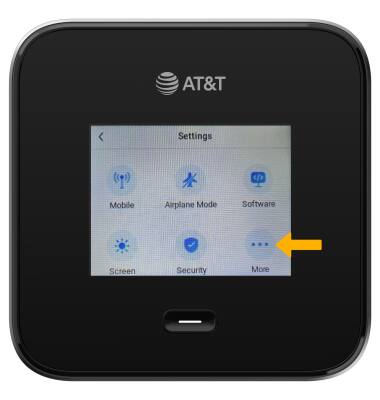
2. Select More.
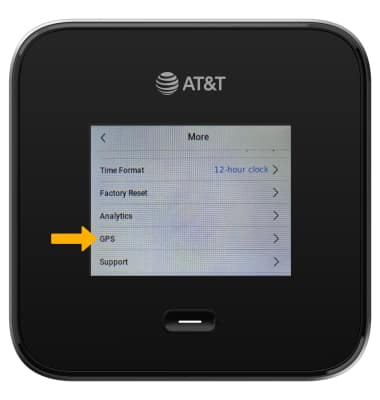
3. Scroll to and select GPS.
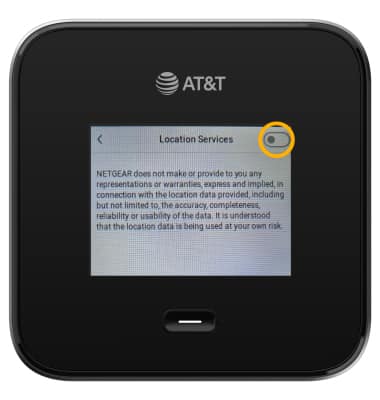
4. Select the Location Services switch to enable/disable GPS. Note: Select OK to confirm.
Enable/disable GPS coordinates from management website
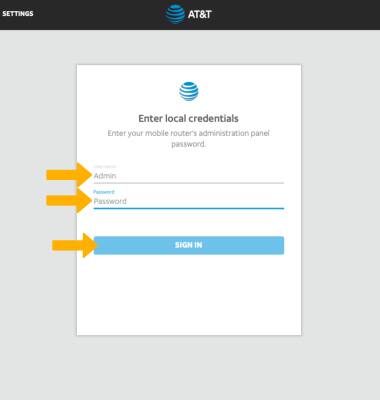
1. From your device's web browser, go to http://attwifimanager. Enter your Username and Password, then click SIGN IN.
Note: Ensure that your device is connected to the Netgear Nighthawk M6 Wi-Fi network. For more information, please see the Connect Devices to Wi-Fi or Connect PC or Mac to Wi-Fi tutorials.
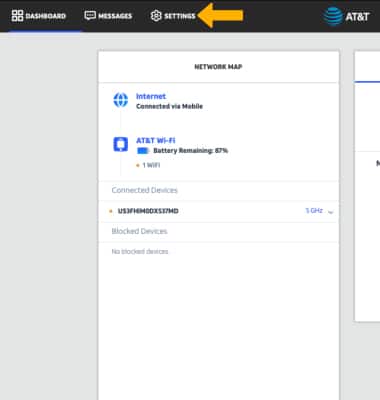
2. Click SETTINGS.
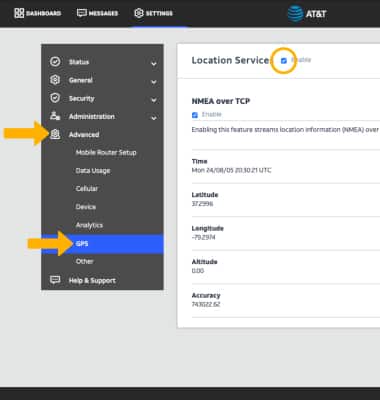
3. Click Advanced, then click GPS. Click the Enable checkbox to enable/disable GPS. Note: Select Apply to save changes.