Wi-Fi Security
In this tutorial, you will learn how to:
• Change Wi-Fi network security
• Set Wi-Fi network password
Change Wi-Fi network security
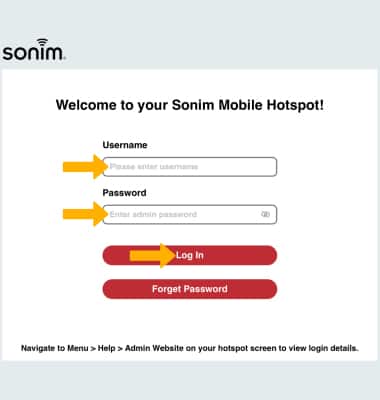
1. From your device's web browser, go to http://sonim.mobilehotspot. Enter your Username and Password, then click Log In.
Note: Ensure that your device is connected to the Sonim MegaConnect's Wi-Fi network. For more information, please visit the Connect Devices to Wi-Fi or Connect PC or Mac to Wi-Fi tutorials. If you haven’t logged into the Web admin page before, the default password will be ‘admin’. You may be prompted to change the admin password.
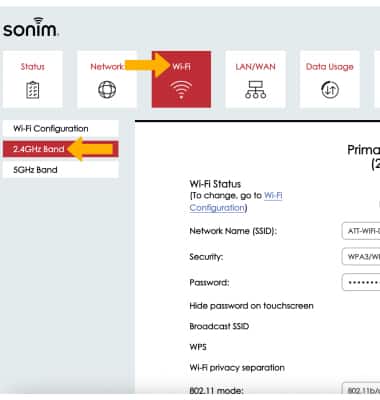
2. Click Wi-Fi, then click the 2.4GHz Band menu.
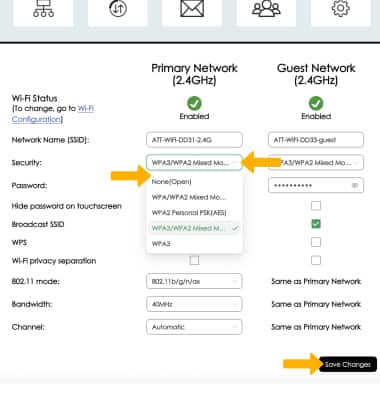
3. Click the drop-down next to Security, then click the desired option. Click Save Changes.
*Note: To change security for 5GHz Band, click the 5GHz Band menu > **drop-*down next to Security > desired option > Save Changes.
Set Wi-Fi network password
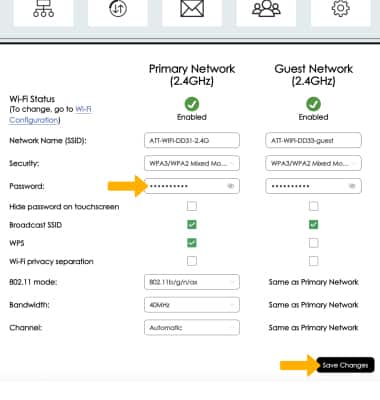
From the 2.4GHz Band menu, enter the desired Password then click Save Changes.
Note: To change network password for 5GHz Band, click the 5GHz Band menu> edit Password > Save Changes.