Notifications & Alerts
For those using the AT&T amiGO™ Jr. Phone, the parent must first provide access to Settings.
In this tutorial, you will learn how to:
• Quickly access and respond to notifications
• Access notification settings
• Turn on or off notification badges
• Turn lock screen notifications on or off
• Turn notifications on or off on a per-app basis
• Adjust notification sounds
Quickly access and respond to notifications
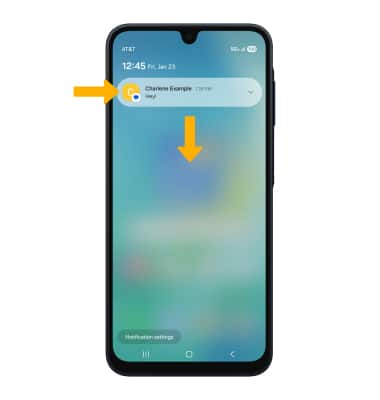
Swipe down from the upper left corner of the screen. Notifications will be displayed.
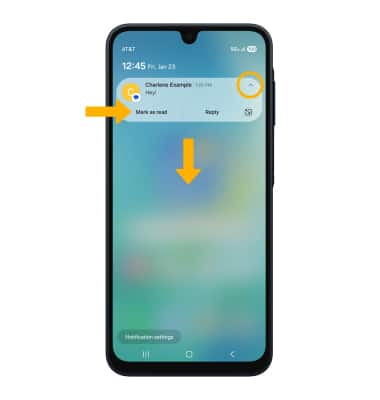
To respond to a notification, select the drop-down icon then select the desired action.
Access notification settings
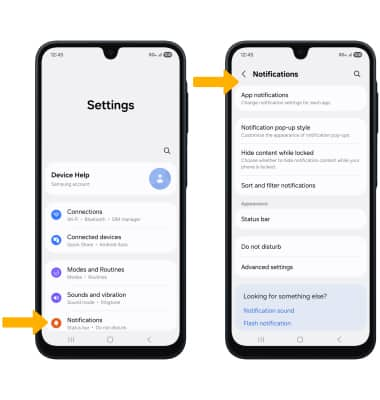
- Swipe down from the upper right corner of the screen, then select the
 Settings icon.
- Select Notifications. Edit Notification settings as desired.
Turn on or off notification badges
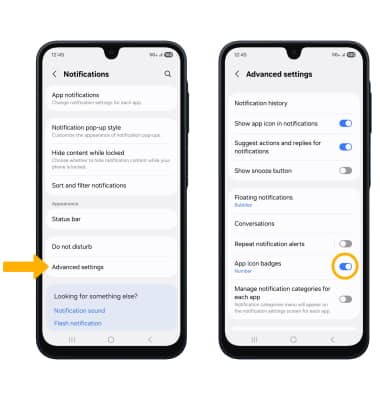
From the Notifications screen, select Advanced settings then select the App icon badges switch to turn notification badges on or off.
Turn lock screen notifications on or off
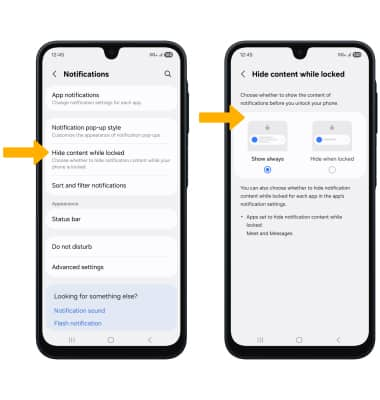
To block or unblock notifications from appearing when the device is locked, from the Notifications screen, select Hide content while locked then select the desired option.
Turn notifications on or off on a per-app basis
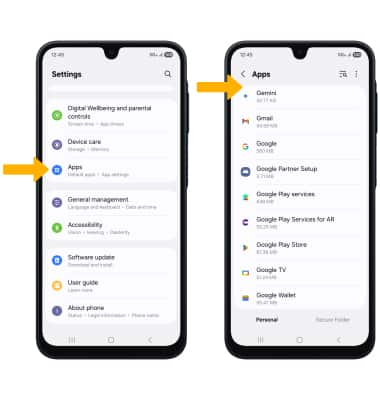
1. From the Settings screen, scroll to and select Apps, then select the desired app.
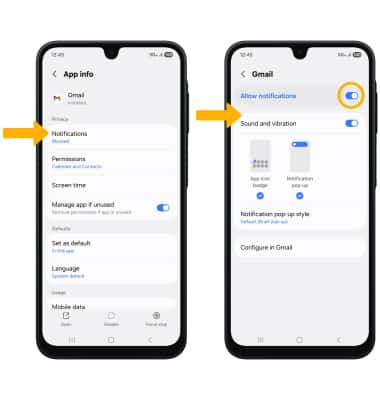
2. Select Notifications. Select the Allow notifications switch, then edit the Notification settings as desired.
Adjust notification sounds
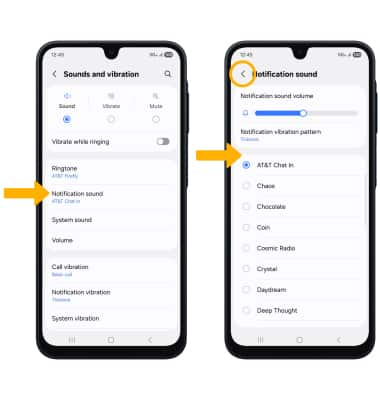
1. From the Settings screen, select Sounds and vibration.
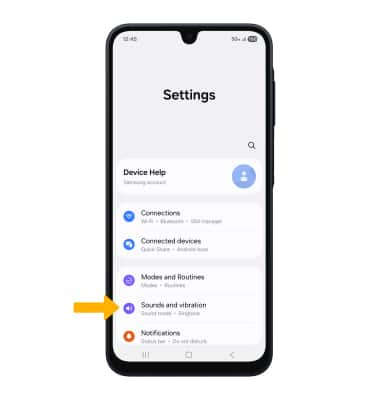
2. Select Notification sound. Select the desired notification sound, then select the back arrow.