Reset Device
A factory reset reverts the device back to factory settings. It will permanently erase all personal data, preferences, settings.
In this tutorial, you will learn how to:
• Power cycle the device
• Restart from the Web UI
• Factory reset from the Web UI
• Factory reset on the device
Power cycle the device
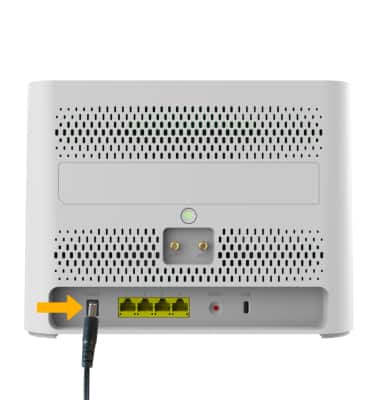
Power cycling your device will not erase your configuration settings. Unplug the power cord from the AT&T BGW830, wait 5 seconds, then plug the power cord back into your device.
Restart from the Web UI
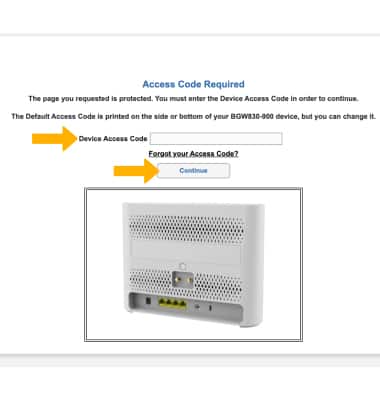
1. From your device’s web browser, go to https://192.168.1.254. Enter your Device Access Code, then click Continue.
Note: Ensure that your device is connected to your AT&T BGW830's Wi-Fi network. For more information, please see the Connect Devices to Wi-Fi or Connect PC or Mac to Wi-Fi tutorials. If this is your first time logging into the Web UI, use the default access code printed on the label on the back of the device.
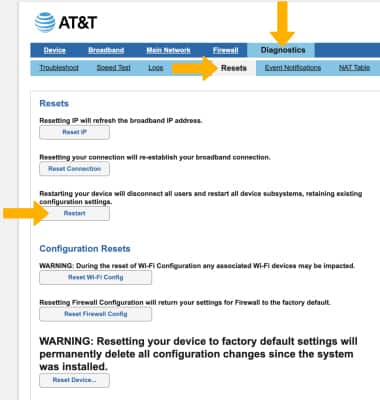
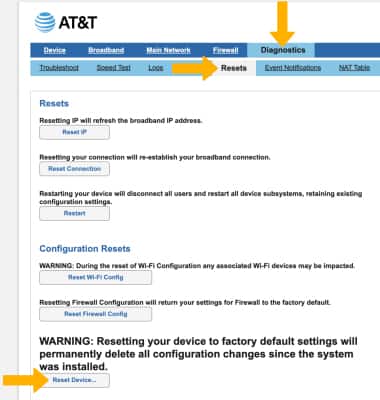
2. Click the Diagnostics tab, then click Resets. Click Restart. The AT&T BGW830 will take 2.5 minutes to reboot.
Factory reset from the WebUI
The factory reset will erase all configuration settings and put the device back to its factory state. Click the Diagnostics tab, then click Resets. Click Reset Device. The AT&T BGW830 will take a moment to reset.
Factory reset on the device
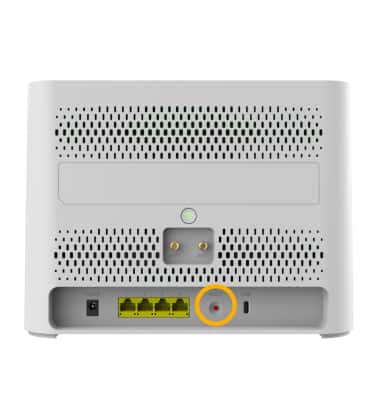
The factory reset will erase all configuration settings and revert the device to its factory state. Press and hold the Reset button on the back of the AT&T BGW830 for 5 seconds. The device will take a moment to reset.