Connect PC or Mac to Wi-Fi
In this tutorial, you will learn how to:
• Connect a Mac to Wi-Fi
• Connect a PC to Wi-Fi
Connect a Mac to Wi-Fi
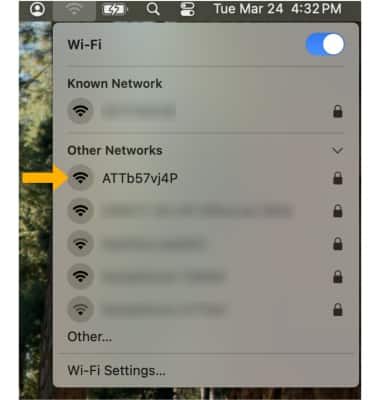
1. From your Mac, click the  Wi-Fi icon in the top right corner of the screen. 2. Click the AT&T BGW830's Wi-Fi network.
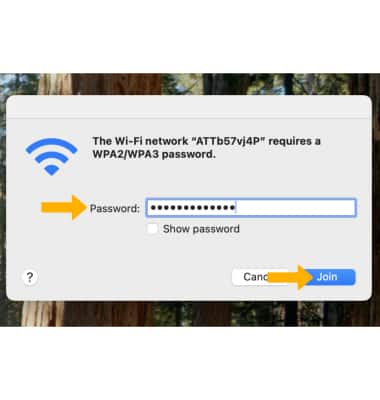
3. Enter the Password, then click Join. Your Mac is now connected to the Wi-Fi network.
Note: The Wi-Fi network's name and password are displayed on the label on the back of the device.
Connect a PC to Wi-Fi
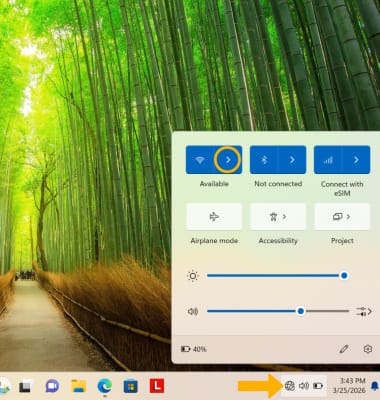
1. From your PC, click the Connectivity icon on bottom right corner of the screen. Ensure Wi-Fi is enabled, then click the right arrow icon next to the Wi-Fi icon.
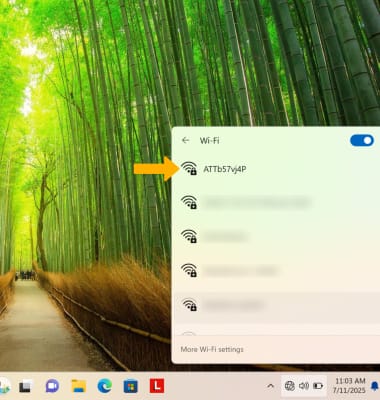
2. Click the AT&T BGW830's Wi-Fi network.
3. Click Connect.
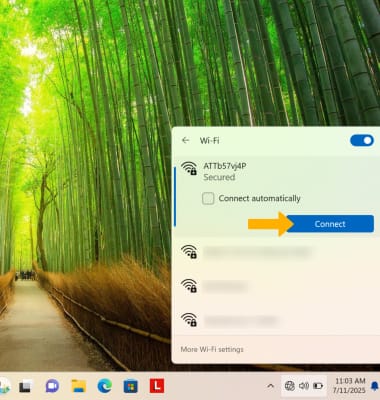
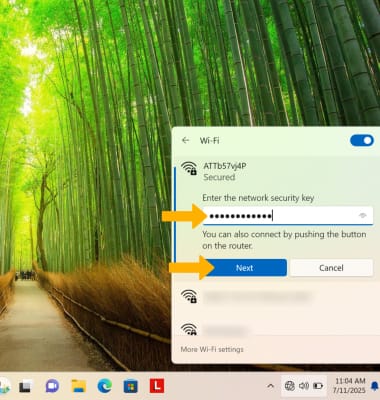
4. Enter the Password, then click Next. Your PC is now connected to the Wi-Fi network. Note: The Wi-Fi network's name and password are displayed on the label on the back of the device.