Mobility Signal
In this article, you will learn how to:
• Check network connection strength
• View Mobility Status
• Optimal device placement
Check network connection strength
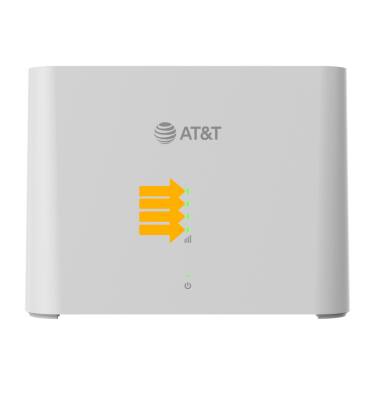
The strength of the cellular connection will be displayed on the front of the AT&T BGW830. The more green LED indicators that are lit up, the better the connection.
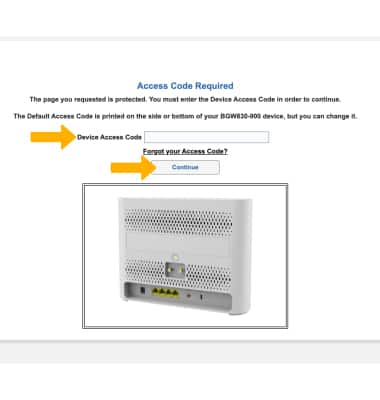
To check network connection on a connected device, you must log in to the web UI. From your device’s web browser, go to https://192.168.1.254. Enter your Device Access Code, then click Continue.
Note: Ensure that your device is connected to your AT&T BGW830's Wi-Fi network. For more information, please see the Connect Devices to Wi-Fi or Connect PC or Mac to Wi-Fi tutorials. Enter the access code printed on the label on the back of the device.
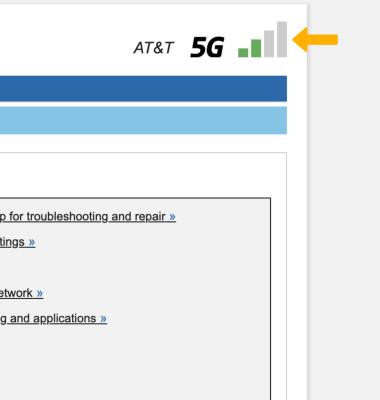
Your signal strength will be displayed in the upper right corner of the screen.
View Mobility Status
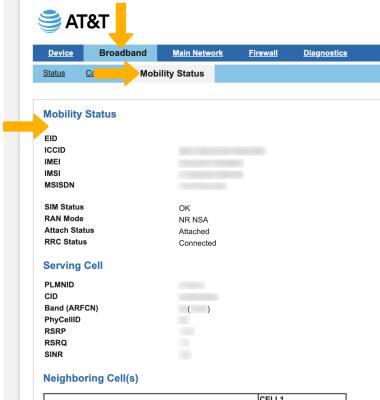
From the web dashboard, click the Broadband tab, then click Mobility Status. Mobility Status information will be displayed.
Optimal device placement
If a signal is weak, try moving the AT&T BGW830 to a different location. For optimal placement, place your device on a higher shelf and near a window. Try to avoid placing the device near items that may interfere with the wireless network, such as large appliances, microwaves, stone or concrete walls, metal cabinets, computer monitors or televisions screens.