Wi-Fi Network Name and Password
In this tutorial, you will learn how to:
• View Wi-Fi network name and password • Edit Wi-Fi network name and password
View Wi-Fi network name and password
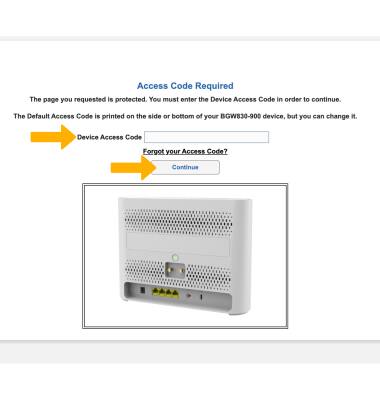
1. From your device’s web browser, go to https://192.168.1.254. Enter your Device Access Code, then click Continue.
Note: Ensure that your device is connected to your AT&T BGW830's Wi-Fi network. For more information, please see the Connect Devices to Wi-Fi or Connect PC or Mac to Wi-Fi tutorials. Use the default access code printed on the label on the back of the device.
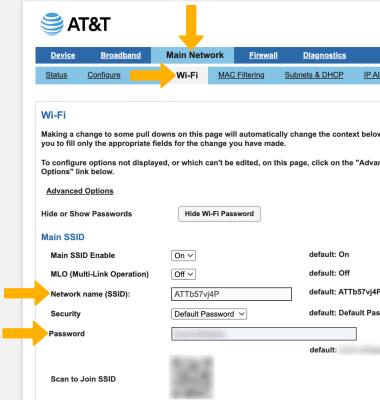
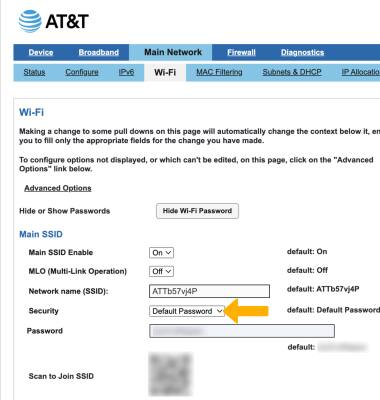
2. Click the Main Network tab, then click Wi-Fi.The Wi-fi name and password will be displayed.
Note: You can also view the the default Wi-Fi name and password on the printed label on the back of the device.
Edit Wi-Fi network name and password
CHANGE WI-FI NAME: From the Wi-Fi screen, edit the Network name as desired.
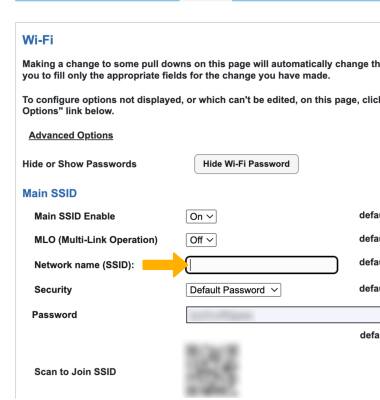
CHANGE PASSWORD: 1. To change the Password, click the drop-down next to Security.
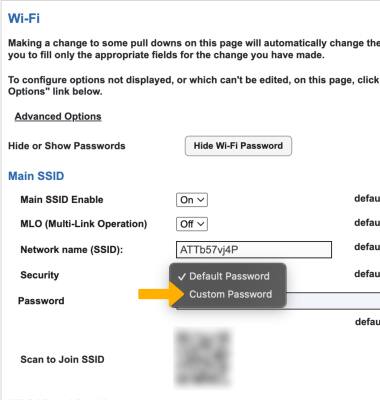
2. Click Custom Password.
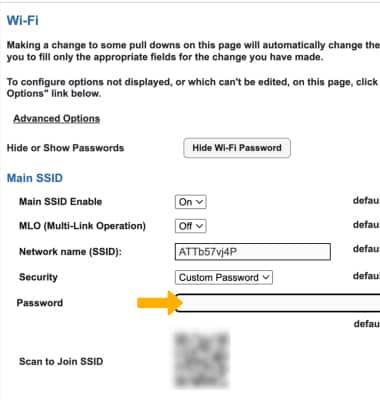
3. Enter the desired Password.
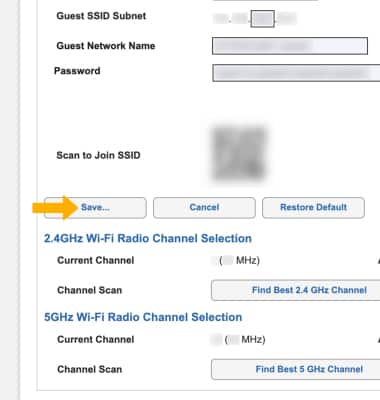
4. When finished editing Wi-Fi network Name and Password, scroll down and click Save.