Accessibility
For more information about accessibility features and TTY compatibility, visit AT&T Accessibility.
In this tutorial, you will learn how to:
• Access accessibility features
• Turn on/off flash notifications
• Access Real-Time Text (RTT) settings
Access accessibility features
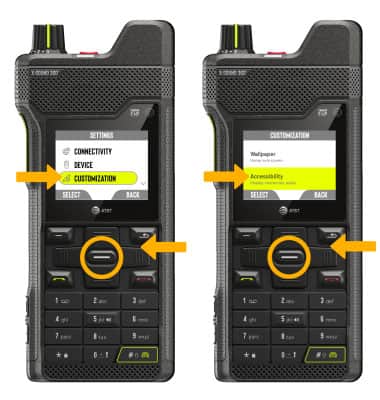
1. From the home screen, press the right navigation key to highlight the  Settings app, then press the Select button to select.
2. Press the navigation keys to highlight Customization, then press the Select button to select. Press the navigation keys to highlight Accessibility, then press the Select button to select.
Turn on/off flash notifications
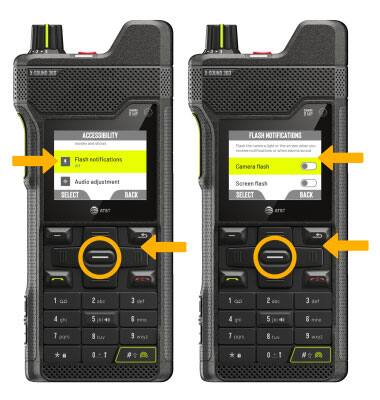
From the Accessibility screen, press the navigation keys to scroll to and highlight Flash notifications, then press the Select button. Press the navigation keys to highlight and then the Select button to select the desired option.
Access Real-Time Text (RTT) settings
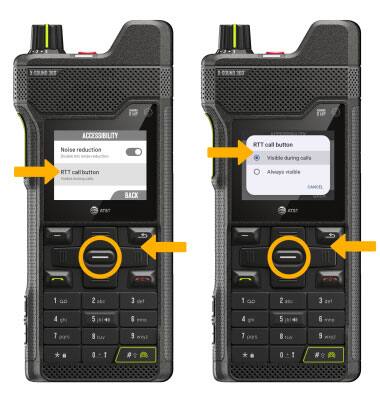
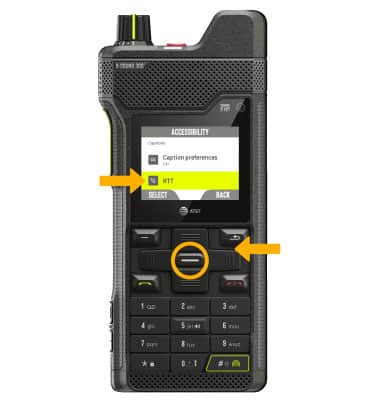
ACCESS: From the Accessibility screen, press the navigation keys to scroll to and highlight RTT, then press the Select button.
EDIT: Press the navigation keys to highlight RTT call button, then press the Select button. Press the navigation keys to highlight the desired option, then press the Select button.