Calendar
In this tutorial, you will learn how to:
• Access Calendar
• Create an event
• View event information
• Edit an event
• Delete an event
When there is an upcoming event, the  Calendar icon will be displayed in the Notification bar.
Access Calendar
From the home screen, press the left navigation key to highlight Apps, then press the Select button. Press the navigation keys to highlight the Calendar app, then press the Select button to select.

Create an event
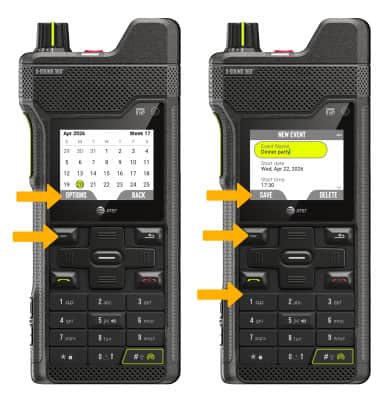
From the Calendar, press the Left Dynamic key to select Options, then select New Event. Use the keypad to enter the desired information, then press the Left Dynamic key to select Save.
View event information
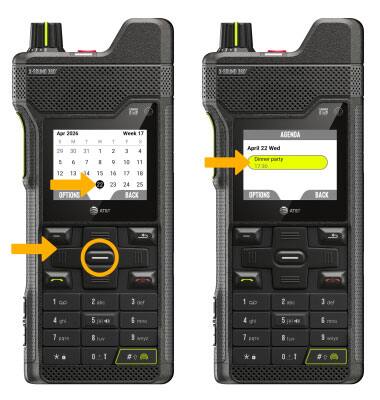
From the Calendar, press the navigation keys to highlight the desired date then press the Select button to select. Press the navigation keys to highlight the desired event and press the Select button. Event details will be displayed.
Edit an event
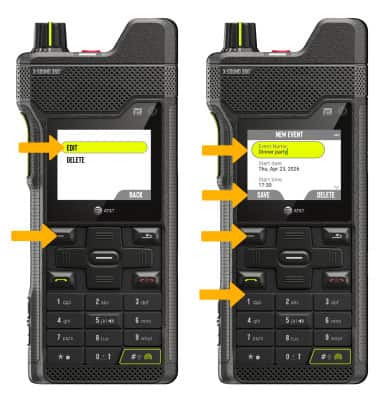
From the desired event, press the Left Dynamic key to select Options, then select Edit. Use the keypad to edit the information as desired, then press the Left Dynamic key to select Save.
Note: You will only be able to edit events you have created.
Delete an event
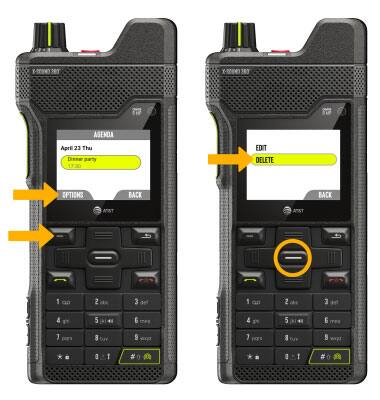
From the desired event, press the Left Dynamic key to select Options, then select Delete.
Note: Press the Left Dynamic key again to select Validate to confirm.