Notifications & Alerts
In this tutorial, you will learn how to:
• Access notifications • Access notification sound settings
• Change notification sound
• Enable/ disable notification vibration • Enable/ disable Emergency alerts • Access notifications in the AT&T amiGO™ app
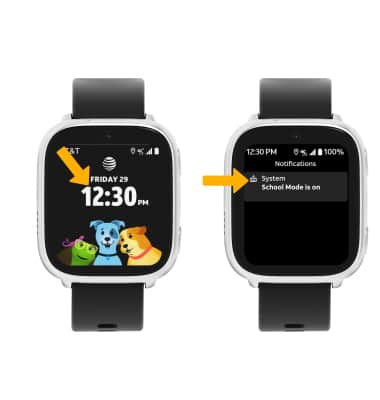
Access notifications
Swipe down from the upper left corner of the screen. Notifications will be displayed.
Access notification sound settings
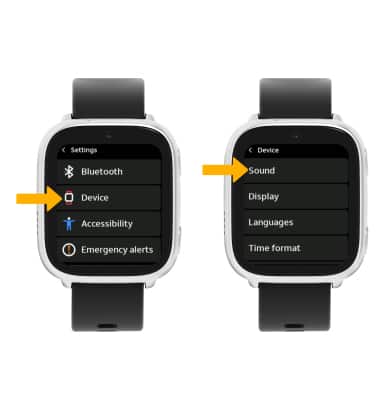
- From the Clock screen, swipe left fours times then select the
 Settings app.
 - Scroll to and select Device, then select Sound.
Change notification sound
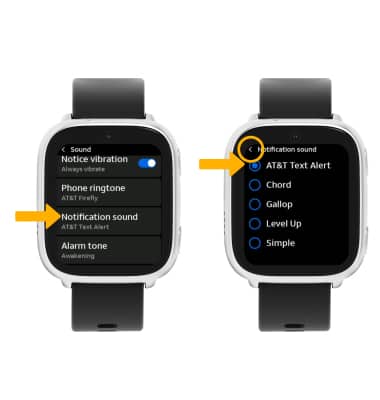
From the Sound screen, scroll to and select Notification sound then scroll to and select the desired option. When finished, select the back arrow.
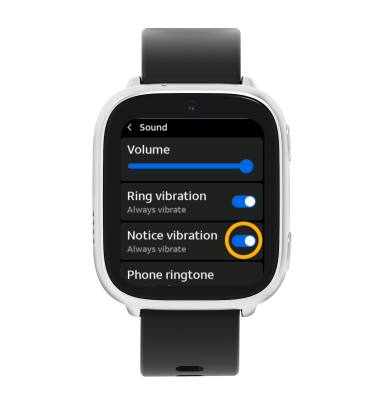
Enable/ disable notification vibration
From the Sound screen, select the Notice vibration switch to enable or disable notification vibrations as desired.
Enable/ disable Emergency alerts
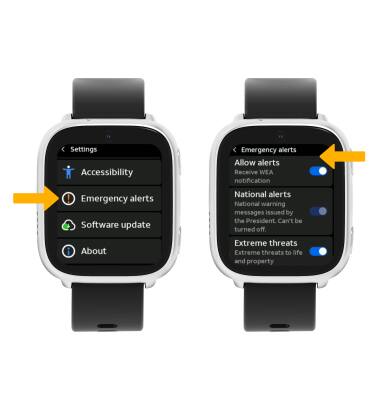
From the Settings screen, scroll to and select Emergency alerts. Select the switch next to the desired alert(s) to enable or disable.
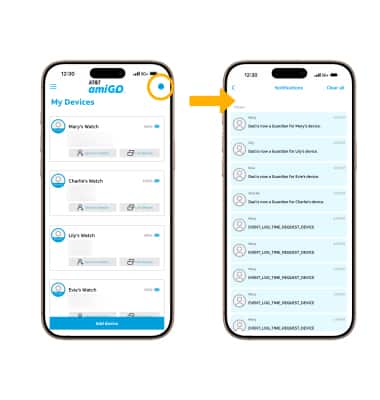
Access notifications in the AT&T amiGO™ app
1. From your connected smart phone, navigate to and select the

AT&T amiGO™ app.
2. Select the Notification icon. Notifications will be displayed.