Camera & Video Settings
Manage camera and video settings including storage location, flash, picture size, timer, and more.
In this tutorial, you will learn how to:
• Access camera settings
• Change the picture size
• Turn the flash on or off
• Set the timer
• Edit camera and mic access
• Access Pro settings
Access camera settings
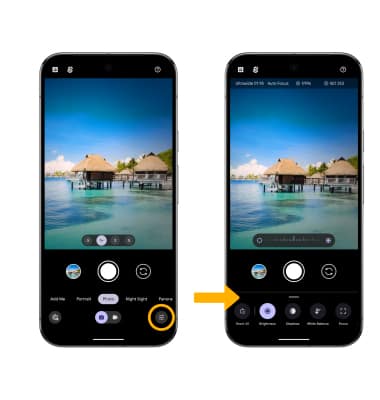
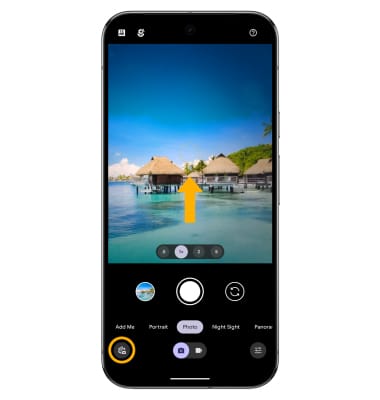
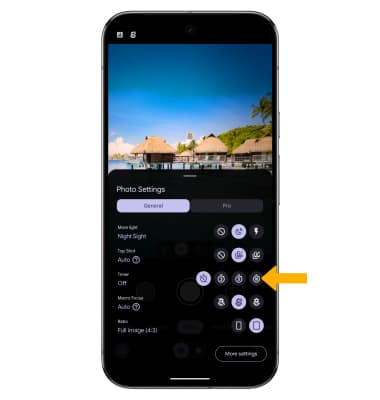
From the home screen, select the  Camera app, then swipe up from the middle of the screen or select the Camera settings icon.
Note: To access additional camera settings, from the camera settings menu, select More settings.
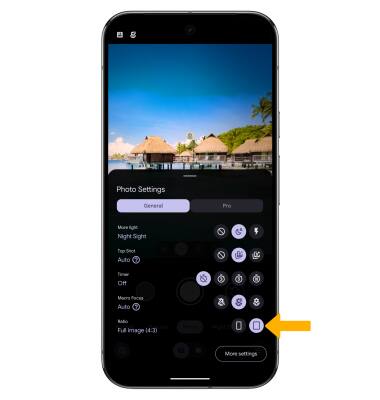
Change the picture size
From the camera settings menu, select the desired ratio.
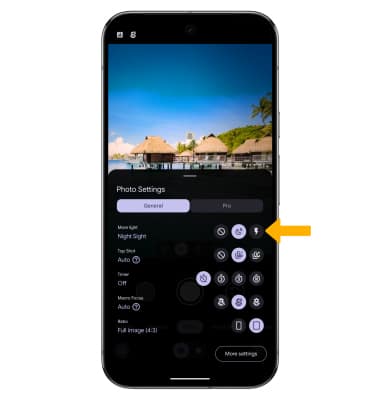
Turn the flash on or off
From the camera settings menu, select the desired flash option.
Set the timer
From the camera settings menu, select the desired time.
Edit camera and mic access
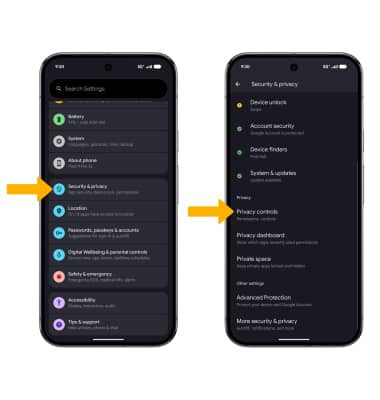
1. Swipe down from the Notification bar with two fingers, then select the  Settings icon. Scroll to and select Security & privacy then scroll to and select Privacy controls.
Access Pro settings
From the camera screen, select the Pro settings icon. Select the desired setting to adjust.