Display
Change the display brightness and screen timeout.
 Visit the Optimize Battery Life tutorial for battery-saving tips.
In this tutorial, you will learn how to:
• Access display settings
• Adjust display settings
• Adjust display settings on device
Access display settings
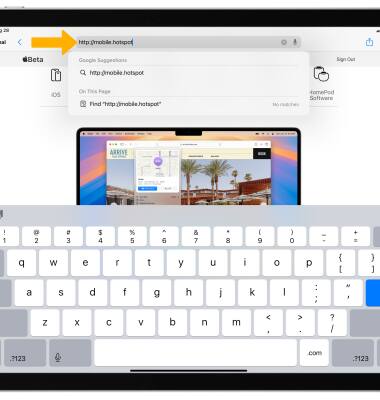
1. From your device's web browser, go to http://mobile.hotspot.
Note: Ensure that your device is connected to the Franklin A70's Wi-Fi network. For more information, please see the Connect Devices to Wi-Fi or Connect PC or Mac to Wi-Fi tutorials.
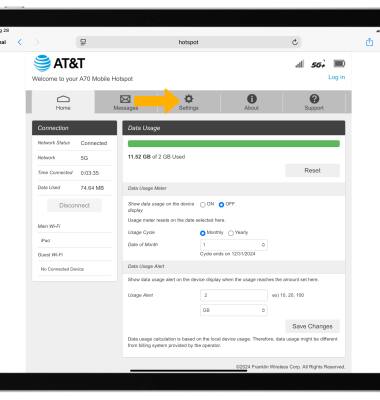
2. Select Settings at the top of the page.
Note: You may need to enter the Mobile Hotspot password. If you haven’t logged into the Web admin page before, the default password will be ‘admin’. You may be prompted to change the admin password.
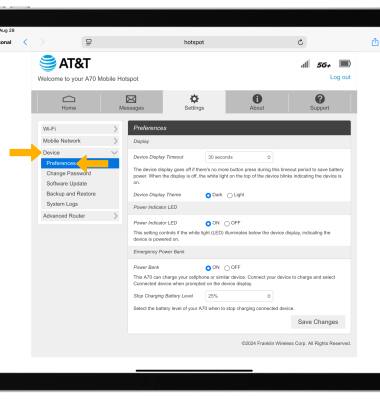
3. Select Device, then select Preferences.
Adjust display settings
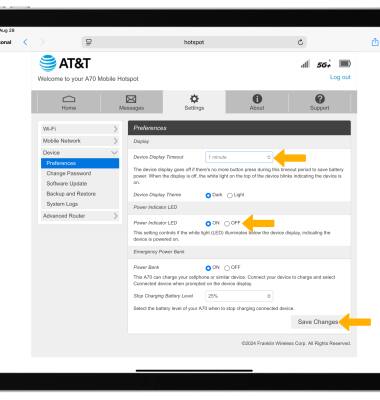
• ADJUST DEVICE DISPLAY TIMEOUT: Select the Device Display Timeout drop-down menu then select the desired duration. Select Save Changes.
• POWER INDICATOR LED: Select the desired Power Indicator LED option to enable or disable LED, then select Save Changes.
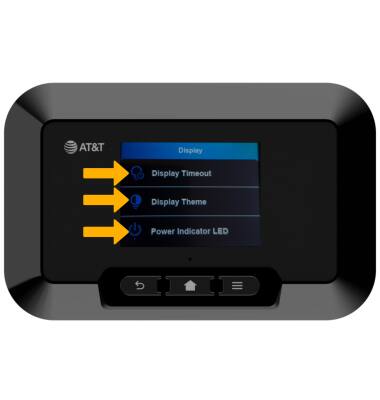
Adjust display settings on device
1. Press the Menu button, then select Settings.
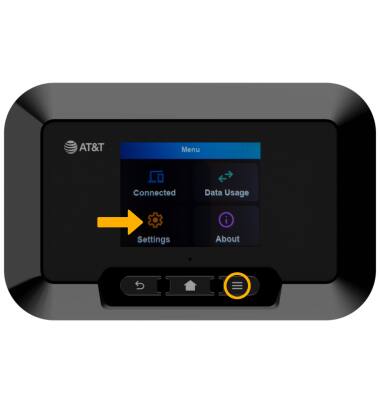
2. Select the down arrow, then select Display.
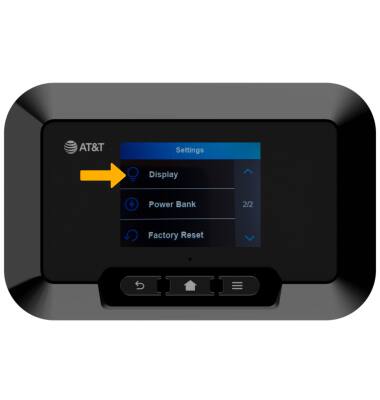
3. Select the desired display setting, then edit settings as desired.