Back up & Restore with Google
Back up & Restore with Google
Discover how to use Google to back up contacts, photos, and files.
INSTRUCTIONS & INFO

Use Android Backup Service to back up data connected to one or more of your Google accounts. If you replace your device or erase its data, you can restore your data using the account(s) that you backed up. For more information, including what data and settings are restored, Please visit Back up or restore data on your device.
1. Swipe down from the Notification bar with two fingers, then select the  Settings icon.
Note: For more information, including what data and settings are restored, please see Back up or restore data on your device.
2. Select Google.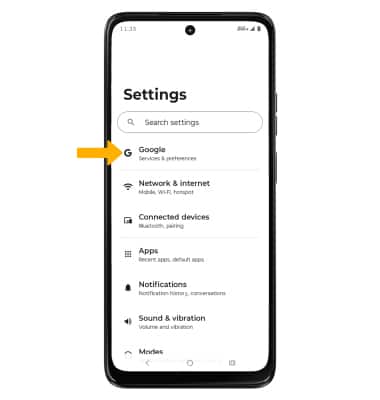
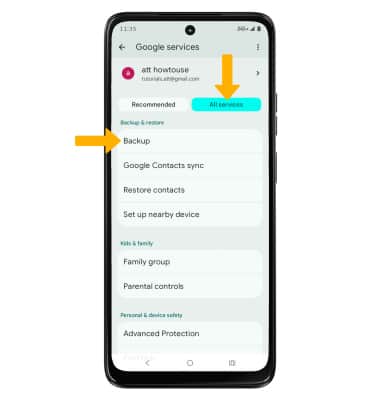
3. Select the All services tab, then scroll to and select Backup.
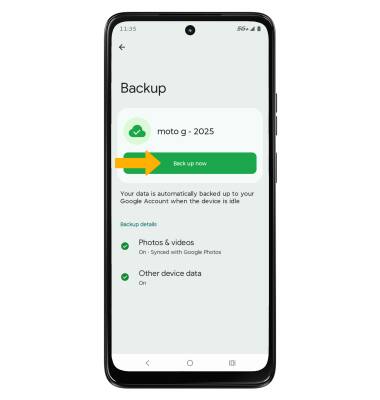
4. Your data will be automatically backed uo to your Google Account when the device is idle. To manually back up your data, select Back up now.
Note: To disable automatic backups, select the desired backup category, then select the Backup switch to disable.