Google Sign-In
Add your Google account to sync Gmail, Chrome, YouTube, Google Maps, and More.

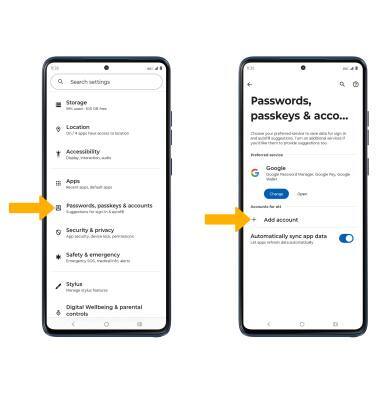
1. Swipe down from the Notification bar with two fingers, then select the  Settings icon.
2. Scroll to and select Passwords, passkeys & accounts, then select Add account.
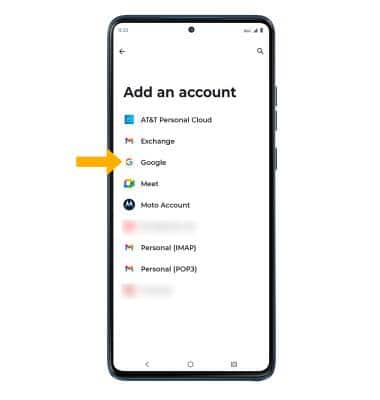
3. Select Google.
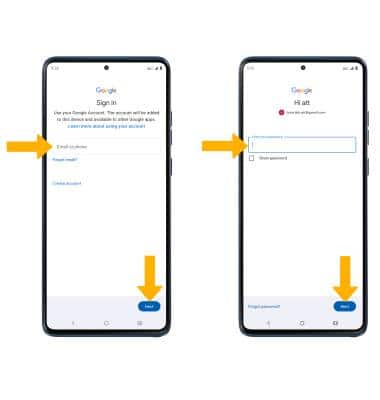
4. Enter your Email or phone number, then select Next. Enter your Password, then select Next.
Note: If you do not have an account, select Create account and follow the prompts, or visit accounts.google.com/signup. If you can't remember your password, select Forgot password? and follow the prompts.
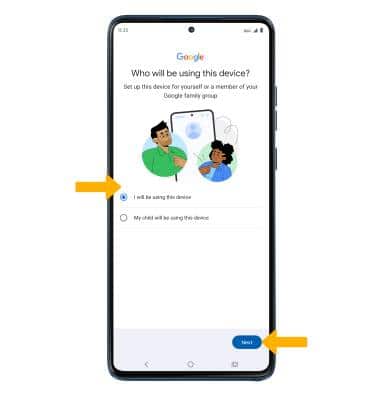
5. Review the Who will be using this device? prompt. Select the desired option, then select Next.
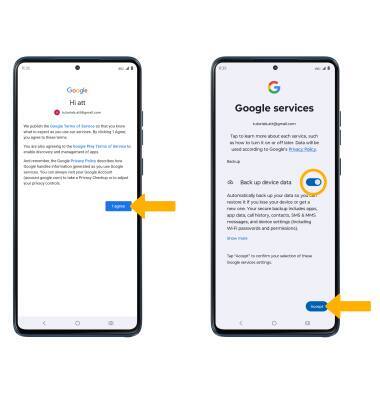
6. Review the Terms of Service and Privacy Policy prompt, then select I agree. Review the Google Services prompt. Select the Back up device data switch to enable or disable as desired, then select Accept.