Camera & Video Settings
Manage camera and video settings including storage location, flash, picture size, timer, and more.
In this tutorial, you will learn how to:
• Access camera settings
• Change the picture size
• Turn the flash on or off
• Set the timer
• Turn Auto Smile on or off
• Turn Shutter Sound on or off
• Turn Tap Anywhere to Capture on or off
• Access and edit Capture assistant settings
• Add a watermark
• Access and use Keep last mode
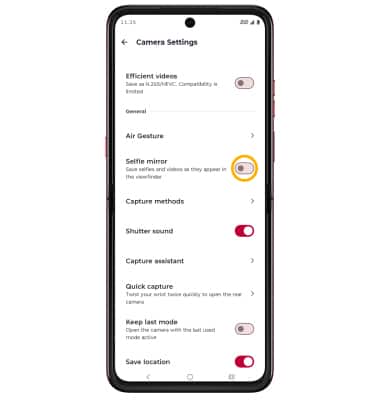
• Enable Selfie mirror
Access camera settings
From the home screen, select the  Camera app then select the
  Settings icon.
Change the picture size
From the camera screen, select the  Ratio icon then select the desired option.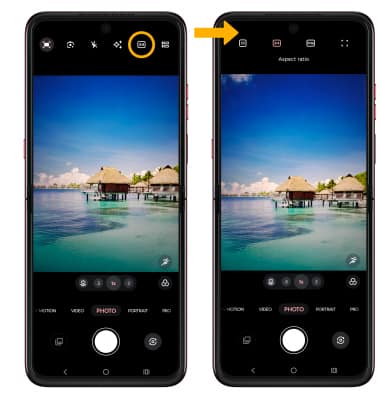
Turn the flash on or off
From the camera screen, select the  Flash icon then select the desired option.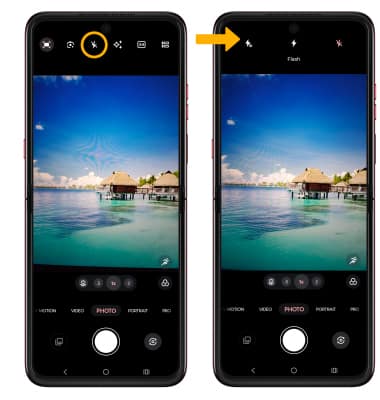
Set the timer
From the camera screen, select Timer icon then select the desired time.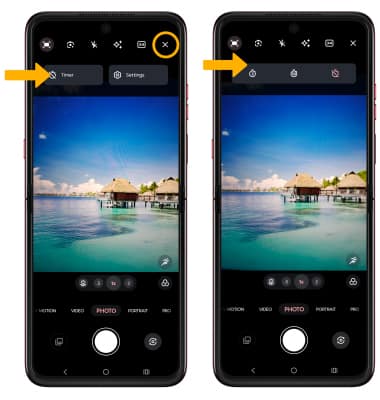
Turn Auto Smile on or off
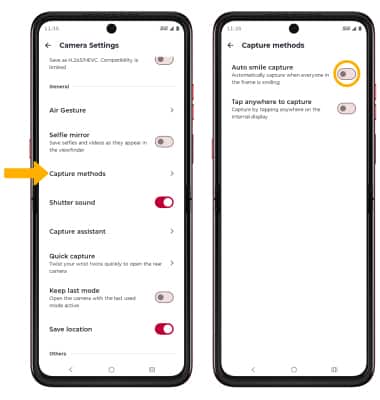
Auto Smile automatically captures a photo when everyone in the frame is smiling. From the Camera settings screen, scroll to and select Capture methods then select the Auto smile capture switch to enable or disable this feature.
Turn Shutter Sound on or off
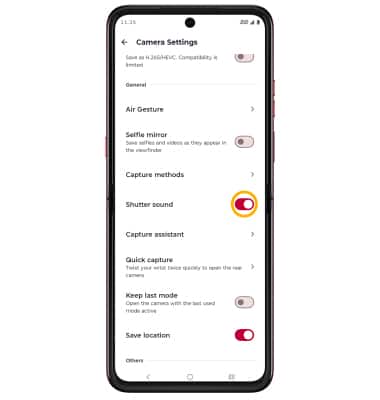
From the Camera settings screen, scroll to and select the Shutter sound switch.
Turn Tap Anywhere to Capture on or off
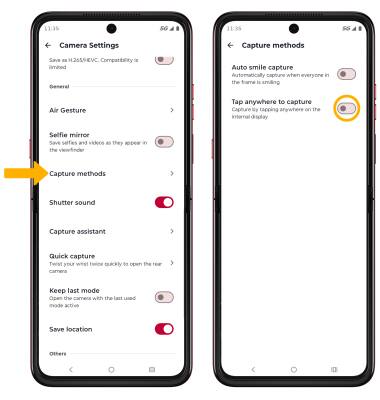
Tap Anywhere to Capture allows you to take a photo by simply tapping anywhere on the camera screen. To enable or disable Tap anywhere to capture, from the camera settings screen, scroll to and select Capture methods then select the Tap anywhere to capture switch.
Access and edit Capture assistant settings
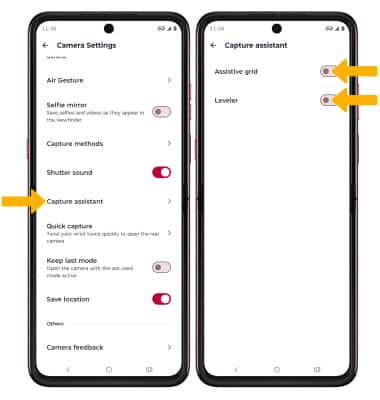
From the Camera settings screen, scroll to and select Capture assistant. Select the Assistive grid switch to turn the camera grid on or off. Select the Leveler switch to turn the leveler on or off.
Add a watermark
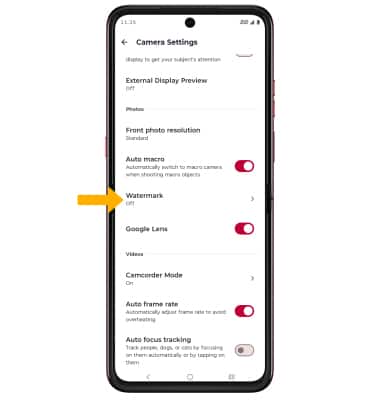
1. From Camera settings screen, select Watermark.
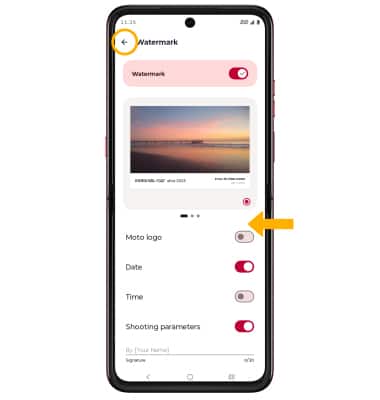
2. Select the switch next to the desired watermark option. When finished, select the back arrow.
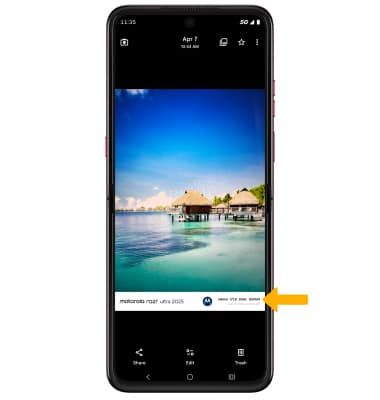
3. After taking a photo, the watermark will appear on the bottom left corner of your photo.
Access and use Keep last mode
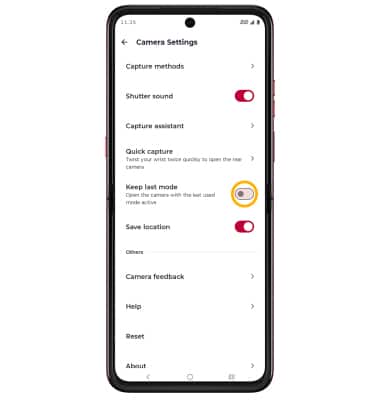
Keep last mode preserves the last used camera settings when reopening the camera app. From Camera settings screen, scroll and select the Keep last mode switch.
Enable Selfie mirror
From the Camera settings screen, select the Selfie mirror switch.