Camera & Video Settings
Manage camera and video settings including storage location, flash, picture size, timer, and more.
In this tutorial, you will learn how to:
• Access camera settings
• Change the picture size
• Turn the flash on or off
• Set a timer
• Access Grid Lines
• Access HDR
• Enable Touch Shooting
Access camera settings
From the Camera app, select the Settings icon, then edit settings as desired.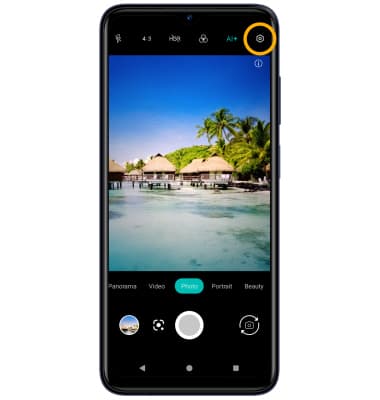
Change the picture size
From the Camera screen, select Ratio icon. Select the desired option.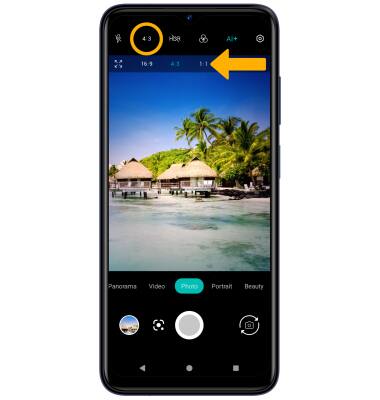
Turn the flash on or off
From the Camera screen, select the Flash icon then select the desired option.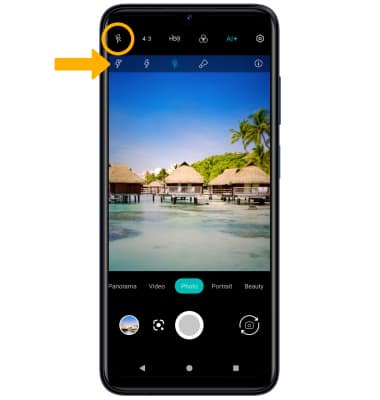
Set a timer
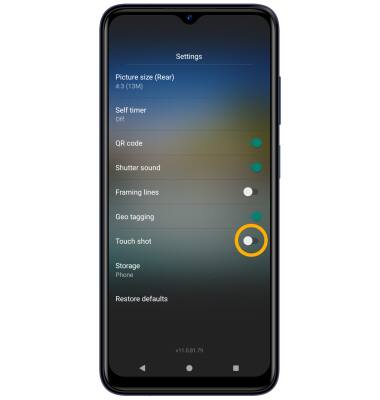
From the Camera screen, select the Settings icon. Select Self timer, then select the desired time.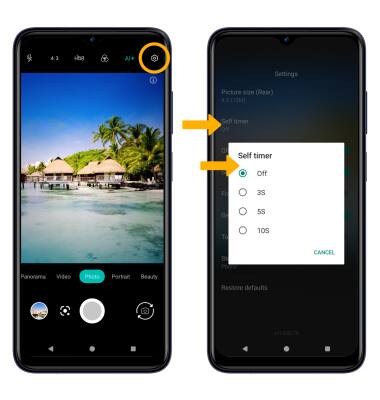
Access Grid Lines
From the Camera settings screen, select the Framing lines switch. 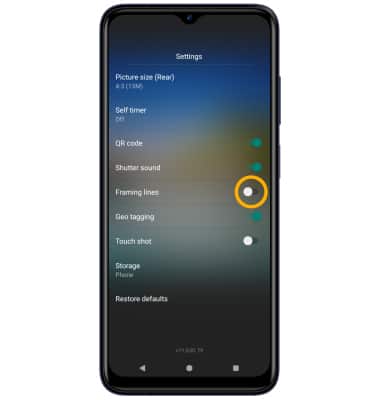
Access HDR
From the Camera screen, select the HDR icon then select the desired option.
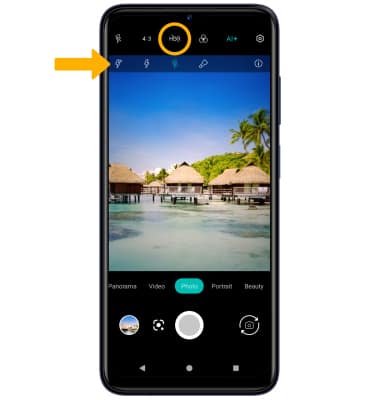
Enable Touch Shooting
To take a photo by touching the screen, from the Camera settings screen, select the Touch shot switch.