Sound Recorder
Sound Recorder
Learn how to record your voice and access saved recordings.
INSTRUCTIONS & INFO
In this tutorial, you will learn how to:
• Access and use Sound Recorder
• Access saved recordings
Access and use Sound Recorder
1. From the Clock screen, swipe left three times then select the Sound Recorder app.
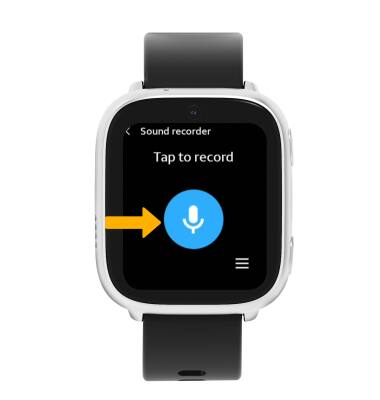
2. To start a new recording, select the Record icon.
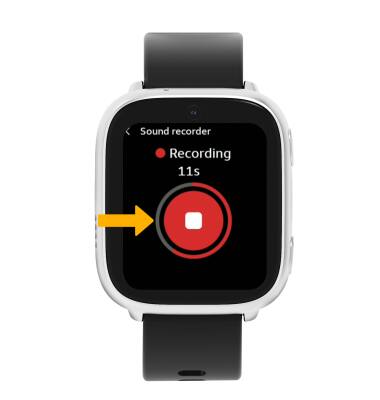
3. The recording will automatically stop after 20 seconds. To manually stop the recording, select the Stop icon.
4. Select the desired option:
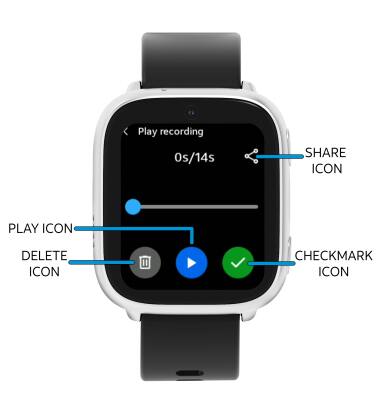
• DELETE: To delete your recording, select the Delete icon.
• PLAY: To play back your recording, select the Play icon.
• SAVE: To save your recording, select the Checkmark icon.
• SHARE: To share your recording, select the Share icon then select the desired contact.
• PLAY: To play back your recording, select the Play icon.
• SAVE: To save your recording, select the Checkmark icon.
• SHARE: To share your recording, select the Share icon then select the desired contact.
Access saved recordings
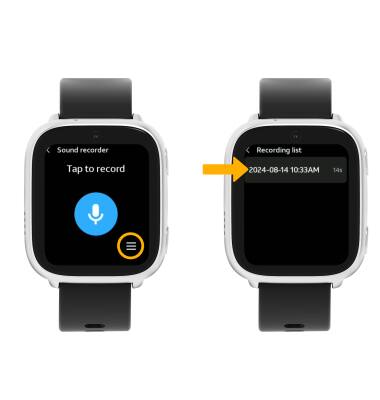
To access saved recordings, select the Menu icon then select the desired recording.