Back up & Restore with Google
Back up & Restore with Google
Discover how to use Google to back up contacts, photos, and files.
INSTRUCTIONS & INFO
 The parent must first provide access to Settings.
1. Swipe down from the upper right corner of the screen Notification bar then select the  Settings icon.
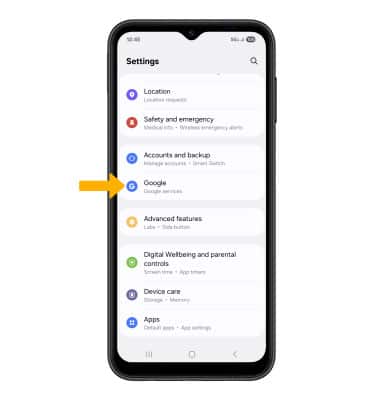
2. Scroll to and select Google.
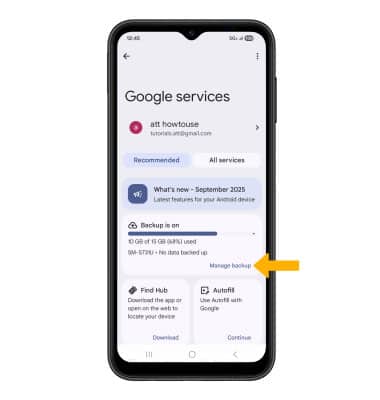
3. Select Manage backup.
4. Select Back up now.
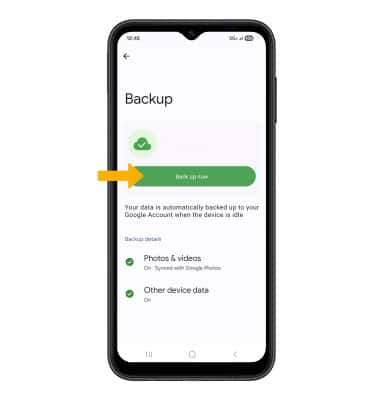
5. To turn off backup, select the Photos & videos, then select Backup switch.
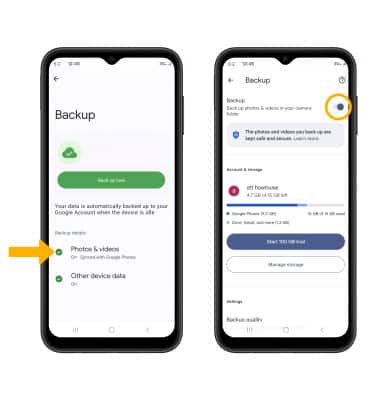
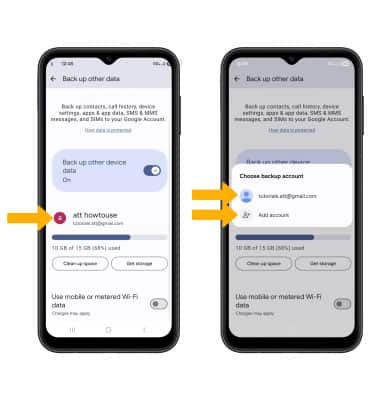
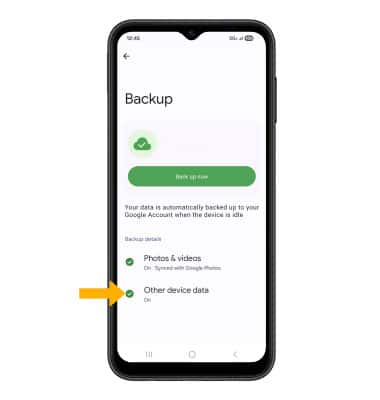
4. If desired, select Other device data ensure redundancy for backing up your data on the cloud.
5. Select your current account. Select the desired backup account option or select Add account to add a new backup account. When you add your Google account to a device, the data that you previously backed up for that Google account is restored to the device.