Make an AT&T Video Call
Make a video call.

The child can only video call contacts that the Parent has added for them, accessible through the Contacts app. To learn more about how to make calls and add contacts through the AT&T amiGO™ app, visit the Companion App: Calls, Contacts, Messages.
In this tutorial, you will learn how to:
• Make an outbound video call
• Make a Video call from the AT&T amiGO™ app
Make an outbound video call
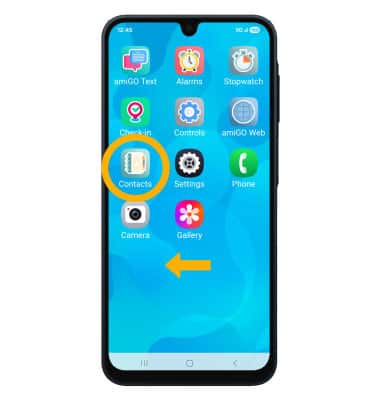
1. From the home screen, swipe left to the apps tray then select the Contacts app.
Note: To use the amiGO Call app, you must be granted access on the parent phone. To grant access, from the paired device, navigate to the AT&T amiGO™ app > Menu icon > Parental controls > App Management > amiGO Call app switch.
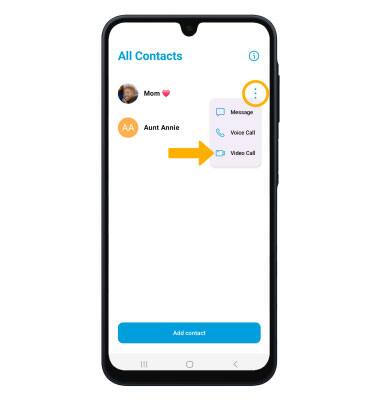
2. Select the three buttons icon next to the desired contact you wish to call, then select Video Call.
Note: Calls can only be made and received from Contacts added through the AT&T amiGO™ app.
Make a Video call from the AT&T amiGO™ app
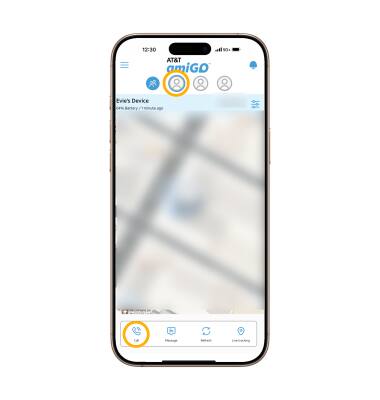
1. From your connected smart phone, navigate to and select the  AT&T amiGO™ app.
2. Select the desired device, then select Call.
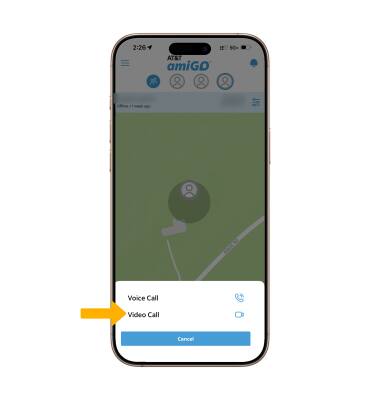
3. Select Video Call.