Send & Receive Messages
Learn how to create and respond to messages.

The child can only text contacts that the Parent has added for them access your contacts, or if the Parent has enabled the child to manage their own contacts. To enable, from the AT&T amiGO app on the parent device, select the Settings icon > Device settings > Manage contacts switch. To learn more about how to make calls and add contacts through the AT&T amiGO™ app, visit the Companion App: Calls, Contacts, Messages.
In this tutorial, you will learn how to:
• Access messages
• Compose & send a message
• Read and respond to a new message
• Access messages from the AT&T amiGO™ app
Access messages
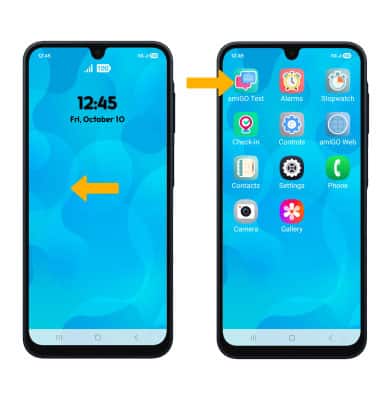
From the home screen, swipe left to the apps tray then select the amiGO Text app.
Compose and send a message
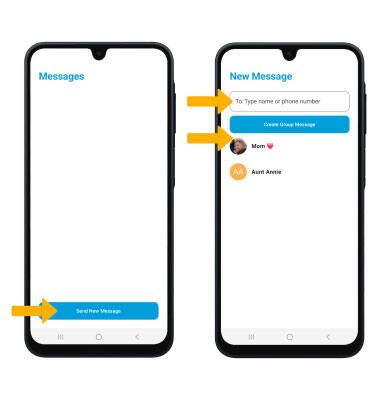
1. Select Send New Message. Select the 'To' field, then enter or select the desired recipient.
Note: Calls can only be made and received from Contacts added through the AT&T amiGO™ app.
2. Compose and send a message using the following options as desired: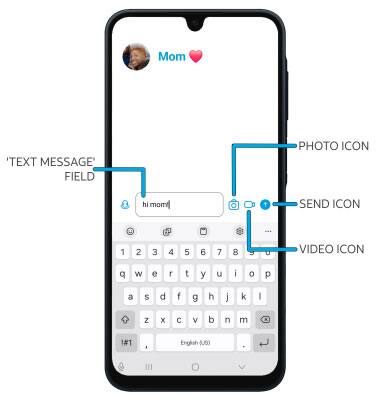
• ENTER MESSAGE: Select the 'Text message' field, then enter the desired message.
• ADD PHOTO ATTACHMENT: Select the Photo icon to attach a photo from the gallery or to take a picture.
• ADD VIDEO ATTACHMENT: Select the Video icon to attach a video from the gallery or to take a video.
• SEND A MESSAGE: When finished composing a message, select the Send icon to send the message.
Read and respond to a new message
From the Messaging inbox, select the desired message thread.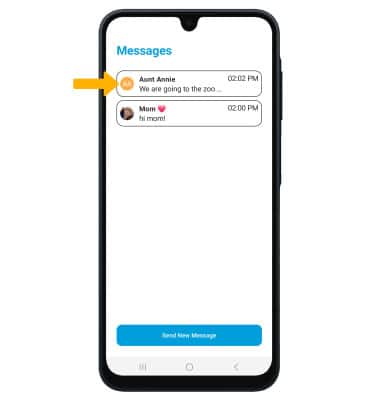
VIEW AN ATTACHMENT: To view an attachment, select the desired attachment. 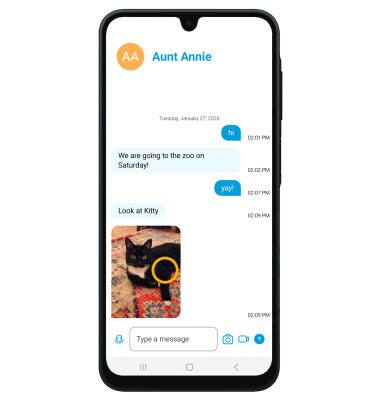
RESPOND TO A MESSAGE: Enter the desired message in the 'Text message' field, then select the Send icon. 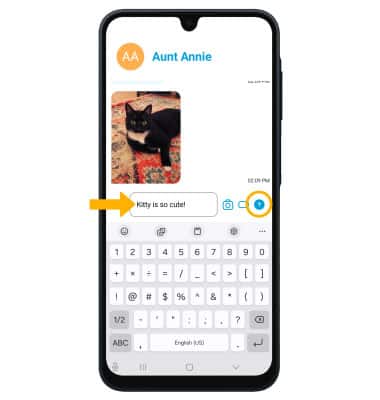
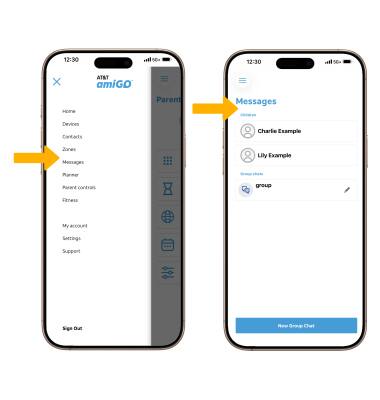
Access messages from the AT&T amiGO™ app
 AT&T amiGO™ app.
 Menu icon then select Messages. Select the desired message thread.