Device Setup
Find out how to get started with your new device.
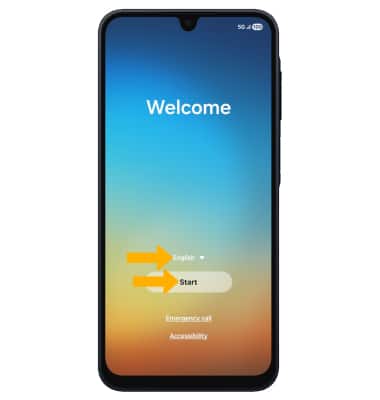
1. When turning on the AT&T amiGO jr. phone for the first time, you will be walked through a series of prompts to set up your device. Choose the desired language, then select Start to continue.
2. Select the desired agreement to review the device's policies as desired. If you agree, select the desired circles then select Agree.
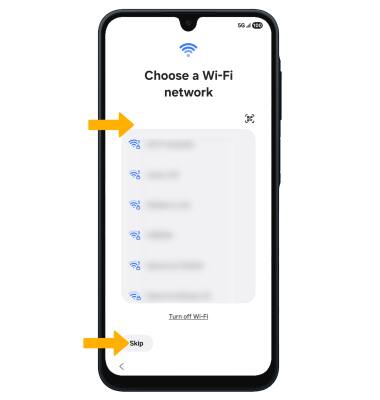
3. If you would like to connect to a Wi-Fi network, select the desired network name and follow the on-screen prompts. Select Skip to proceed without connecting to Wi-Fi.
Note: If your SIM card is not a new SIM card, you will get a Use your new SIM card prompt. Insert a new SIM card into the SIM tray and select Retry, or select Skip to continue setup using your old SIM card.
4. Logging into a Google account is required if you intend to use Google Services such as the Play Store, Gmail, Google Maps, and more. We recommend that if you want to use Google services for your child you create a NEW adult (13+) google account for yourself on this phone that you will use to manage your child’s access to apps and services. If you would like to add your Google account, enter your Email or phone then follow the prompts. If you do not have an account but would like to add one, select Create account. If you would like to continue without setting up an account, select Skip. Select Next to continue.
5. The device will take moment to arrive at the home screen.
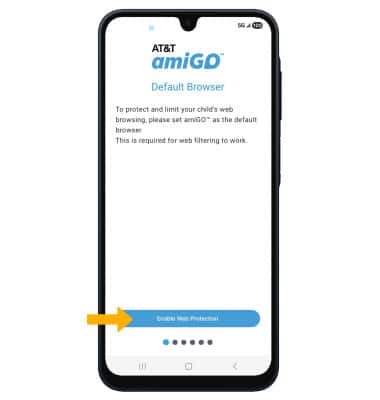
6. Review the Default Browser prompt, then select Enable Web Protection.
7. Select the circle next to amiGO, then select Set as default.
8. Review the Default Home Screen prompt, then select Enable App Control.
9. Select the circle next to amiGO, then select Set as default.
10. Review the Display Over Other Apps prompt, then select Enable App Blocking.
11. Select the switch next to the amiGO app.
12. Review the System Settings prompt, then select Enable Device Control.
13. Select the Allow permission switch.
14. Review the Device Admin App prompt, then select Enable Activate Device Admin App.
15. Select Activate.
16. Review the Accessibility Service prompt, then select Allow Protection.
17. Select Installed apps.
18. Select amiGO.
19. Select the On switch, then select Allow.
20. Review the Welcome to amiGO prompt, then select Next.
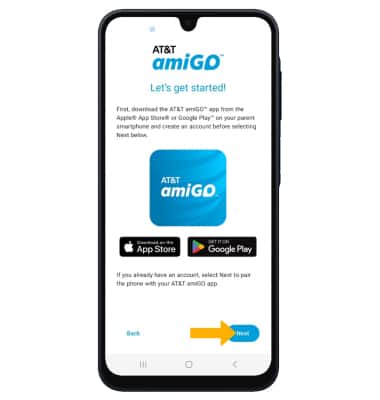
21. You will be prompted to download the AT&T amiGO™ app on your paired smartphone. If you do not have a parent account with amiGO, select Create Account and follow the prompts. If you already have an account, select Next on your AT&T amiGO™ Jr. Phone. Please download the AT&T amiGO app on the parent device. Navigate to and select the Play Store or Apple App store > search for and select the
AT&T amiGO™ app > select Install.
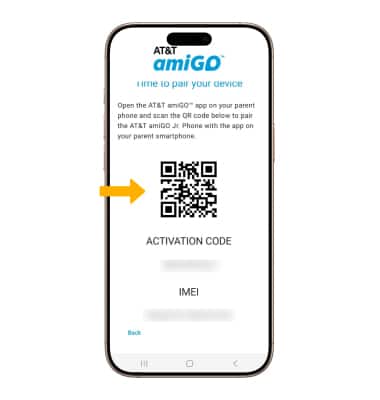
22. Open the AT&T amiGO™ app on your parent phone and scan the QR code to pair the AT&T amiGO™ Jr. Phone with the app on your parent phone.
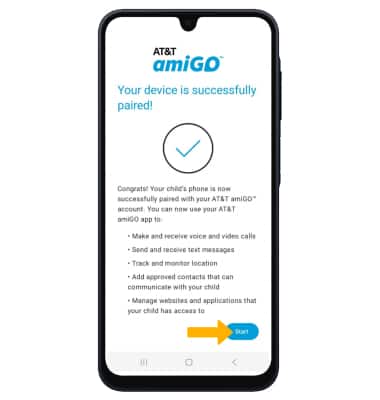
23. Your devices are now paired. Select Start.
What's in the box?
• pSIM
• SIM tray eject tool
• USB-C Cable
• Let's Get Started Guide (QSG)
• Product Safety & Warranty Information