Reset Device
How to reset the device to its factory settings.

In this tutorial, you will learn how to:
• Power cycle the device
• Restart from the management website
• Factory reset from the management website
• Factory reset on the device
Power cycle the device
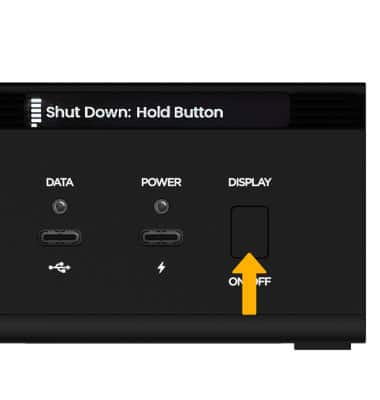
Power cycling your device will not erase your configuration settings. Short press the Display button until Shut Down displays, then press and hold the Display button until the device powers off.
Restart from the management website
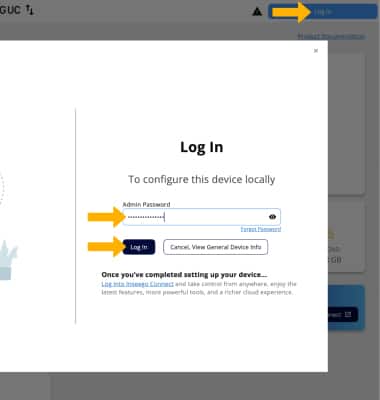
1. From your device’s web browser, go to http://Inseego.local or https://192.168.1.1. Click Log In in the upper right corner of the screen. Enter your password, then click Log In.
Note: Ensure that your device is connected to the Inseego Wavemaker FX4200 Wi-Fi network. For more information, please see the Connect Devices to Wi-Fi or Connect PC or Mac to Wi-Fi tutorials.
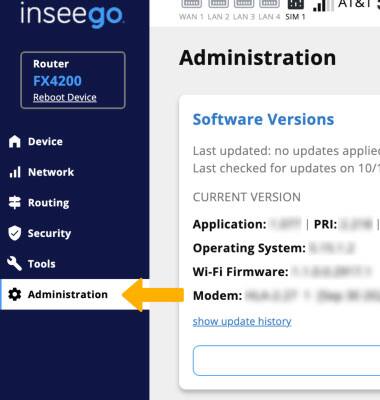
2. Click Administration, on the left side of the screen.
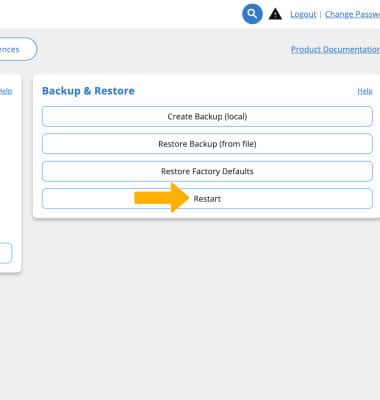
3. Click Restart. The Inseego Wavemaker FX4200 will take a moment to restart.
Factory reset from the management website
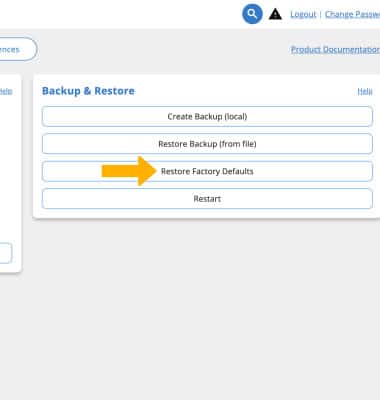
1. The factory reset will erase all configuration settings and put the device back to its factory state. From Administration, then click Restore Factory Defaults.
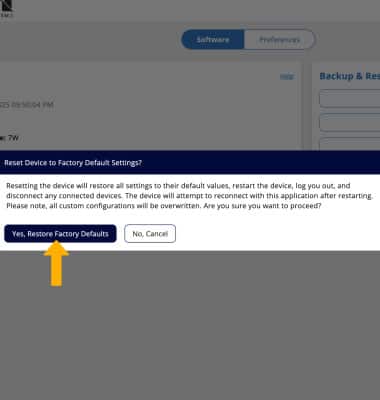
2. Click Yes, Restore Factory Defaults to confirm. The Inseego Wavemaker FX4200 will take a moment to reset.
Factory reset on the device
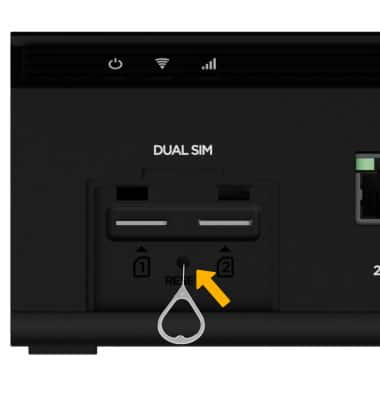
The factory reset will erase all configuration settings and revert the device to its factory state. With the SIM cover removed, use a SIM Tool to press and hold the Reset button below the SIM slots for 5 seconds. The Inseego Wavemaker FX420 will take a moment to reset.