Limited or No Mobile Connectivity
What to do if there is limited or no connectivity.
In this tutorial, you will learn how to:
• Check LED network status
• Check network status from a connected device
• View/unblock blocked devices
Check LED network status
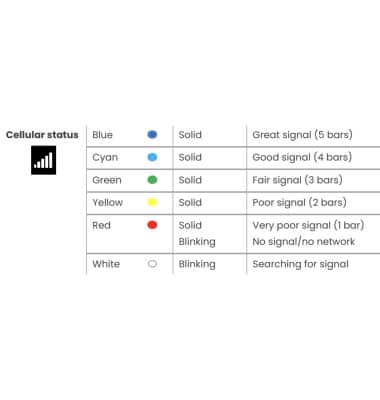
If your Inseego Wavemaker FX4200's Mobile network is not found, check the LED status first.
Note: For optimal placement, place your Inseego Wavemaker FX4200 on a higher shelf and near a window. Try to avoid placing the device near items that may interfere with wireless network signal, such as large appliances, microwaves, stone or concrete walls, metal cabinets, computer monitors or televisions screens.
Check network status from a connected device
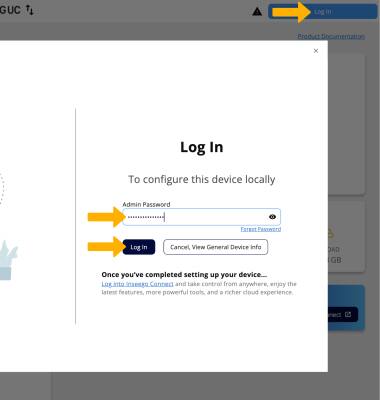
1. You can also check the strength of your cellular connection from the Web admin page. From your device’s web browser, go to http://Inseego.local or https://192.168.1.1. Click Log In in the upper right corner of the screen. Enter your password, then click Log In.
Note: Ensure that your device is connected to the Inseego Wavemaker FX4200 Wi-Fi network. For more information, please see the Connect Devices to Wi-Fi or Connect PC or Mac to Wi-Fi tutorials. If you haven’t logged into the Web admin page before, the default password will be displayed on the bottom of the device. You may be prompted to change the admin password.
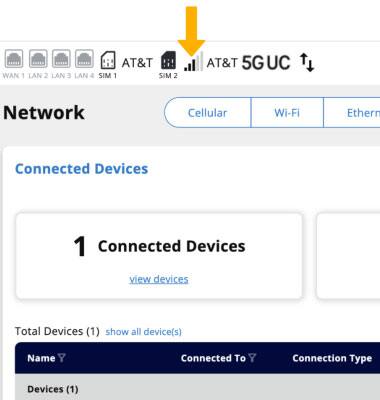
2. Your signal strength will be displayed in the web admin homepage.
Note: If on the Web Admin page there is no Cellular or poor cellular signal, try moving your Inseego Wavemaker FX4200 to another area, preferably closer to a window to get better signal strength.
View/unblock blocked devices
1. If you cannot find the network, your connected device may be on the Blocked Devices list. From the Web Admin’s dashboard, click Network then click the Devices tab.
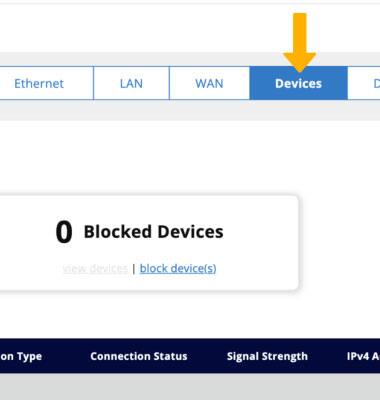
2. Click view devices under Blocked Devices. Blocked devices will be displayed.
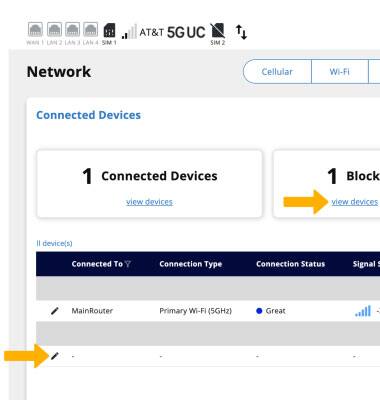
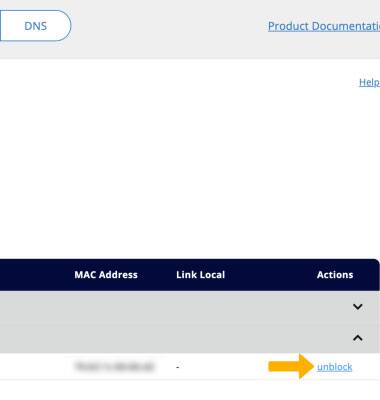
3. To unblock a device, click unblock next to the desired device.