LED Indicators
Learn what each LED indicator means.
In this tutorial, you will learn how to:
• Locate the LED Status Lights
• Check Device status LED indicator
• Check Cellular status LED indicator
• Check Wi-Fi status LED indicator
Locate the LED Status Lights
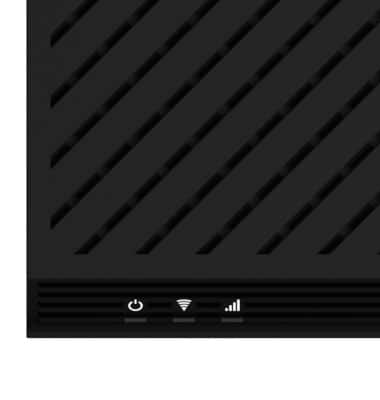
The three LED lights located on the front of the device indicate the status of the Inseego Wavemaker FX4200's functionalities. Wait for the device to power up. Once the Wavemaker FX4200 is powered up, the LED Status Lights will turn solid. This will take approximately 2-3 minutes.
Check Device status LED indicator
The Device LED Status Lights indicate the current status of the device.
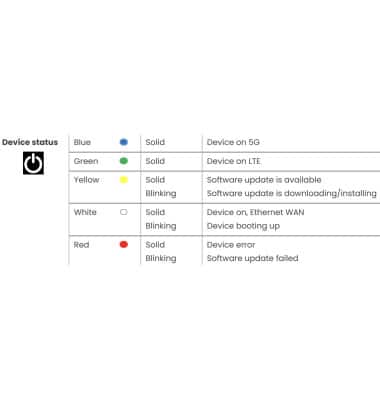
• When the LED Status Light is solid blue, the device is receiving a 5G signal.
• When the LED Status Light is solid green, the device is receiving a LTE signal.
• When the LED Status Light is solid yellow, there is a software update available.
• A blinking yellow LED status light indicate that a software update is downloading/installing.
• When the LED Status Lights is solid white, the device is on and the Ethernet WAN is connected.
• A blinking yellow LED status light indicate that the device is booting up.
• When the LED Status Light is solid red, there is a device error.
• When the LED Status Light is blinking red it indicates that a software update has failed.
Check Cellular status LED indicator
The Cellular Status Lights indicate the wireless network signal strength and status.
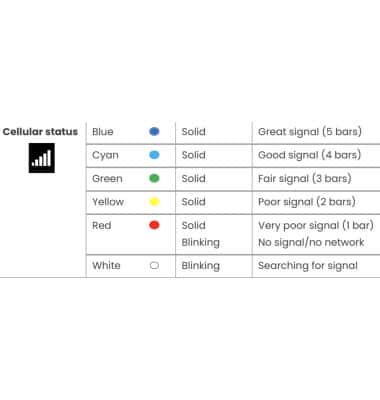
• When the LED Status Light is solid blue, the wireless network signal is great.
• When the LED Status Light is solid cyan, the wireless network signal is good.
• When the LED Status Light is solid green, the wireless network signal is fair.
• When the LED Status Light is solid yellow, the wireless network signal is poor.
• When the LED Status Light is solid red, the wireless network signal is very poor.
• A blinking red LED status light indicates there is no signal.
• When the LED Status Light is blinking white, the device is searching for a signal.
Check Wi-Fi status LED indicator
The Wi-Fi LED Status Lights indicate the wireless network signal strength and status.
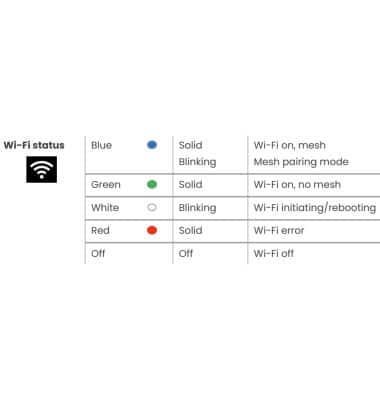
• When the LED Status Light is solid blue, Wi-Fi is on and connected to mesh.
• When the LED Status Light is blinking blue, the device is in mesh pairing mode.
• When the LED Status Light is solid green, Wi-Fi is on and not connected to mesh.
• When the LED Status Light is blinking white, the Wi-Fi network is initiating or rebooting.
• When the LED Status Lights are solid red, there is a Wi-Fi error.
• When no lights display, Wi-Fi is off.