Sound Recorder
Learn how to record your voice and access saved recordings.
In this tutorial, you will learn how to:
• Access Sound Recorder
• Use Sound Recorder
• Access Saved Recordings
• Delete a Recording
Access Sound Recorder
From the home screen, press the Center Dynamic key to access the Menu. Press the navigation keys to highlight Applications, then press the Select button to select. Press the navigation keys to highlight the Sound Recorder app, then press the Select button to select.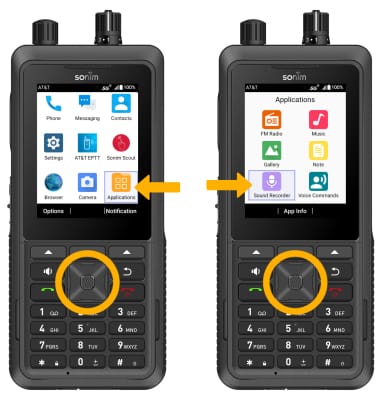
Use Sound Record
1. From the Sound Recorder, press the Center Dynamic key to select Record. 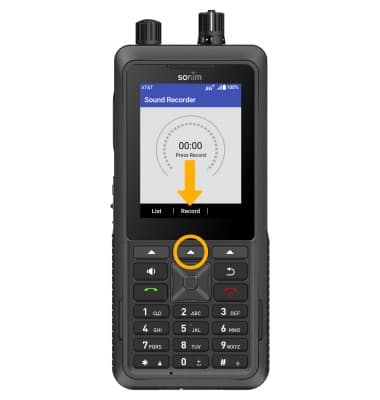
2. To pause a recording, press the Center Dynamic key to select Pause. To resume a recording, press the Center Dynamic key to select Resume.
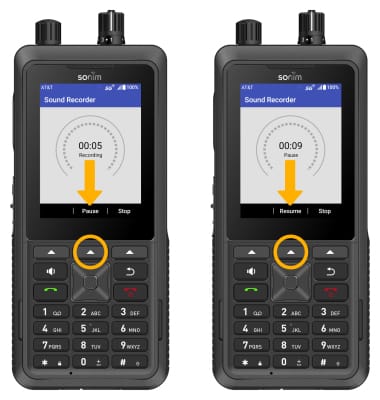
3. To stop a recording, press the Right Dynamic key to select Stop.
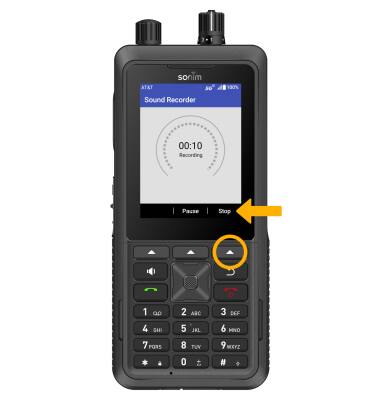
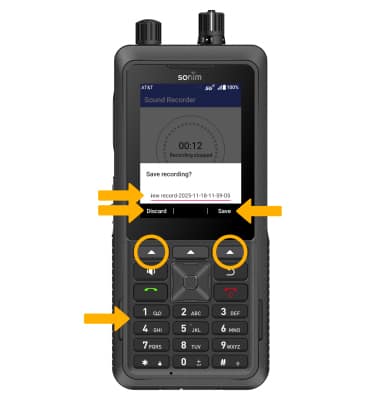
4. When finished recording, use the keypad to enter the desired name. Press Right Dynamic key to Save a recording. Press the Left Dynamic key to Discard a recording.
Access Saved Recordings
To access saved recordings, from the Sound Recorder screen, press the Left Dynamic key to select List. Saved recordings will be displayed.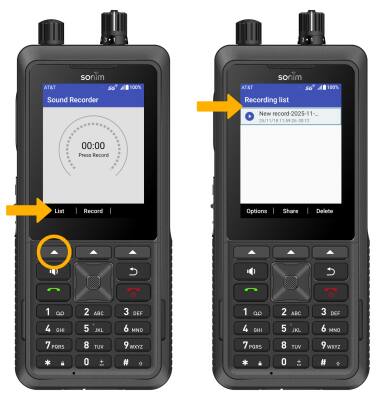
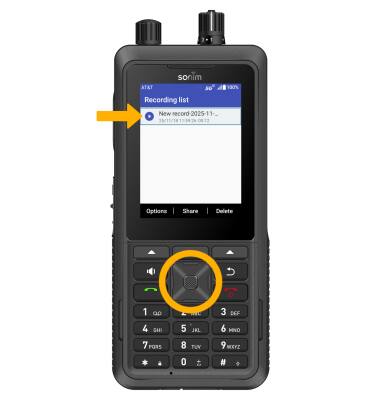
To play a saved recording, press navigation keys to highlight the desired recording then press the Select button.
Delete a Recording
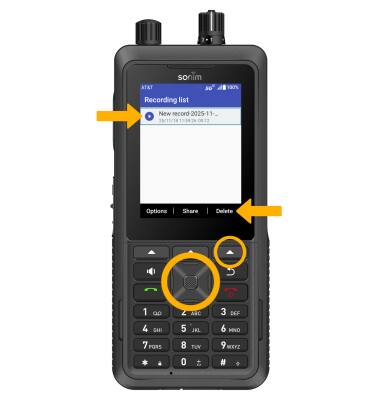
From the Recording list screen, press navigation keys to highlight the desired recording then press the Right Dynamic key to select Delete.
Note: Press the Right Dynamic key again to select Delete to confirm.