Advanced Photo & Video Features
Learn how to access and use Camera modes, effects, customization, and crop a photo.

 Camera app. You can also press the Side button twice or swipe up from the Camera icon on the lock screen.
In this tutorial, you will learn how to:
• Access camera modes and filters
• Customize photo and video settings
• Turn shutter sound on/off
• Crop a photo
• Use object eraser
• Access and use Pro mode
• Access and use Audio eraser
Access camera modes and filters
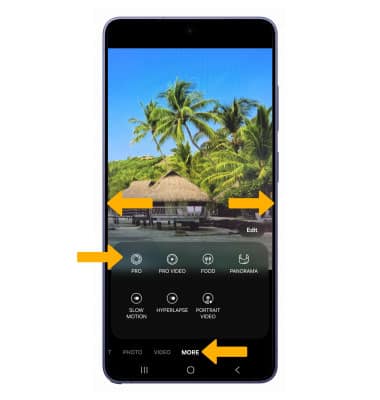
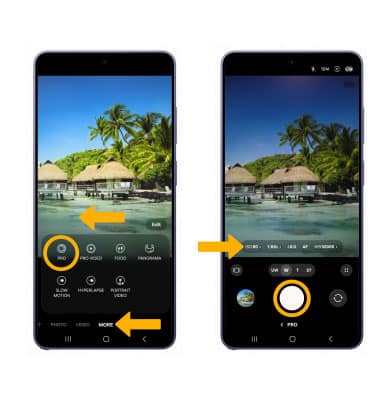
From the Camera app, swipe left to MORE to access camera modes such as Pro, Panorama, Slow motion and Hyperlapse.
Note: Pro allows you to manually adjust settings such as ISO, shutter speed and exposure levels. Panorama allows you to create wider photos by stitching together multiple photos. Slow motion allows you to record videos at a high frame rate which can be played in slow motion. Hyperlapse allows you to capture changes that happen slowly in a smooth time-lapse video.
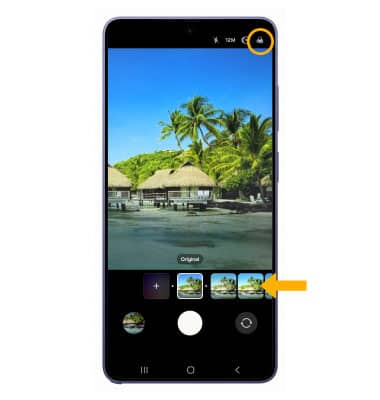
To access filters, select the Filters icon then select the desired filter.
Note: Filters are not available in some camera modes.
Customize photo and video settings
From the Camera app, select the  Quick control icon then select the
  Settings icon. Edit settings as desired.
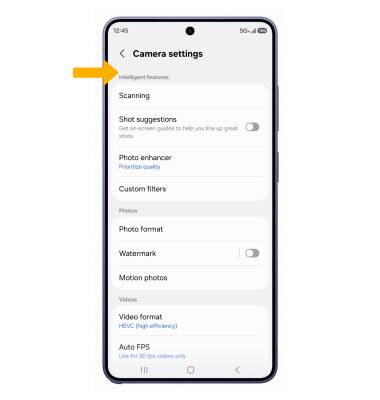
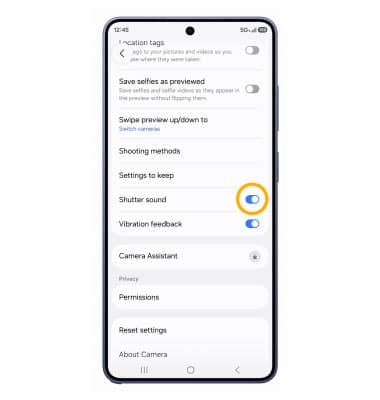
Turn shutter sound on/off
From the Camera settings screen, scroll to and select the Shutter sound switch.
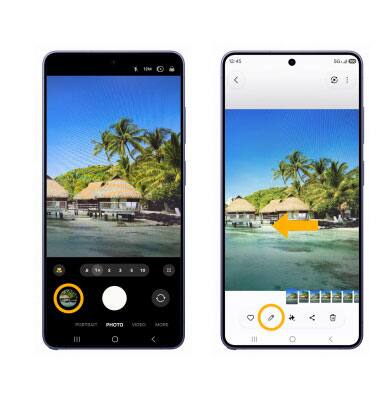
Crop a photo
1. From the Camera app, select the Gallery icon. Swipe left to the desired photo, then select the Edit icon.
Note: Alternately, from the home screen, select the  Gallery app then navigate to and select the desired photo.
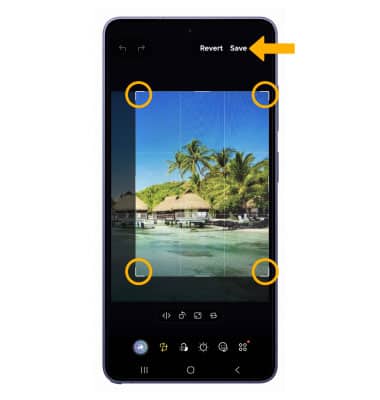
2. Select and drag the crop corners to crop as desired, then select Save.
Use object eraser
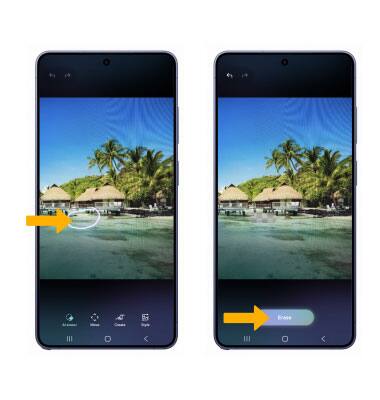
1. From the desired photo, select the AI icon, then select AI eraser.
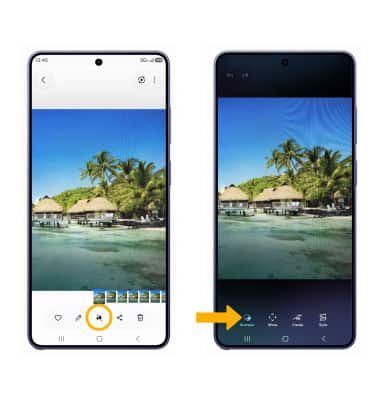
2. Circle the desired object to erase, then select Erase. The area will be filled in using AI generated images based on the surroundings.
Note: When finished, select Save copy.
Access and use Pro mode
From the Camera screen, swipe left to MORE then select PRO. Adjust settings such as ISO, shutter speed and exposure levels as desired then select the Capture icon.
Access and use Audio eraser
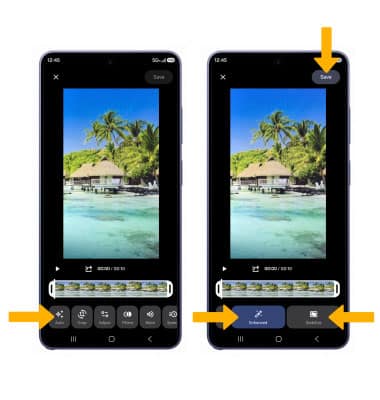
1. Audio eraser eliminates distracting noise in videos by adjusting the volume of voices, wind and other sounds. To access Audio eraser, navigate to and select the Gallery app, then navigate to and select the desired video to edit. Select the Edit icon.
Note: To access the Gallery app, swipe up from the center of the home screen to access the Apps tray then navigate to and select the Gallery app.
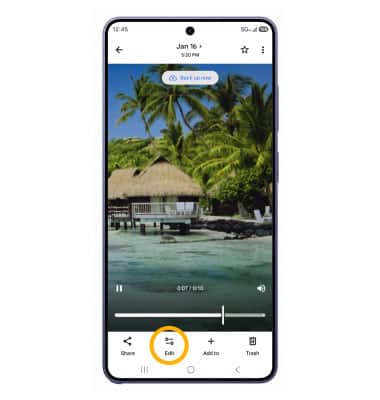
2. Select Auto, then select desired option. When finished, select Save.
Note: For this demonstration, Enhanced was selected.