Change APN
Access and change the APN on the device.
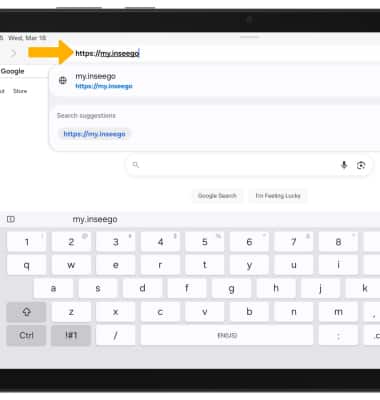
1. From your device's web browser, go to http://my.inseego.
Note: Ensure that your device is connected to the Inseego MiFi PRO M4's Wi-Fi network. For more information, please visit the Connect Devices to Wi-Fi or Connect PC or Mac to Wi-Fi tutorials. If this is your first time logging into the Web admin page, the default password will be displayed on the bottom of your device. You will be prompted to change the admin password.
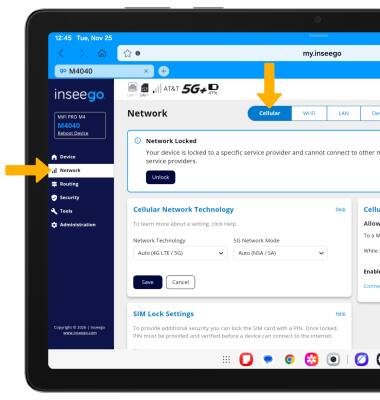
2. Select the Network menu, then select the Cellular tab.
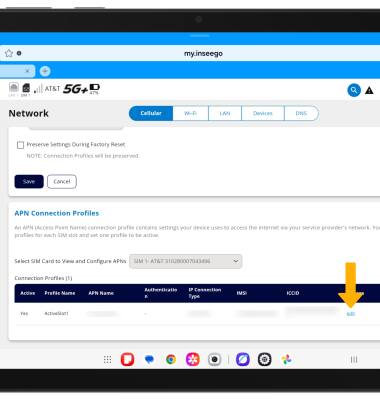
3. Scroll to APN Connection Profiles, then select edit next to the desired profile.
4. Review the Modifying the Connection Profile prompt, then select Yes, Edit Profile.
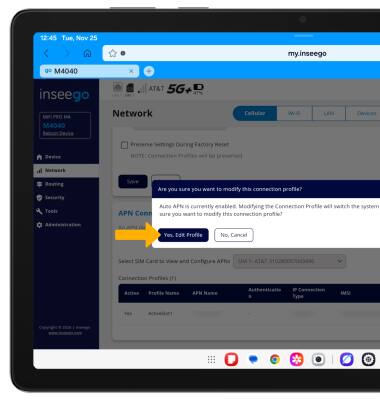
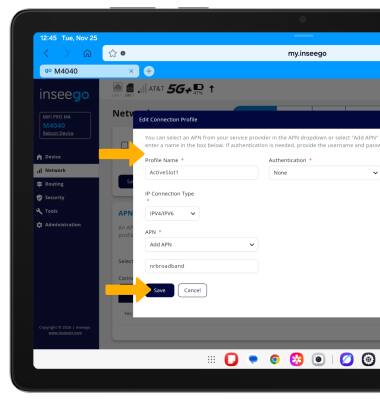
5. Edit the desired settings, then select Save.
Note: Changing APN information could result in connection failure. Please contact your service provider before changing APN and only do so when it's needed.