Connect WPS Devices
Learn how to connect WPS devices.
In this tutorial, you will learn how to:
• Connect to a WPS device
Connect to a WPS device
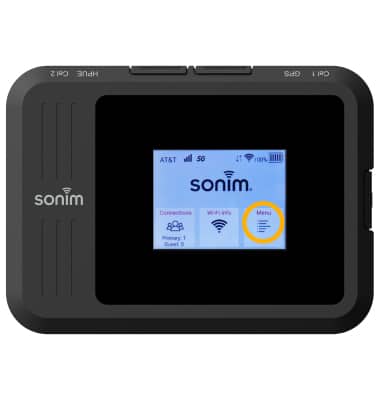
1. To connect to a WPS device, from the home screen, select Menu.
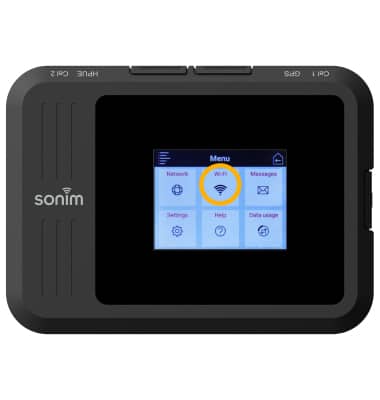
2. Select Wi-Fi.
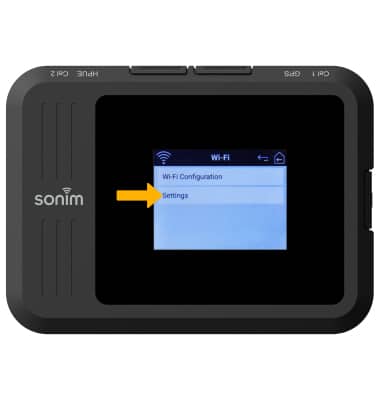
3. Select Settings.
4. Select WPS.
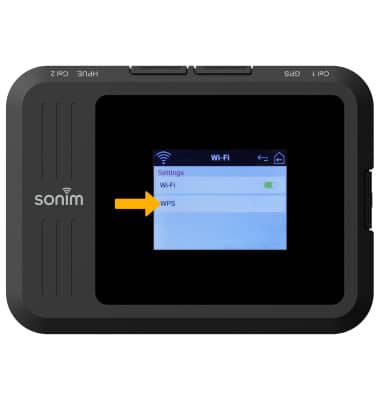
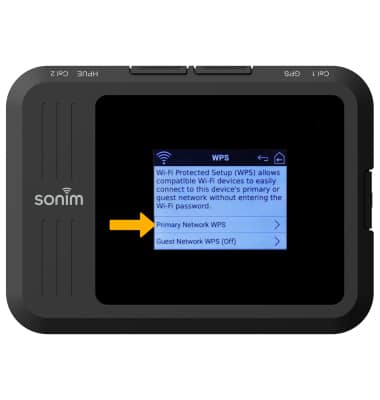
5. Select the desired network you would like to use WPS on.
Note: For this demonstration, Primary Network WPS will be selected.
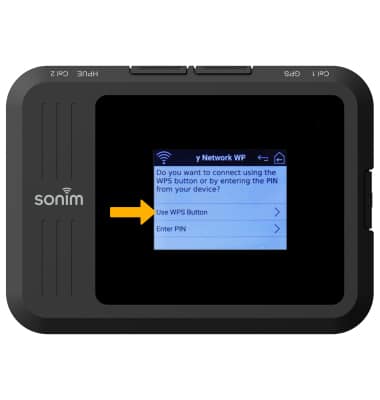
6. Select Use WPS Button. You many now press the WPS button on the device you are trying to connect to the Sonim MegaConnect's Wi-Fi network.
Enable WPS from management website
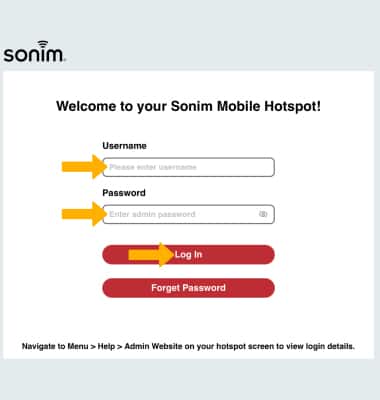
1. From your device's web browser, go to http://sonim.mobilehotspot. Enter the Username and Password, then click Log In.
Note: Ensure that your device is connected to the Sonim MegaConnect's Wi-Fi network. For more information, please visit the Connect Devices to Wi-Fi or Connect PC or Mac to Wi-Fi tutorials. If this is your first time logging into the Web admin page, the default password will be displayed on the device. From the home screen, select Menu > Help > Admin Website.
2. Click Wi-Fi on the top of the screen, then click 2.4GHz Band.
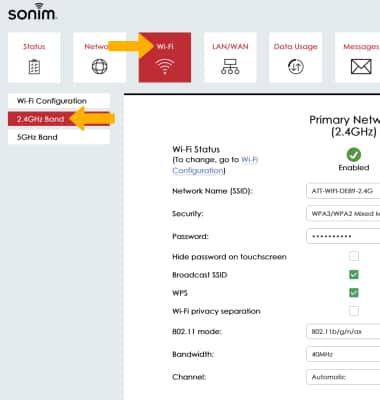
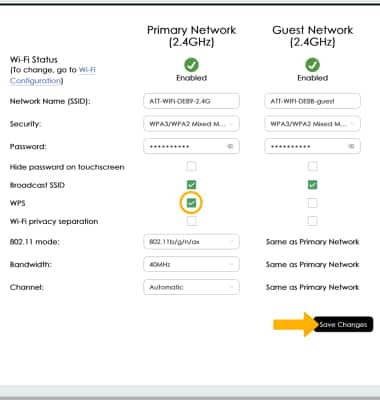
3. Click the WPS checkbox under the desired network, then click Save Changes.
Note: Only one network can have WPS enabled at a time.